
Go to documentation repository


Page History
...
To continue installation, free up port 20111 and try again.
Error connecting to the Postgres Database
After installation of the Postgres database, the Axxon One installer may quit prematurely. This situation may be associated with the inability of the installer to connect to the Postgres database, if the firewall is enabled. To prevent this, disable your firewall during installation.
| Info | ||
|---|---|---|
| ||
Disabling the firewall during installation can cause another problem—see No signal from video cameras and failure to connect to other servers. |
| Anchor | ||||
|---|---|---|---|---|
|
In some cases, you may encounter errors while installing installing Drivers Pack:
| No Format |
|---|
Installation failed because the Universal C Runtime is not installed. Please run Windows Update and install all required Windows updates(KB2999226). You can download the UCRT separately from here: 'https://support.microsoft.com/en-us/kb/2999226'. |
This can be solved by installing the Windows update update KB2999226.
Window 10 OS installation error
When you install Axxon One on Windows 10.0.17763 and up you may see the Create Recovery Archive error message.
To fix the error, do as follows:
...
Error connecting to the Postgres Database
After installation of the Postgres database, the Axxon One installer may quit prematurely. This situation may be associated with the inability of the installer to connect to the Postgres database, if the firewall is enabled. To prevent this, disable your firewall during installation.
| Info | ||
|---|---|---|
| ||
Disabling the firewall during installation can cause another problem—see No signal from video cameras and failure to connect to other servers |
...
. |
Server error on Windows 11
...
OS and Windows Server 2019 OS
On Windows 11 OS
...
and Windows Server 2019
...
OS errors may occur in the Server operation when Guardant drivers are installed. It is recommended not to install Guardant drivers. Installation of Guardant drivers is disabled by default.
For the correct installation of Guardant drivers, it is necessary to disable the check of the drivers digital signature
...
in the operating
...
system and disable Secure Boot in BIOS.
Guardant drivers compatibility issue
When you
...
install Axxon One, a Guardant driver compatibility issue may occur (grdkey.sys
...
or grdusb.sys
...
file error).
To fix the error, do as follows:
...
- Disable Memory integrity:
...
- Open Windows Security Center
...
- → Device security.
- In
...
- the Core isolation
...
- section, click the Core
...
- isolation information link.
- Set
...
- the Memory integrity
...
- switch to the inactive position.

- After you complete these steps, restart your computer to apply the changes.
- switch to the inactive position.
...
- Disable Device Guard:
- Using the command line, run the gpedit.msc command to launch
...
- the Local Group Policy Editor.
- Go
...
- to Computer Configuration
...
- → Administrative Templates
...
- → System
...
- → Device Guard
...
- → select Enable virtualization-based security
...
- on the right.
- After you disable these options, restart your computer and reinstall the current version of Guardant drivers.
| Note | ||
|---|---|---|
| ||
If you use modern Guardant keys (Sign/Sign Net/Time/Code), you can contact the developer of the protected application and request to switch the key to driverless mode (see the the official Guardant documentation). In this case, it will not be necessary to install the Guardant Driver on your computer to work with the key. |
Window 10 OS installation error
When you install Axxon One on Windows 10.0.17763 and up you may see the Create Recovery Archive error message.
To fix the error, do as follows:
- Go to Control Panel → Clock and Region → Region → Administrative tab → Change System Locale.
- Deselect the checkbox Beta: Use Unicode UTF-8 for worldwide language support.
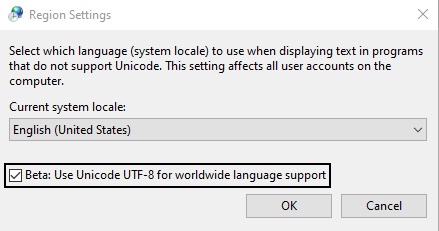
- Reinstall Axxon One.
An error occurred when installing on Windows with the language pack Norsk (bokmål)
...
You must install Norsk Language Pack (nynorsk).
Error uninstalling Axxon One on systems with Videoinspector installed
In some cases, uninstalling Axxon One may be impossible if Videoinspector is used.
To correctly uninstall Axxon One, first uninstall Videoinspector.
Overview
Content Tools