
Go to documentation repository


Page History
The Status To set the position of the State statistics interface window position on the screen in configured as follows, do the following:
- Go to the settings panel of the State statistics object.
 In the X and Y fields (1), specify
 - Set the position of the State statistics interface window in one of the following ways:
- Manually:
- Specify the coordinates of the State statistics window position on the screen. To do this, change the values in the X and Y fields.
The values of the X and Y fields correspond to the coordinates of the upper left corner position on the screen and are expressed as percentages relative to the screen size horizontally and vertically. - Specify the width and height of
- Specify the coordinates of the State statistics window position on the screen. To do this, change the values in the X and Y fields.
the interface window.In the W and H fields (2), specify the width and height of the interface - Manually:
- the State statistics window displayed on the screen. To do this, change the values in the W and H fields.
The values of the W and H fields are expressed as percentages relative to the screen size horizontally and vertically.
- the State statistics window displayed on the screen. To do this, change the values in the W and H fields.
- Using the test window:
- Click the
 button.
 - Place the Specify dimensions opened test window where the State statistics window must be displayed:
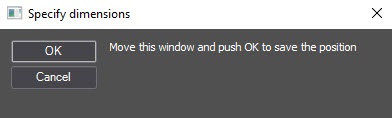
- Click the OK button.
As a result, the coordinates in the X, Y, W, H fields are set in accordance with the size and position of the test window.
- Click the
- From the Monitor drop-down list (3)
- , select the physical monitor where
- computer monitor on which you want to display the interface window should be displayed. The monitors
- .
Monitors are numbered in the order of their physical placement - location from left to right and from top to bottom, regardless of the numeration in the operating system numbering
- .
- Set the
- the Allow moving check box (4) to
- checkbox if you want to allow the Operator
- operator to change the position of the State statistics window position
- .
- Click the Apply button to save the settings.
Configuring Setting the position of the State statistics interface window position on the screen is screen is complete.
Overview
Content Tools