
Go to documentation repository


Page History
| Section | |||||||||||||||||||||
|---|---|---|---|---|---|---|---|---|---|---|---|---|---|---|---|---|---|---|---|---|---|
|
Creating test events
The Editor-Debugger utility You can use test events specified by the user and generated by the utility to debug scripts in the Editor-Debugger utility. Test events are not aren't registered by the video surveillance system, it which means they aren't displayed in the Event Viewer event viewer and aren't saved recorded to the database.
No You can create no more than one test event can be created for each script.
To create a the test event, do the following:
- In the
- Select the Edit test event command in the Debug and edit menu , select Edit test event, or click
- . You can also open this panel by clicking the
 button in the toolbar.
 - The Test message window will openopens. This window is used for entering to enter the parameters of a the test event.
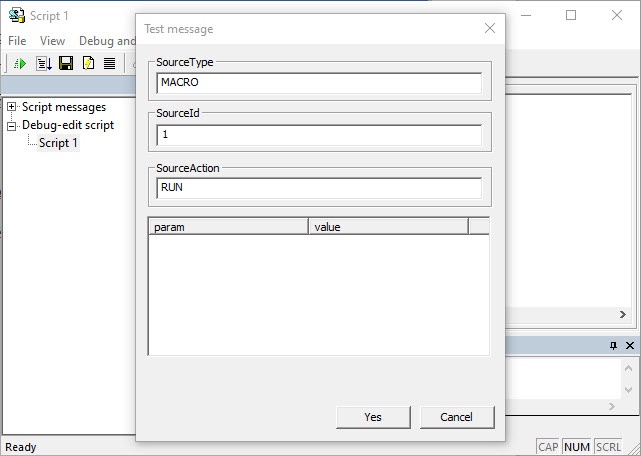
- Enter the following information in In the fields of the the Test message window, enter the following:
- SourceType—system object type;
- SourceId—system object identification number;
- SourceAction—event generated by the specified system object;
- param—additional event parameters;
- value—values of the additional parameters.
Info title Note The main system objects, their events and parameters are described in Description of events and reactions of system objects. You can also get them using the ddi.exe utility (see Getting the list of system names of objects, reactions and events in Axxon PSIM).
- When you filled fill in the fields of the the Test message window, click the OK button.
The process of creating the test event is now createdcomplete.
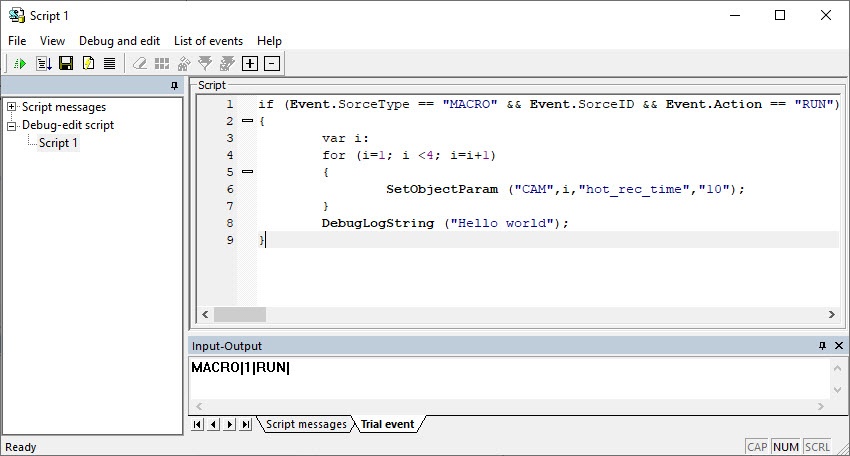
The created After you create the test event will be , it is displayed in the the Event field in a the special string format.
The figure below shows the test event Arm Camera 111 Run Macro 1.
Running a script with
...
the test event
To You can run the script with a the test event , do in one of the following ways:
- Click the Test run
 button located in the utility toolbar.In
 - Select the Test run command in the Debug and edit menu , select Test run
- . In the
- Select the Test run with a debugger command in the Debug and edit menu , select Test run in third-party debugger
- .
When you select the run the script using the Test run in third-party debugger optionwith a debugger command, the third-party debugger starts to run the test running (see Using third-party debugger programs).
The results of the verification and script execution of the script are displayed in the corresponding debugging window debug window of the the Editor-Debugger utility.
Overview
Content Tools