
Go to documentation repository


Page History
When Axxon you use Axxon PSIM is used in a large-scale system with in systems with the distributed architecture, you must synchronize the databases of Servers servers and Remote Admin Administrator Workstations must be synchronized. Database The database synchronization allows storing data both centrally (on a single one server or the Remote Admin Administrator Workstation) and in a the distributed manner way (data replication from different servers server and Remote Admin Workstation databases of the video surveillance system). Database The database synchronization provides parallel operation with servers server and Remote Admin Workstations Workstation databases and their automatic updating after they have been modifiedupdate after modification.
By default, Axxon PSIM databases on servers and Remote Admin Workstations are not aren't synchronized. Usually, Axxon PSIM is configured to synchronize all databases with a single one centralized database hosted located on the Administration Serveradministration server.
| Info | ||
|---|---|---|
| ||
| If one or more several databases are stored in the MS Access format, they need to be converted to you must convert them to the MS SQL server format before the synchronization setup. |
The Administration Server administration server acts as a the synchronization source. The second-level Server/RAW will accept server/Remote Administrator Workstation accepts all database changes from the Administration Serveradministration server.Synchronization You must always be performed from the perform synchronization from the second-level Server to the Administration Server, or from the RAW to the Administration Serverserver to the administration server, from the Remote Administrator Workstation to the administration server.
| Note | ||
|---|---|---|
| ||
You On the administration server, you must install all vertical solutions used for in the system with the particular distributed system on your Administration Serverarchitecture, or all .the ddi and .dbi files, as well as the updated database containing these files, must be present there. |
To synchronize configure the synchronization of the Axxon PSIM ConfigurationPSIM Configuration database with the Administration Server administration server database (or any other database), do the following actions on RAW/the second-level Server Remote Administrator Workstation/server:
- Make sure that the MS SQL Server software is running.
- Start the idb.exe utility from located in the root of the Axxon PSIM installation directory (for example, C:\Program Files (x86)\Axxon PSIM\Tools64). The dialog window of the idb.exe utility opens.

- Select the Synchro source item from the Select data source list.
- Set the Use checkbox.
- Click the Configure
 button.
 - The Data Link Properties dialog window opens.
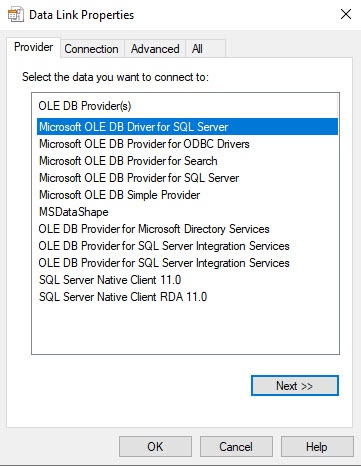
- Go to the Provider tab in the Data Link Properties dialog
- window.
- Select the Microsoft OLE DB Provider for SQL Server item from the the OLE DB Provider(s) list.
- Click the Next button.
- After you click the Next button, you are automatically redirected to the Connection tab.

- In the 1. Select or enter a server name line, select from the drop-down list or input enter manually the address name of the MS SQL server containing that contains the database that is used as a source to sync with the current database.from which you want to synchronize the current one.
- In the The 2. Enter information to log on to the server group is used to enter , specify the type and authentication parameters of to connect to the MS SQL server connection. The MS SQL server authentication is performed through the user account , authorized in the Windows OS, or by the user name (login) and password that protect the MS SQL server connection.
The method and parameters of used for authentication at on the MS SQL server are set during the MS SQL server installation.
Different parameters need to be entered, with different authentication techniques for MS SQL server connection:
Depending on the authentication method that is required to connect to the MS SQL server, specify the following parameters:- If the If MS SQL server authentication is performed through a user’s the user account in the Windows OS account, set the switch to the Use Windows NT Integrated security position. The user’s current account Also, you must register the user account under which the user is currently authorized in the Windows OS on the computer , from which the synchronization setup is performed , must be logged into on the computer with where the MS SQL server is installed and the database to be synced withwith which you want to synchronize is stored.
- If the MS SQL server authentication is performed through the user name (login) and password, follow do the sequencefollowing:
- switch to the Use a specific user name and password position;
- in the In the User name field, enter the user name (login) to connect to the MS SQL server.
- if If access to the MS SQL server is protected by a password protected, clear the Blank password checkbox, and in the Password field, enter a password to access the database access password into the Password field.
- set Set the Allow saving password checkbox.
go Go to the All tab.


in In the Persist Security Info field, set the True value. This is necessary to correctly save the user password.
Info title Note Each time you change the server connection parameters, you must set the True value in the Persist Security Info field value to True.
- Click the Test Connection button on the Connection tab.
- If you successfully connect to the MS SQL server was successfully connected, the “Test Test connection succeeded” succeeded message is displayed.


- Click the OK button in the message window to close the window
- it.
- If you specify incorrectly the MS SQL server name and/or authentication parameters of
- used to connect to the MS SQL server connection were specified incorrectly
- , the error message will appear
- appears.

- Click the
- the OK button to close the window. Then enter
- change the correct password
- entered data and try to reconnect to the MS SQL server connection again
- .
- From the Select the database on the server: list, choose select the name of the database to be synced with with which you want to synchronize the current baseone.
Info title Note You must select a database at this step. If you leave the database field blank, then after you close the Data Link Properties window, the line "Database is not set in connection settings" appears in the database description window of the IDB idb.exe utility, and the OK button to save changes is becomes inactive.
- Click the OK button in the Data Link Properties dialog window. The window closes.
- Click the OK button located in the bottom right bottom corner of the idb.exe utility window.
Database Configuring the database synchronization setup is completedcomplete.
| Tip |
|---|
...
Overview
Content Tools