
Go to documentation repository


Page History
Create To create the Video Capture Device object as followscapture device object, do the following:
- Go to the Hardware tab in the Systemsettings dialog box (1)window.
- Select Createobject -> Video Capture Devicecapture device in the context menu of the Computer object (2).

As a result, the basic main object settings toolbar panel is displayed.
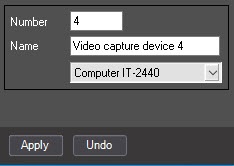
Info title Note Basic Main settings are set automatically.
It is possible toIf necessary, you can change an ID, the object name, and the parent object.
- To create the object, click the Apply button.
- Select the created object in the object tree (1).

- Configure the created object.
In From the Type drop-down list (2), select the type of the video capture card installed on the Server (2)server.
Specify the PCI channel by selecting the value in from the PCI channeldrop-downlist (3). For cards based on one chip model (ADC) and one driver (see the Drivers for video capture cards integrated into the Axxon PSIM™ software section) there is , the allocation of PCI channels between the Video capture device objects must be performed in the end-to-end allocation of PCI channels that starts with ‘00’. order, starting from 00. Examples of the PCI channel allocation between the Video capture device objects:
Info title Note While configuring When you configure the SC300Q16 (FX4) or , SC300D16 (FX8) or , SC330Q16 (analogue of SC300Q16) or , SC330D16 (analogue of SC300D16) video capture cards, take into account the correlation between the color of the BNC video input of the interface cable and the PCI channel specified by in Axxon PSIM ™ software (see the Features of video subsystem configuration section).

PCI channels allocation for cards based on one-chip model (ADC)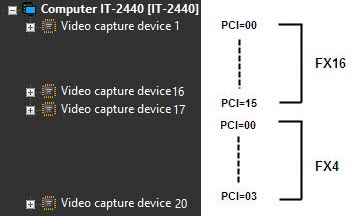
PCI channels allocation for channels allocation for cards based on different chip models (ADC)In From the Signal drop-down list (4), select the type of the video input (, PAL or NTSC) (4).
Info title Note When you use the Stretch VRC 6004, VRC 6008, VRC 6416 and VRC 7008L cards are used, the video input (PAL or NTSC) is selected automatically depending on the camera connected to the card. Change The change of this parameter does not doesn't affect the card operation.
Info title Note When you use the SL16-200 (FX116)/FX416 cards are used, you must restart Axxon PSIM ™ software is to be restarted after changing the video input format. Otherwise, the previous settings are active.
In From the Resolution drop-down list (5), select the resolution: Standard, High, or Full resolution with which the video signal is captured. This action is to be carried out when You must perform this action when configuring WaveHub, LinuxHub or LinuxServer are configured, otherwise this step can be skipped, and LinuxServer; otherwise, you can skip this step.
Specify the allowable frame rate for the card by setting the Speed Rate slider (6) into the corresponding position (6).
Values of the Rate parameter:Value
Description
Max
Maximum The maximum allowable sum of video frame rate
MeanAverage
Half of the maximum allowable sum of video frame rate
Min
One-third of the maximum allowable sum of video frame rate
Click the Apply button to save the changes.
Setting the Video Capture Device Configuring the Video capture device object is completedcomplete.
| Note | ||
|---|---|---|
| ||
Configuration of To configure one physical video capture card requires creation of several Video Capture Device objects , you may have to create several Video capture device objects (see Features of video subsystem configuration section). |
...
Overview
Content Tools