
Go to documentation repository


Page History
The functionality of the alarm indicator buttons contains the information and action components.
- The information component
Alarm indicator badges both indicate information and allow performing actions.
- Information: if an alarm occurs, the badge button becomes red; if confirmed by the operator, it becomes pink, and when the an alarm ends, it returns to the badge becomes inactive againstate.
- Actions: the operator can click the badge to get details on The action component: when you click the button, the operator receives the detailization before the device or an event.
If For example, if a camera at is out of order on an object becomes inoperative, the indicator badge for button corresponding to the Cameras alarm group becomes red.
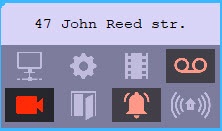
To get the details detailed information about an alarm, you must click the alarm's corresponding icon. The The Reaction to alarm window opens. The The title of the window contains the selected object's name and its ID.
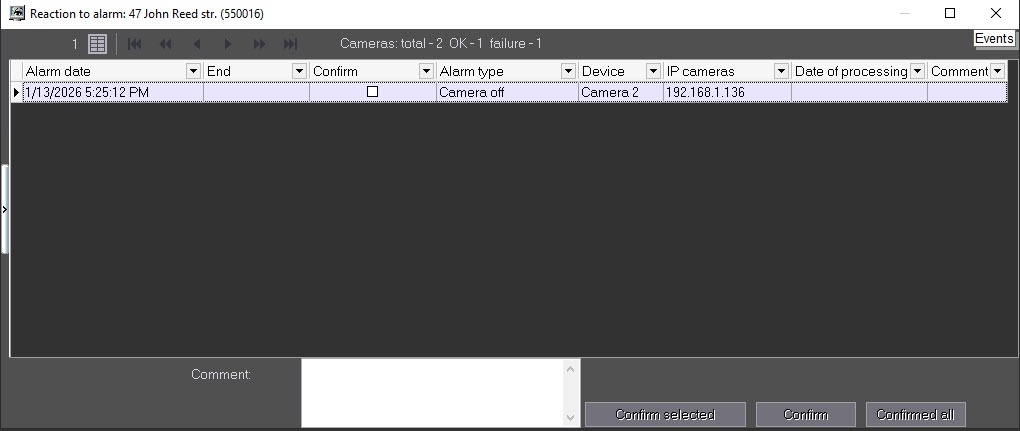
In the The Alarm date field , displays the time when Server of Control had loaded the of loading an alarm from Agent of the Agent of Control to the database Server of Control database. This is not the time when the alarm appeared event occurs on the Agent of Control. For more information on about data transmission, see section the Appendix 1. Data update periods summary section.
The Alarm type field contains the name of the alarm situation, and the Device field gives details on it before the device or an event.
If you check set the Confirm box checkbox in the Reaction to alarm window, the icon's background in on the Control control panel changes from red to orange, and the Date of processing column is automatically filled.

Note that the The Date of processing column will contain column contains not the current computer system time , but the current update time (see the Current Update Time section) stored in the database. This ensures is done so that the operator cannot roll back the system time to confirm the and accept an alarm with a different time.
| Info | ||
|---|---|---|
| ||
When viewing you view the Cameras alarm groupgroups, the the Reaction to alarm window will also display a displays the line with the camera statistics of this object.the given object and the IP camera address. The IP cameras field contains the IP camera address. You can mask it with stars using the HideIpCam=1 parameter of the HKEY_LOCAL_MACHINE\SOFTWARE\BitSoft\VHOST\VHostService registry key (for more details, see Vertical solutions, for information on how to work with the registry, see Working with Windows OS registry). |
If you enable If when configuring the Monitoring interface object, you check the Non-empty Comment field check box, alarms are not closed until an operator comments on them or his/her actions. Any alarm is closed automatically after its cause is resolved (option when configuring the Monitoring interface object, the alarm situation isn't closed until the operator comments on this situation and/or its actions. An alarm closes automatically if you eliminate the cause of this alarm, for example, the connection was broken is lost and then restored).
If you configure a complex confirmation of alarm acceptance is configured, then an additional dialog box window appears when you accept an alarm. To confirm the alarm acceptance, click the OK button, to cancel the action, click the Cancel button.

Confirmations of alarms that have been are automatically accepted by the the Server of Control are not sent aren't transferred to alarms.
| Info | ||
|---|---|---|
| ||
| If the operator does not accept a doesn't accept the short alarm for 5 five days, it is accepted automatically. |
The Reaction to alarm window displays no more than 10000 alarm eventssituations; to view other events, use the navigation button  in button in the lower right corner.
Overview
Content Tools