
Go to documentation repository


Page History
The figure below shows the idb.exe utility dialog boxwindow.
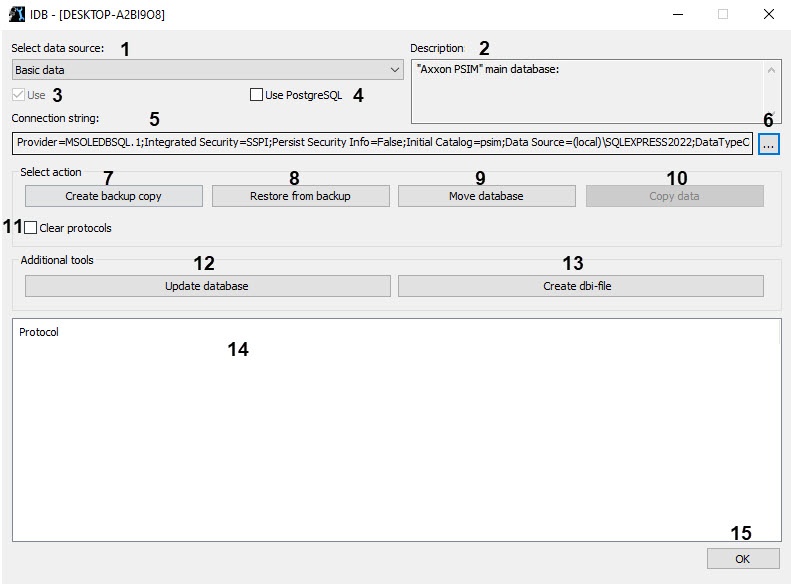
The table describes the interface elements of the idb.exe utility dialog boxwindow.
№ | Element name and type | DescriptionPurpose | Default value | Allowed values | ||||||||||||
1 | The Select data source The drop-down list | The list for selecting the database : local Configuration database, Event protocol database, or a remote database for synchronizationtype for administering | Basic data |
Other values are used when working you work with vertical solutions | ||||||||||||
2 | The Description field | The information field that displays the description of the selected data source common information about the database type selected from the Select data source dropdown drop-down list | Axxon PSIM main database |
Other values depend on the availability of the databases for the installed vertical solutions. | ||||||||||||
3 | The Use checkbox | The checkbox for enabling or disabling the selected database usage. When set, the Configure button becomes active, which is used for setting up the connection to the database | Checked | Checked – database is connected Clear – database is not connected | ||||||||||||
4 | Move database | The button used to transfer MS SQL Server database files (.mdf and .ldf) to the specified folder. The user should have the rights to create files in this folder. When the files are moved, the database is automatically attached. Note. It is possible to move only the local DB (Basic data data source). When using a remote DB (Synchro source data source), files can not be moved | Active | Active – the idb.exe utility is connected to the MS SQL format database Inactive – the idb.exe utility is not connected to the MS SQL format database | ||||||||||||
used to enable or disable the mode of using the database of the selected type | Set | Checked—database is connected Clear—database isn't connected | ||||||||||||||
4 | The Use PostgreSQL checkbox | The checkbox used to enable the mode of using PostgreSQL | Clear | Set—PostgreSQL is used Clear—PostgreSQL isn't used | ||||||||||||
5 | 5 | Configure | The button opens the Data Link Properties dialog box to configure the database connection. This button is active if the Use checkbox is set | Active | Active – the idb.exe utility is connected to the database Inactive – the idb.exe utility is not connected to the database 6 | The Connection string information field | The information field displaying string that displays the summary information about the database connection parameters | Depends on the database connection parameters, the server configuration or the Remote Administrator 's workstation workstations configuration | Displays Contains the combination of the following parameters: Provider, Integrated Security, Persist Security Info, Data Source. The Provider parameter can take the following values:
The The Integrated Security parameter can take the following values:
The Persist Security Info parameter can take the following values:
The Data Source parameter can take the following values:
| |||||||
6 | The | 7 | Information field and the Select dbi-file button | The information field and the button for selecting and displaying the database structure .dbi file. The updated database will have the structure specified in this file | C:\Program Files\Axxon PSIM\psim.dbi | The full path to the .dbi file | ||||||||||
8 | Information field and the Select dbi-file button | The information field and the button for selecting and displaying the information about the .ddi file with system objects, events and reactions | C:\Program Files\Axxon PSIM\Languages\en\Axxon PSIM.ddi | The full path to the .dbi file | ||||||||||||
button used to open the Data Link Properties window. Note. Starting with SQL Server 2022 (16.x) and SQL Server Management Studio 19 versions, the SQL Server Native isn't supplied. As a result, the OLE DB provider is the Microsoft OLE DB Driver for SQL by default on the Provider tab of the Data Link Properties window | NA | NA | ||||||||||||||
| The Select action group | ||||||||||||||||
7 | The Create backup copy button | The button used to start the process of creating the database backup copy | 9 | Create backup copy (MS SQL) | The button for starting the process of creating a backup copy of the database. This button is active if the idb.exe utility is connected to the database of the MS SQL format database | Active | Active – the —the idb.exe utility is connected to the database of the MS SQL server format database Inactive – the —the idb.exe utility is not isn't connected to the database of the MS SQL server format database | |||||||||
108 | The Restore from backup button | The button for restoring used to restore the database from a the previously created backup copy | Active | Active—the idb.exe utility is connected to the database of the MS SQL server format Inactive—the idb.exe utility isn't connected to the database of the MS SQL server format | ||||||||||||
9 | The Move database button | The button used to transfer the MS SQL Server database files (.mdf and .ldf) to the specified folder. The user must have rights to create files in this folder. After you move files, the database is automatically attached. Note. You can move only the local database (the Basic data data source). When you use the remote database (the Synchro source data source), you cannot move files | Active | Active—the – the idb.exe utility is connected to the database of the MS SQL server format Inactive—the idb.exe utility isn't connected to the database of the MS SQL server format | ||||||||||||
10 | The Copy data button | The button used to copy the data. Note. The button is active if you set the Use PostgreSQL checkbox | Inactive | Active—the Inactive – the idb.exe utility is not connected to the database of the MS SQL server format Inactive—the idb.exe utility isn't connected to the database of the MS SQL server format | ||||||||||||
11 | The Clear protocols checkbox | The checkbox that | excludes the Event is used to exclude the event log database from the created database backup copy. | It is recommended to set this checkbox We recommend using it if the size of the | Event event log database is too large | , and there is no need to include the | Event event log in the backup copy. The setting is available only for the Axxon PSIM | base base database | No | Checked –Clear | theSet—the | database backup copy | does not doesn't include the | Event event log database Clear | – the —the database backup copy includes the | Event event log database |
| The Additional tools group | ||||||||||||||||
12 | The Update database button | The button for starting used to start the process of updating the database structure. The structure is updated according to the .dbi file specified in the Select dbi-file field | Active | Active – the —the idb.exe utility is connected to the Configuration database Inactive – the —the idb.exe utility is not isn't connected to the Configuration database | ||||||||||||
13 | The Create dbi-file button | The button for creating a used to create the .dbi database structure .dbi file (template) | Active | Active – —the feature of creating the .dbi file creation is allowedis available | ||||||||||||
| Out of the group | ||||||||||||||||
14 | The Protocol information table | The information table that displays the progress of the database processing: converting, structure updating, creating the backup copy, etc.and so on | Empty | Information messages about the progress of the database processing.
| ||||||||||||
15 | The OK button | The button for saving the used to store the Axxon PSIM database connection parameters and shutting shut down the idb.exe utility | Active | Active – saving —saving the database connection parameters and shutting down the idb.exe utility is allowed Inactive – the —the utility is still processing the database | ||||||||||||

...
Overview
Content Tools