
Go to documentation repository


Page History
When Right after you install Axxon PSIM is installed, it is configured set to operate with the Axxon PSIM MS SQL server database.
...
| title | Note |
|---|
...
database of the MS SQL Server format having the PSIM name.
| Info | ||
|---|---|---|
| ||
If Turkish you use the turkish Windows OS language pack and English localization of the Axxon PSIM are usedenglish localization, then the connected database must have the "Latin1_General_100_CI_AS" value of the the Collation parameter. In most cases, the use the default value of the parameter must be used. Ensure this parameter. Make sure that you have use the correct system language settings in the operating system. |
To connect the Axxon PSIM Configuration database, do the following:
- Make sure that the MS SQL Server software operates.
- Start the idb.exe utility located in the root of the Axxon PSIM installation directory (for example, C:\Program Files (x86)\Axxon PSIM\Tools64). The dialog window of the idb.exe utility opensis displayed on the screen.

- Choose Select the Basic data item in from the Select data source list list.
Set the The Use checkbox , if not set beforeis set by default. - Click the Configure
 button.
The Data Link Properties dialog window opens. is displayed on the screen.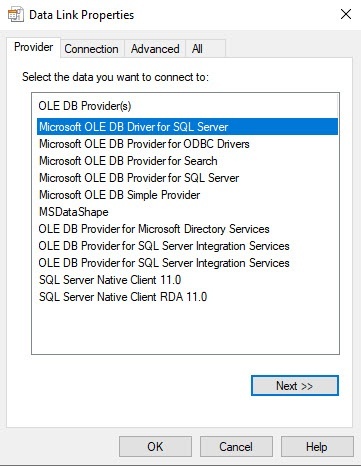
- Go to the Provider tab in the Data Link Properties dialog
- window.
 Select the Microsoft OLE DB Provider for SQL Server in the item from the OLE DB Provider(s) list.
- Click the Next button.
After you click the Next button, As a result, you are automatically redirected to the Connection tab.
In the 1. Select or enter a server name line, select from the drop-down list or enter manually the name of the MS SQL server that is used to store stores the connected database to which you want to connect.
Info title Note In case If you use the protocol of the dynamic host configuration protocol (DHCP) for the local database, you must set the 127.0.0.1 IP address (value without using computer names and the local value ) in the the 1.Select or enter a server name line. Set We recommend setting the 127.0.0.1 value when you use the static IP address is used. Otherwise, Axxon PSIM is disconnected loses connection with its local database when the network cable is disconnected.
If you connect Axxon PSIM is connected to the remote database configuration by the IP address (for example, 192.168.0.68\SQLEXPRESS), you cannot change and save Axxon PSIM settings when there is a network connection breakdisconnection until it is restored. If event protocol is extracted into you extract the event viewer into an individual database, use any functioning way to specify a the server name.- The In the 2. Enter information to log on to the server group is used to , specify the type and authentication parameters of to connect to the MS SQL server connection. The MS SQL server authentication is performed through the user account , authorized in the Windows OS, or by the user name (login) and password that protect the MS SQL server connection.
The method and parameters of used for authentication at on the MS SQL server are set during the MS SQL server installation.
Different parameters must be specified with different authentication techniques for Depending on the authentication method that is required to connect to the MS SQL server connection, specify the following parameters:If the MS SQL server authentication is performed through the user account in the Windows OS account, set the switch to the Use Windows NT Integrated security position.
Info title Note If conversion is performed via the remote SQL server, the computer with MS SQL server installed must show the current user account. And the user is logged on under this account at the computer that performs the database connection.you must register the user account under which the user is currently authorized in the Windows OS on the computer where the MS SQL server is installed and the computer to which you want to connect. - If the If MS SQL server authentication is performed through the user name (login) and password, do the following:
- Switch Set the switch to the Use a Use a specific user name and password;: position.
- In the User name field, enter Specify the user name (login) to connect to the MS SQL server in the User name field.
- If access to the MS SQL server is protected with by a password, clear the the Blank password checkbox, and specify the database access password in the Password field, enter a password to access the database.
- Set the Allow saving password checkbox.
Go to the the All tab.

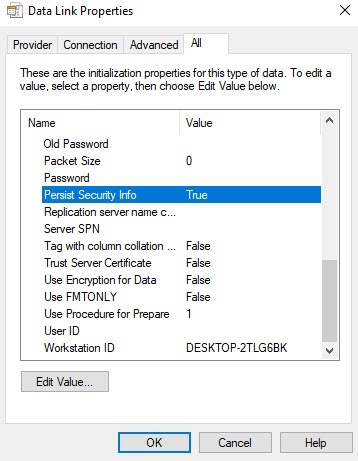
In the the Persist Security Info field, set the True value. This is necessary to correctly save the user password.
Info title Note Each time you change the server connection parameters, you must set the True value in the Persist Security Info field value to True.
- Click the Test Connection button on the Connection tab.
- If you successfully connect to the MS SQL server is successfully connected, then the Test connection succeeded message is displayed.


- Click the OK button in the message window to close the window.
- it
- If you specify incorrectly the MS SQL server name and/or authentication parameters of used to connect to the MS SQL server connection were specified incorrectly, the corresponding error message will appearappears.

- Click the OK button to close the window. Then specify change the correct password entered data and try to reconnect to the MS SQL server connection again.
- Select the name of the database that you want to connect in the From the Select the database on the server: list, select the name of the connected database.
Info title Note You must select a database at this step. If you leave the database field blank, then after you close the Data Link Properties window, the line "Database is not set in connection settings" appears in the database description window of the IDB idb.exe utility, and the OK button to save changes is becomes inactive.
- Click the OK button in the the Data Link Properties dialog window. The window closes.
We strongly highly recommend updating the database structure after this. For this, click the the Update database button in the idb.exe utility dialog window. If DB is not updated you don't update at this step, the update it is automatically performed at at the Axxon PSIM start-up, startup; however, it might can be difficult to track errors in this case.
Note title Attention! If the Event Viewer is in the you extract the event viewer into an individual database (see Extracting event protocol viewer into an individual database), then when you update the Event Viewer main database structure will be updated when updating the main , the event viewer database structure . So is also updated. Due to this, we recommend checking the connection to the Event Viewer event viewer database before updating the main database structure in order to prevent any errors.
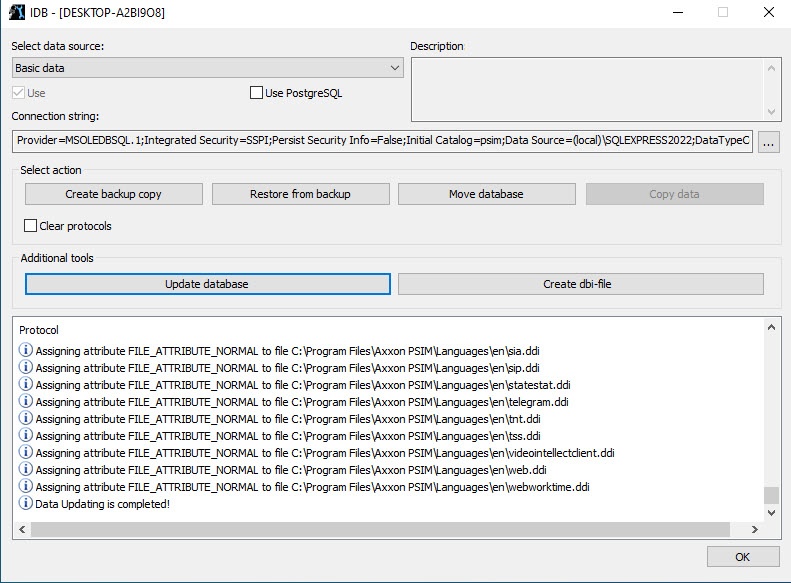
- As a result, the process of updating the database structure update process starts , and with the corresponding messages appear that are displayed in the the Protocol table.When the conversion process is successfully completed, the
- The Data Updating is completed! message appears
- that is displayed in the
- the Protocol table of the idb.exe utility indicates the successful completion of the conversion process.
- Click the OK button.
Connecting the Axxon PSIM database is now connectedcomplete.
Overview
Content Tools