
Go to documentation repository


Page History
External The external event protocol viewer is created with using the help of the idb.exe utility.
| Note | ||
|---|---|---|
| ||
| If you use the Time and Attendance module is in use ( the module system that is a part of the Access Manager module of the ACFA PSIM subsystem) , use the RemoteProtocolConnector utility to extract the event protocol viewer into a separate an individual database—see Axxon PSIM Web WEB Report System PSIM. User Guide (the most recent version of this document is available in AxxonSoft documentation repository). |
| Info | ||
|---|---|---|
| ||
To operate the Report SystemFor the report system to operate, which is a part of the base Axxon PSIM, use the method of extracting the event protocol viewer into a separate database is used. The method an individual database that is described in this section , i.e. using the idb.exe utility. Configuration of the connection to such protocol DB is required in the Report SystemIn the report subsystem, which is a part of the base Axxon PSIM (see Connecting to the Events Log (PROTOCOL table))., you must configure the connection to such a database protocol. |
First, you must It is necessary to create the protocol database beforehand with the help of using the MS SQL Server program. Do For this, do the following:
- Open Microsoft SQL Server Management Studio Express;
- Select Databases.


- Right-click and select New Database…
- Specify In the New Database… window that opens, enter the name of the protocol database name in the the Database name line in the New Database dialog window.
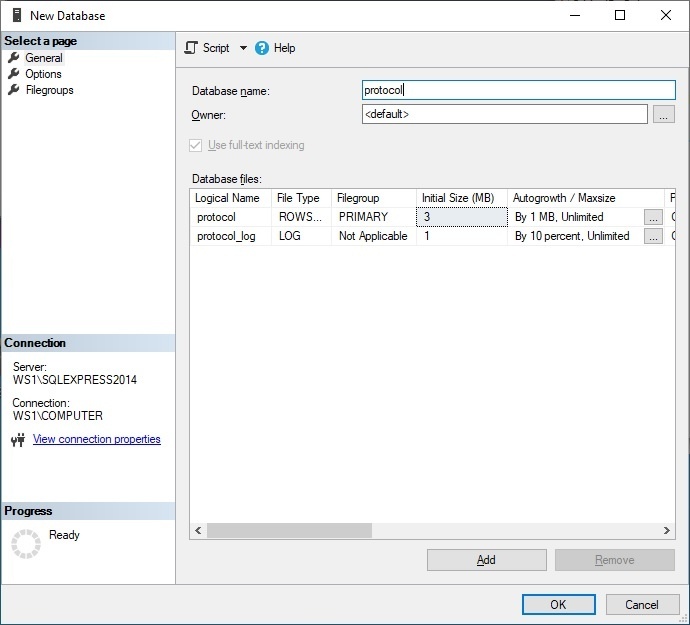
- To create a the new protocol database, click the OK button.
- Shut down Close Microsoft SQL Server Management Studio Express by clicking the Close X button in the upper right corner of the dialog window.
As a result, the protocol database is created.
To enable connect the external event protocolviewer, do the following:
- Run Open the idb.exe utility (see Starting and shutting down the idb.exe utility).Select the Protocol database from the Select source database
- In the Select data source: drop-down list, select the database for the Protocol administering.

- To enable the mode if using the Protocol database, set the Use checkbox.

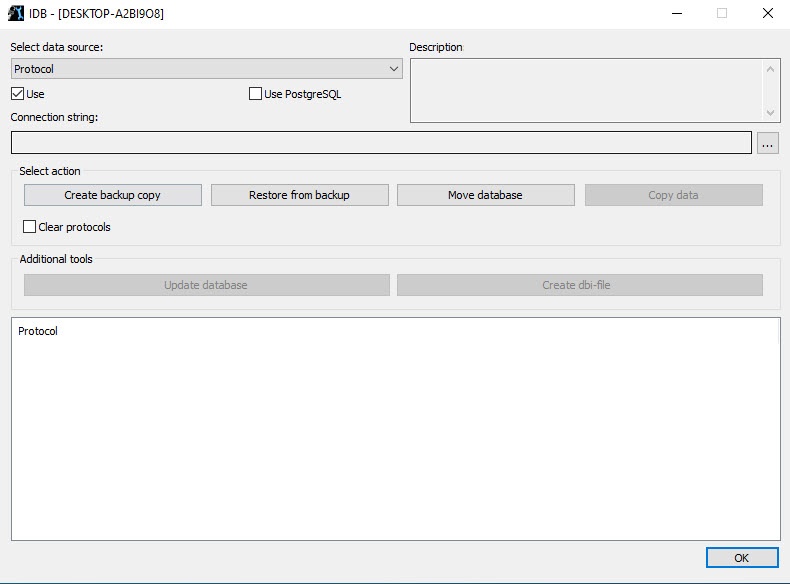
As a result, the Configure button becomes active.
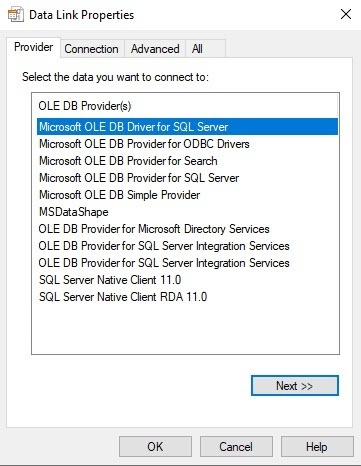
 - To connect configure the connection to the the Protocol database, click the Configure the button. As a result, the Data link propertiesLink Properties dialog window appearsis displayed on the screen.
- Go to the In the window that opens, go to the Provider tab.
- Select the Microsoft OLE DB Provider for SQL Server item from the the OLE DB Provider(s) list.
- Click the Next button. You will be You are automatically redirected to the the Connection tab.
- Do the following in the Connection tab:
- Select a server name from the From the 1. Select or enter a server name: drop-down list, select the server name.

- In the Specify the user name in the User name field and , specify the password in user name.
- In the Password field, enter the password.
- Set the Allow saving password checkbox.
- Go to the All tab.

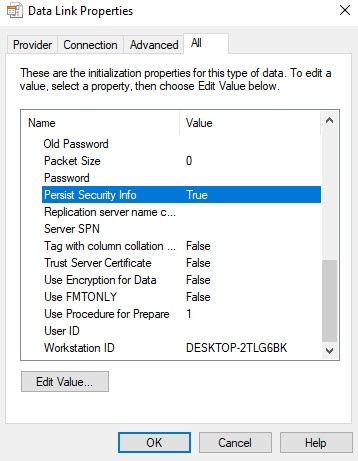
- In the Persist Security Info field, set the True value. This is necessary to correctly save the user password.
Info title Note Each time you change the server connection parameters, you must set the True value in the Persist Security Info field value to True.
Select the protocol database in the From the 3. Select the database on the server drop-down list, select the protocol database.
Info title Note You must select a database at this step. If you leave the database field blank, then after you close the Data Link Properties window, the line "Database is not set in connection settings" appears in the database description window of the IDB idb.exe utility, and the OK button to save changes is becomes inactive.
Click the Test Connection button.
If you successfully connect to the connection to MS SQL Server is successfully establishedserver, then the Test connection succeeded message appearsis displayed.

Click the OK button in the message window . The window closes automatically.
- Select a server name from the From the 1. Select or enter a server name: drop-down list, select the server name.
- Select the dbi file. Click the button next to the Select dbi-file information field.
to close it.
- Click the Update database button to start the process of updating the database structure.
 As a result, the Open dialog window appears.
 - Select the database structure file C:\Program Files\Axxon PSIM\protocol.dbi.Click the Update database button to update the database in accordance with the psim.dbi file specified in the Select dbi-file field.
- process of updating the database structure starts with the corresponding messages that are displayed in the Protocol table.
- The structure is updated ,
- when there is
- the Database
- Data Updating is completed! message is displayed in the
- the Protocol table.
- To save Axxon PSIM connection parameters to the Protocol database, click the OK button. As a result, the dialog window closes automatically.

As a result, database update starts. Information about this process is
External event protocol is created and connectedCreating and connecting the external event viewer is complete.
Overview
Content Tools