
Go to documentation repository


Page History
Before you start searching, you must create a the required query.
You must enter Enter the key phrase that you want to search can include both words and phrases in the Search string field. The key phrase can include both individual words and combinations of words.
When making a you create the key phrase for combining several elements (words and/or combinations of wordsphrases), you can select one of the following search modes from the the Search mode drop-down list:
- All words—to search captions containing all elements of a the key phrase (a the space is a separating character).
- Any word—to search captions containing at least one element of a the key phrase (a the space is a separating character).
- Substring—to search captions containing all the key phrase elements in the specified order (the number of spaces is ignored).
You can also use the * character when making a creating the key phrase. It This character means any number of any characters in a the word.
You can set the time interval for the data search in the the Period from and to fields.
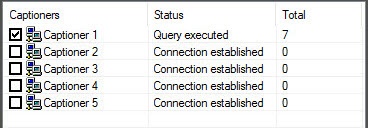
Before you start searching, you must select the captioners whose data you want to search by setting the checkboxes next to the required captioners in the captioners' status table.
To start the search, click the Search button.
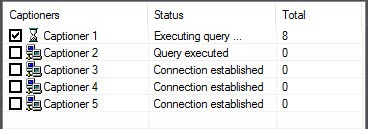
When The status of the search is performed, the query status is displayed during the search in the captioners' status table (the "Executing query search" status for all selected captioners).

You can cancel the search at any time by clicking the the Cancel button.
When the search is complete, the search results table displays all found transactions found in for the selected captioners are displayed in the search results table.
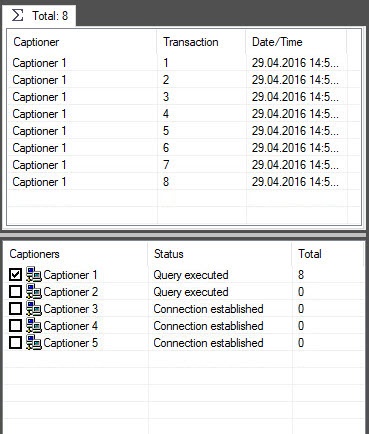
By default, the search results by for all captioners are displayed in on the Total tab. When you double-click the captioner name, the tab containing the search results for the selected captioner opens.

To view the search results, select the tab with the required captioner and then select the required transaction in the search results table.
The corresponding captions are displayed as the text in the search results fieldarea.

| Info | ||
|---|---|---|
| ||
If search results don't contain captions that were recorded before before Axxon PSIM reinstallation, then you must index the captions archive. For this, in the Captioner debug window that is displayed when you double left-click the |


The video corresponding to the selected transaction will be is displayed in the search results field.


This ActiveX window provides the functions of processing and exporting that are similar to the video surveillance monitor. ParticularlyExport and processing functions similar to those of the Video surveillance monitor are available in this window. In particular, you can export videos along with superimposed the overlaid captions. For more details on using the Video information on how to use the functions of the video surveillance monitor functions, see see Operator's Guide.
When watching you view a video, the selection of the caption's text in the search results field area is shifted in accordance with the time of the video archive. Transactions are not switched if the video continues to play after transaction endIf a transaction ends and a video keeps going, the switch between transactions doesn't occur.
Overview
Content Tools