
Go to documentation repository


Page History
You can view both the live video and archives from objectsof objects in one of the following ways:
- Viewing video from a specific camera.
- Viewing video from all cameras created at the Agent of Control.
- Viewing video from all cameras of the selected partition of control.
- Creating user layouts and playing back viewing video from selected cameras that are added to the partition Partition of control.
| Info | ||
|---|---|---|
| ||
| Information For information on how to select cameras for displaying the live video and archives playback on the Control panel can be found in and archive video from the Control panel, refer to Administrator's Guide, the Configuring the camera list section. |
To select the mode for playing back viewing the live video and archive, right-click the area with the object name.
A The context menu will appear with the Video image playback item appears, in in which you can must select:
- Camera The camera name for viewing video from a separate camera;
Info title Note The large number of cameras makes it inconvenient for you to select a specific one from the list. To simplify the camera access, use grouping that you can enable using the GroupingCameras registry key, the set value of which is specified by the number of cameras in the group. For more information about the registry key, see Vertical solutions. For information on how to work with the registry, see Working with Windows OS registry.

- All cameras to view video from all cameras created on the Agent of Control side;
- All cameras of partition of control to view video from all cameras of the selected partition of control;
- Screens to select a user layout.
Find For more details information on how to view video image in , see the corresponding sections.
| Info | ||
|---|---|---|
| ||
|
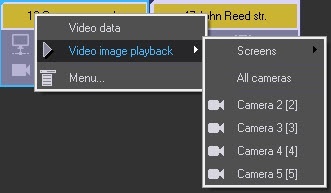
The list of cameras corresponds to the list of cameras specified when configuring the you configure the Partition Of Control object object. Camera names in the context menu, as well as IDs specified in the square brackets, correspond to those on the camera names and IDs on the Agent of Control.
If the you configure Monitoring PSIM software have the corresponding setting in the appropriate way, then when the camera is selected for viewing after you select the mode of viewing the live video, the warning will be is displayed saying , indicating that the video stream transmission of video can create critical a serious load on the channel. If it is you really necessary want to view the live video, click OK in the Warning dialog box window. To cancel viewing the live video, click the Cancel button.

| Note | ||
|---|---|---|
| ||
It is possible to You can restrict the Operator’s operator’s access to the camera's functional menu and its items, to the CamMonitor buttons, and to the CamMonitor control via the keyboard and mouse . |
Overview
Content Tools