
Go to documentation repository


Page History
To start creating create a report, click the Vehicle LPs  button.
A modal In the settings window opens. In this window, you can set the parameters needed to create the report.

You can set the following report parameters:
that opens:
- From the Object description drop-down list, select one of three modes of creating a report
- The time range of the report. Use the Beginning date, Beginning time, End date, and End time fields.
- Object description. You can use this field to choose between two report modes:
- Report on all the system objects.

- Report on one or system object.
- Report on several system objects.
- Report on all the system objects.
- Region. Select one or more regions.

- District. Select one or more districts.

- City. Select one or more cities.
- Select the required values from the Owner drop-down list. This information is set on the control settings panel (for more details, see the Editing regulatory and reference information page), as well as depends on the configured filter by owners in the Monitoring reports interface object (for more details, see Configuration of the Monitoring reports object). If you select a specific object (see step 1), then this parameter is hidden in the settings window.
- From the Region, District, and City drop-down lists, select those regions, districts, and cities where the objects are placed. This information is set on the control settings panel (for more details, see the Editing regulatory and reference information page). If you select a specific object (see step 1), then this parameter is hidden in the settings window. Report type:
- From the Report type drop-down list, select one of three available report types:
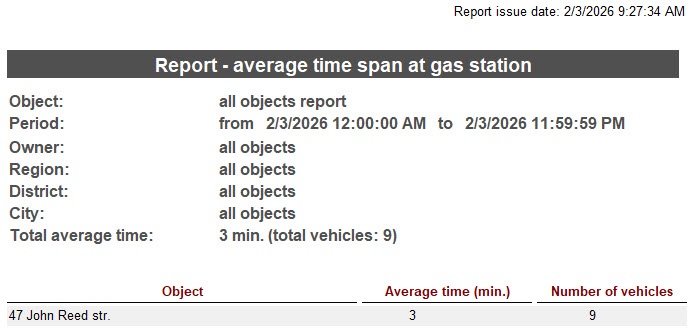
- average time span at gas station
- , number of vehicles
- , or list of LPs.

- In the Vehicle LP number. With this parameter, you can
- field, specify the LP number of the vehicle , the information about which should be included in the report. The LP number can be specified in full or with a mask containing the following symbols:
- that you want to include in a report. You can specify the LP number fully or use the mask that contains the following characters:
- %—to replace the group of characters. For
% to replace several symbols. For - example, if you specify T4%, the report includes information on vehicles with
LP - LPs starting with T4
.- ;
- _
to - —to replace one
symbol- character.
Info title Note
.- character.
The Vehicle LP field is auto-filled. Each LP number entered in this field
will be is stored in the database
and will be and is automatically inserted into the field upon retyping.
- Set the values of the Beginning date, Beginning time, End date, and End time fields to specify the time interval by which a report is created.
- Click the OK button.
As a result, a vehicle LP report is created After setup of all parameters, click OK. The report is displayed in a separate window - .

Overview
Content Tools