...
Some parameters are set for all sub-detectors of the Object tracker simultaneously (see Recommendations for configuring the Object tracker and its sub-detectors).
If necessary, you can change the detector parameters. The list of parameters is given in the table:
| Parameter | Value | Description |
|---|
| Object features |
| Record objects tracking | Yes | |
metadata is recorded into objects' tracks are recorded to the database. To disable |
metadata the recording, select the |
.select the stream for which detection is needed| Note |
|---|
| To obtain metadata, the video is decompressed and analyzed, which results in a heavy load on the server and limits the number of video cameras that can be used on it. |
|
| No |
| Video stream | Main stream |
If the camera supports multistreaming, For multi-stream cameras, select a stream for detection. Selecting a low-quality video stream |
allows you to reduce .To ensure For the correct display of |
|
streams on tracks in a multi-stream camera, all video streams must have the same |
|
frame |
| Other |
| Enable | Yes | By default, the |
parameter | detector is enabled. To disable it, select the No value |
| No |
| Name | Object tracker | Enter the detector name or leave the default name |
| Decoder mode | Auto | Select a |
processing resource processor for decoding video streams. When you select a GPU, a stand-alone graphics card takes priority (when decoding with Nvidia NVDEC chips). If there is no appropriate GPU, the decoding will use the Intel Quick Sync Video technology. Otherwise, CPU resources are used for decoding |
| CPU |
| GPU |
| HuaweiNPU |
| Type | Object tracker | Name of the detector type (non-editable field) |
Neural network filter
|
Enable filter
| Yes
| By default, the neural network filter is disabled. To |
enable a neural network filter to parts of tracks, false tracks on a complex video image (foliage, glare, and so on), set the value to |
. For example, a neural network filter can process the results of the tracker and filter out false positives on a complex video image (foliage, glare, and so on).| Note |
|---|
| You can use a neural network filter either |
|
only for the analysis of moving objects or |
|
only for the analysis of abandoned objects. You cannot use two neural network filters simultaneously. |
|
No
|
Moving object filter mode
| CPU | |
processing resource - processor than the CPU, this device carries most of the computing load. However, the CPU is also used to run
|
|
the detector- the detector.
- It can take several minutes to launch the algorithm on the NVIDIA GPU after you apply the settings. You can use caching to speed up future launches (
|
|
see
|
| Nvidia GPU 0 |
| Nvidia GPU 1 |
| Nvidia GPU 2 |
| Nvidia GPU 3 |
| Intel NCS (not supported) |
| Intel HDDL (not supported) |
| Intel Multi-GPU |
| Intel GPU 0 |
| Intel GPU 1 |
| Intel GPU 2 |
| Intel GPU 3 |
| Huawei NPU |
Abandoned object filter mode
| CPU |
| Nvidia GPU 0 |
| Nvidia GPU 1 |
| Nvidia GPU 2 |
| Nvidia GPU 3 |
| Intel NCS (not supported) |
| Intel HDDL (not supported) |
| Intel Multi-GPU |
| Intel GPU 0 |
| Intel GPU 1 |
| Intel GPU 2 |
| Intel GPU 3 |
| Huawei NPU |
Moving object filter file
| | Select the required neural network. To obtain a neural network, contact AxxonSoft technical support. If the neural network file isn't selected or selected incorrectly, the filter doesn't work | Note |
|---|
| - You cannot specify the network file in Windows OS. You must place the neural network file locally, that is, on the same server where you install Axxon One.
- For correct neural network operation on Linux OS, place the corresponding file locally in the /opt/AxxonSoft/DetectorPack/NeuroSDK directory or in the network folder with the corresponding access rights.
|
|
| Abandoned object filter file | |
Basic settings
|
Long-time abandoned object detection
| Yes
| By default, the parameter is disabled. To |
enableuse the long-time abandoned object detection, select the |
| Info |
|---|
|
this the Long-time abandoned object detection and the Enable filter |
parameter parameters, it can reduce the number of false positives during detection |
. |
No
|
Abandoned object detection
| Yes
| By default, the parameter is disabled. To |
enableuse the abandoned object detection, select the |
| Info |
|---|
|
Objects abandoned for 10 seconds or longer are detected |
.Set Enter the maximum height and width of the detected object as a percentage of the frame |
sizeheight/width. We recommend specifying the value so that it is slightly larger than the typical object in the image, taking into account its shadow. The detector doesn't generate an event if an object is larger or smaller. The value must be in the range [0.05, 100] |
.| Note |
|---|
| If you enable the Object calibration parameter |
|
is enabled in the tracker settings, then |
|
the height widthminimum sizes of the objects |
|
is are set in decimeters in the Leveling rod height parameter and not as a percentage of the frame size. |
|
| Max. object width | 100
|
| Alarm on object's max. idle time in area | 60
| Specify the time in seconds exceeding which the object is detected. This value must be in the range [15, 1800] |
.| Info |
|---|
| This parameter is used only for the Long-time abandoned object detection. We recommend selecting the parameter value starting from 15. |
|
| Min. object height | 2
|
Set Enter the minimum height and width of the detected object as a percentage of the height/width of the frame. We recommend specifying the value so that it is slightly smaller than the typical object in the image. The detector doesn't generate an event if an object is larger or smaller. The value must be in the range [0.05, 100] |
.| Note |
|---|
| If you enable the Object calibration parameter |
|
is enabled in the tracker settings, then |
|
the minimum height and width of objects is the maximum and minimum sizes of the objects are set in decimeters in the Leveling rod height parameter and not as a percentage of the frame size. |
|
| Min. object width | 2
|
Motion detection sensitivity
| 25
|
Set Enter the sensitivity of the motion sub-detectors |
in percentage. as a percentage. To detect objects with low contrast, the recommended sensitivity value is 35, for high-contrast objects, it is 15. The higher the sensitivity, the fewer changes in the frame are detected. The value must be in the range [0, 100] |
| Abandoned object detection sensitivity | 9
|
Set Enter the sensitivity for abandoned object detection and long-time abandoned object detection as a percentage. |
The value must be in the range |
.Abandoned abandoned object detection sensitivity |
|
parameter depends on the lighting conditions and is selected empirically. We recommend selecting the parameter value starting from 20. To detect objects with low contrast, the recommended sensitivity value is 35, for high-contrast objects, it is 15. |
|
Advanced settings
|
Auto sensitivity
| Yes
| |
is enabled. We recommend enabling this parameter if the lighting changes significantly. To disable automatic adjustment of the sensitivity of the Object tracker |
sub-detectors, select the |
.| Info |
|---|
| We recommend enabling this parameter if the lighting changes significantly during the camera operation (for example, if the camera operates outdoors). |
|
No
|
Track lifespan (starting with Detector Pack 3.14)
| Yes | By default, the parameter is disabled. If you want to display the track lifespan for an object in seconds, select the Yes value |
| No |
Leveling rod height
| 20
|
Set | Enter the actual height of |
the calibration decimeters| decimeters that will be used as a reference (for example, the average height of an adult). The value must be in the range [1, 100] |
Frame size change
| 1280
| By default, during the analysis, the frame is compressed to the specified size (by default, 1280 pixels on the larger side). The following algorithm is used: - If the original resolution on the larger side of the frame is greater than the resolution specified in the Frame size change parameter, then it is divided in half.
- If the resulting resolution becomes less than the specified one, then the algorithm stops and the resulting resolution is used.
- If the resulting resolution is still greater than the specified one, then it is divided in half again until it becomes smaller.
| Info |
|---|
| For example, the original video resolution is 2048x1536, the specified value is 1000. In this case, the original resolution is divided in half (512x384) twice because after the first division, the value on the larger side of the frame is greater than the specified value (1024 > 1000).
If detection errors occur when using a higher resolution stream, we recommend reducing compression. |
|
Object calibration
| Yes
| |
the parameter object calibration is disabled |
(see Configuring perspective) real size of an object based on a simplified calibration system, select the Yes valueactual sizes of objects in a scene (for example, a height of a person) when analyzing a video image taking into account perspective distortions, select theYesvalue
| Note |
|---|
| - If you select the Yes value for the Object calibration parameter but don't set any leveling rod, the Object tracker is inoperable and doesn't generate tracks (track objects).
- The correct Object calibration is impossible when you use cameras with optical distortions (for example, fisheye cameras).
|
|
No
|
Camera position
| Wall
| To filter out false events when using a fisheye camera, select the correct location of the device. The default value is Wall. This parameter isn't relevant for all other devices |
Ceiling
|
Antishaker
| Yes
| By default, the parameter is disabled. To reduce camera shake, select the Yes value. We recommend using this parameter only when there is significant camera shake
|
| No |
By default, the entire frame is a detection area.If necessary, in the preview window, set:
- one or more detection areas (see Configuring a detection area),
- one or more ignore areas (see Configuring the ignore area).
- visual size of objects (the No value is selected in the Object calibration parameter):
- Click the min
 Image Added button in the preview window. A rectangular area appears in the frame. Drag the anchor points to adjust the area to the minimum object size. The values update automatically in the Min. object height and Min. object width parameters.
...
 Image Added
- Click the max
 Image Added button in the preview window. A rectangular area appears in the frame. Drag the anchor points to adjust the area to the maximum object size. The values update automatically in the Max. object height and Max. object width parameters.
 Image Added
- leveling rods (the Yes value is selected in the Object calibration parameter. The height of an object in decimeters is specified in the Leveling rod height parameter):
- Click the
 Image Added button in the preview window.
 - In the window, click the mouse button.
- From the list, select Position of leveling rod.
- Click the
 Image Added button in the preview window.
 - Specify visually the dimensions of the same object in different parts of the frame. To ensure accurate calibration, the following conditions must be met:
- The leveling rod is set precisely according to a reference object (for example, the height of a person) standing in a given place in the scene.
 Image Added
 - You set at least three leveling rods in the frame.
- All bottom points (bases) of the leveling rods are on the same physical plane (for example, the floor).
- The bottom anchor points of any three leveling rods aren't positioned on the same line (horizontal, vertical, inclined, and so on).
- Leveling rods are evenly distributed across the entire frame, covering the areas where objects are expected to appear. The larger the coverage area, the higher the accuracy.
- Objects located at the same distance from the camera are marked in the frame with leveling rods of the same height.
- For simple scenes, 3-5 leveling rods are set. For complex scenes with deep perspective, we recommend setting up to 10-15 leveling rods.
To create one leveling rod, add two anchor points by left-clicking in the frame:
- The first point is the base of an object (for example, a person's feet).
- The second point is the top of an object (for example, the top of a person's head).
| Info |
|---|
|
- To stop the video, click the
 Image Added button . Click this button again to resume playback. Image Added button . Click this button again to resume playback. - To hide detection and/or ignore areas, click the
 Image Added button . Click this button again to display the areas. Image Added button . Click this button again to display the areas. - To resize a leveling rod, click and hold down the anchor point and drag it in the required direction.
- You can move the leveling rod by drag-and-dropping it.
- To delete a created leveling rod or area, click the
 Image Added button Image Added button
|
...
To save the parameters of the detector, click the Apply Image Removed Image Added button. To cancel the changes, click the Cancel
 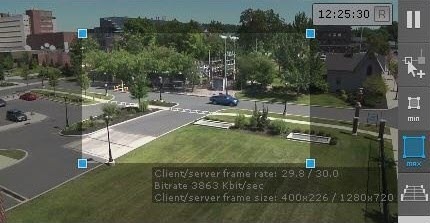 Image Removed
  Image Added button.
Configuring Configuration of the Object tracker detector is complete. General parameters are set for all its sub-detectors. If necessary, you can create and configure the necessary sub-detectors on the basis of the Object tracker (see Abandoned object, Standard sub-detectors). General parameters are set for all its sub-detectors.


