
Go to documentation repository


Page History
...
- Create the ZKTeco PUSH SDK parent object on the basis of the Axacfa object on the Hardware tab of the System settings window.

Specify the - In the Server port field, specify the server port number to connect to the
- SDK ZKTeco SDK
- , 8088 by default—8088.
- Click the Apply
 button to save the settings. Wait for the registration request event
 - default.
- In the Connection timeout, sec field, specify the time period in seconds after which the connection is considered lost and the reconnection of the ZKTeco device to ACFA PSIM occurs, 10 by default.
- To save the connection settings, click the Apply button.
- Wait until the event requesting the connection from the required ZKTeco device to appear
- appears in the Event
- event viewer since, since
- in this integration, the
- ZKTeco devices connect to ACFA PSIM.
Example of a registration request event from a - the event requesting the connection from the ZKTeco device in the Event
- event viewer:

- After the registration request
- event appeared in the Event viewer, click the Download configuration
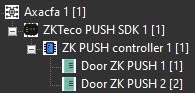
- requesting the connection appears, you can download the configuration and build the hardware tree. For this, click the Get configuration button.
- As a result, the hardware tree will be
- is built:
- Click the Upload configuration
 button to upload Send configuration button to send the configuration into to all ZKTeco PUSH SDK devices.
 - Click the Upload access parameters
 Send data button to upload record user access parameters from the the Access Manager into to all ZKTeco PUSH SDK devices.
 button to
Configuration of Configuring the ZKTeco PUSH SDK parent object is complete.
...
Overview
Content Tools