


Page History
...
- Have access to the internet.
- Open ports 80 and 443.
- Allow access of incoming and outgoing traffic to the website of the cloud service if the server has limited internet access.
- Click the
 button in the upper right corner on the Domains tab.
 - Click the Create button.
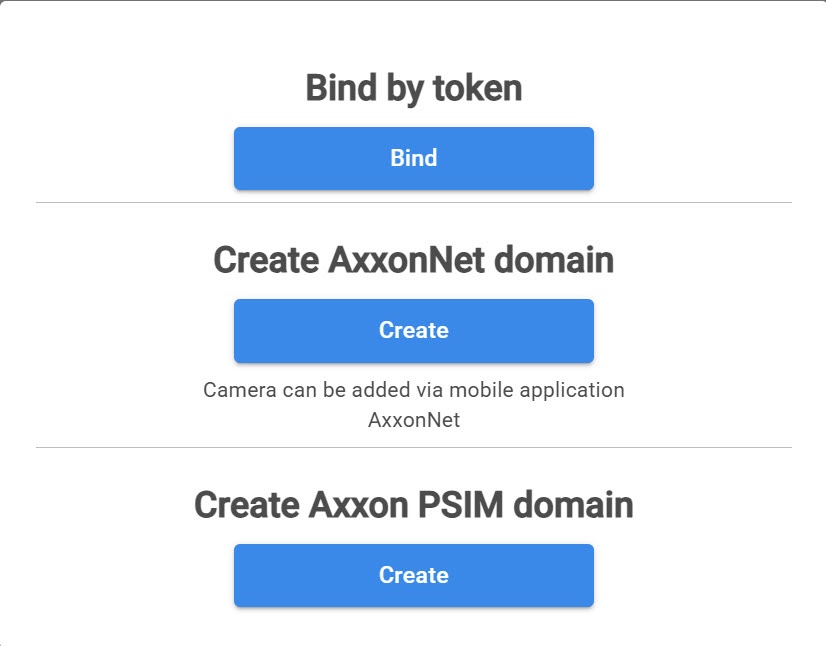
- Enter the Name of the Axxon PSIM domain.

- Click the Yes button. The created Axxon PSIM domain is displayed on the Domains tab.
- On the Domains tab, click the
 button next to the Axxon PSIM domain and select Generate domain token.
- Copy the token to bind to the Axxon PSIM domain.

- In Axxon PSIM (see Cloud authorization for sending Axxon PSIM push notifications):
- On the Hardware tab of the system settings window, create the Cloud authorization object.
- In the Cloud server URL field, enter the address of the cloud solution.
- In the Token field, paste the copied token to bind to Axxon Datacenter.
- Click the Apply button.
...
- Create a list of faces or a list of license plates in Axxon Datacenter (see Creating, editing and deleting lists of faces in Axxon Datacenter, Creating, editing and deleting a list of LPs in Axxon Datacenter).
- The created lists must be synchronized to the corresponding domain (see Synchronizing Synchronization of a list of faces with the domain in Axxon Datacenter, Synchronizing a list of LPs with the domain and exporting in Axxon Datacenter Synchronization and export of lists of license plates).
- In Axxon One, configure a macro using the specified lists of faces or license plates (see Configuring macros when working with lists of faces, Configuring macros when working with lists of license plates).
- Additionally, you must configure in Axxon One:
- Email notifier to generate notifications (see Email notifier).
- Export agent to transfer data to the cloud solution (see Configuring Export agent).
...
Overview
Content Tools