


Page History
| Section | |||||||||||||||||||||
|---|---|---|---|---|---|---|---|---|---|---|---|---|---|---|---|---|---|---|---|---|---|
|
General information
Domain is a selected group of Axxon One/Axxon PSIM Servers.
| Tip |
|---|
Axxon One: Configuring domains Axxon PSIM: Configuration procedure for servers, clients and remote workstations |
Connecting the Axxon One domain to AxxonNet
To connect the Axxon One domain to AxxonNet, you must:
- Have access to the internet.
- Open ports 80 and 443.
- Allow access of incoming and outgoing traffic to the https://axxonnet.com/ website if the Server has limited internet access.
- Click the
 button in the upper right corner on the Domains tab.
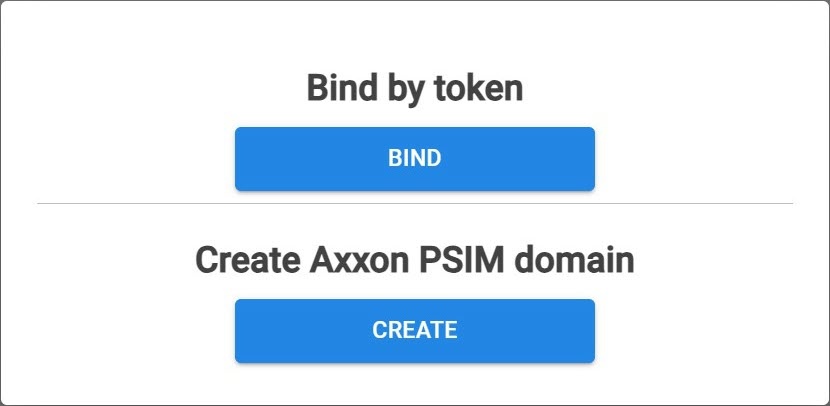
 - Click the BIND button.
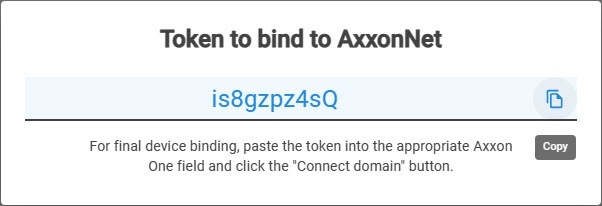
- Copy the token to bind to the Axxon One domain.
- In Axxon One, select Settings → Options → AxxonNet.
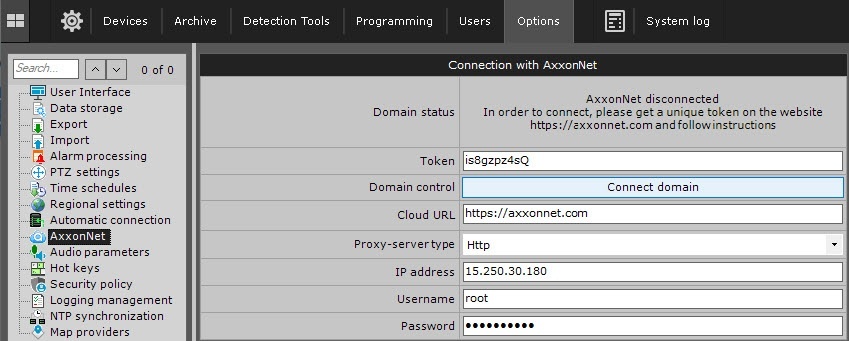
- In the Token field, paste the copied token to bind to AxxonNet.
- In the Cloud URLfield, enter https://axxonnet.com/.
- If you connect through a proxy-server:
- From the drop-down list, select the Proxy server type:
- None
- Http
- Https
- Socks5
- Enter the IP address of the cloud service to which you want to connect.
- Enter the Username and Password to connect to the proxy-server.
- From the drop-down list, select the Proxy server type:
- Click the Connect domain button.
If the connection is successful, the status in Axxon One changes to AxxonNet connected. To disconnect the domain from AxxonNet, click the Disconnect domain button.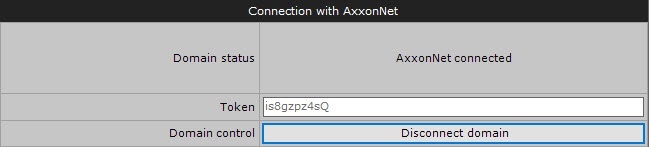
If several domains with identical names are connected to AxxonNet, a sequential number is added to each of the names listed on the Domains tab. If there is no connection with the Server, the domain is highlighted in red color.
Connecting the Axxon PSIM domain to AxxonNet
To connect the Axxon PSIM domain to AxxonNet, you must:
- Have access to the internet.
- Open ports 80 and 443.
- Allow access of incoming and outgoing traffic to the https://axxonnet.com/ website if the Server has limited internet access.
- Click the
 button in the upper right corner on the Domains tab.
 - Click the CREATE button.
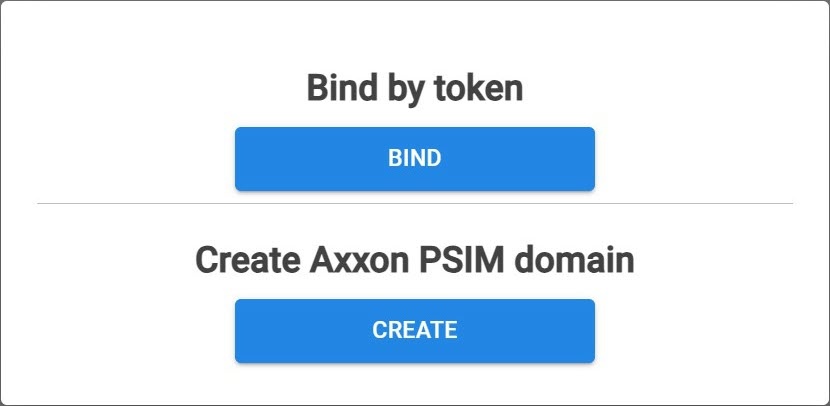
- Enter the Name of the Axxon PSIM domain.
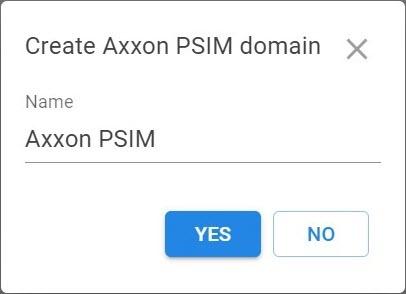
- Click the YES button. The created Axxon PSIM domain is displayed on the Domains tab.
- On the Domains tab, click the
 button next to the Axxon PSIM domain and select Generate domain token.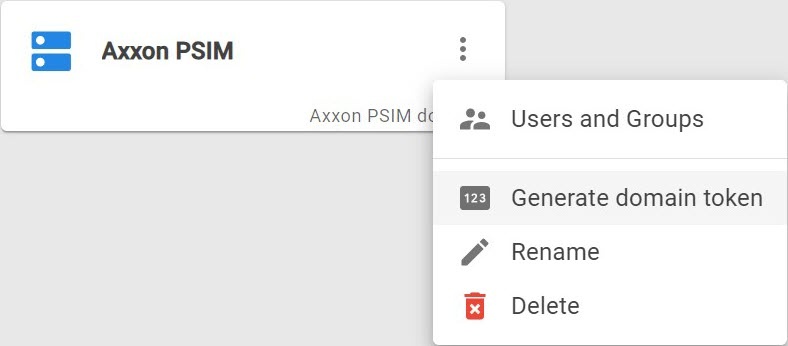
- Copy the token to bind to the Axxon PSIM domain.
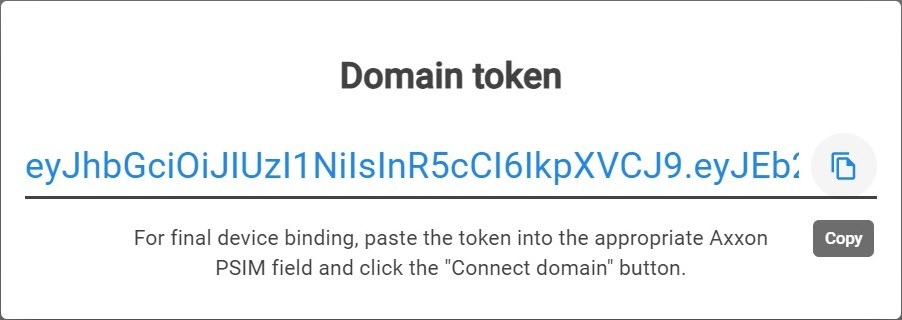
- In Axxon PSIM (see Cloud authorization for sending Axxon PSIM push notifications):
- On the Hardware tab of the system settings window, create the Cloud authorization object.
- In the Cloud server URL field, enter https://axxonnet.com.
- In the Token field, paste the copied token to bind to AxxonNet.
- Click the Apply button.
Connection of the Axxon PSIM domain to AxxonNet is complete.
Editing a domain name
To change a domain name in AxxonNet, do the following:
...
Editing a domain name in AxxonNet is complete. The domain name changes only in AxxonNet. The name remains the same in Axxon One/Axxon PSIM.
Deleting a domain
To delete a domain from AxxonNet, do the following:
...