


Page History
| Section | ||||||||||||||||||||||||
|---|---|---|---|---|---|---|---|---|---|---|---|---|---|---|---|---|---|---|---|---|---|---|---|---|
|
Overview
To view the live video, select the necessary camera.
This opens As a result, a a viewing tile for the camera opens. You can switch to a neighboring camera by clicking on the arrows  and
and  . The cameras are scrolled on a loop, taking into account their current sorting and filtering (see Displaying and searching for cameras in AxxonNet client on Android OS).

Live video playback settings
| Infonote | |||
|---|---|---|---|
| |||
The |
To choose the video stream, click the  button.
If the mp4 via ffmpeg or the rtsp via ffmpeg (h.264) playback format is selected (see Configuring video), then you can select the required video stream on the Live tab.
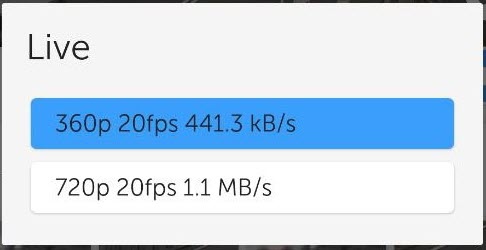
| Note | ||
|---|---|---|
| ||
Video stream selection is available only when connected to the Axxon Next Server. |
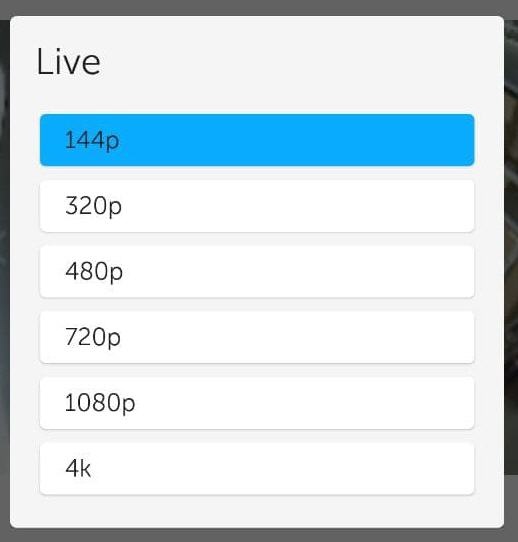
If the mjpeg playback format is selected, then you can select the required resolution on the Live tab.
. For H.264 and H.265 formats it is displayed only if the camera is multithreaded. The playback format depends on the Server configuration. |
To select the video resolution, click the button and select the required resolution in the window that appears:
If the camera is multithreaded, then in the window that appears, select the required stream:
If the camera is multithreaded and the stream in mjpeg format is displayed, then the resolution options will be displayed for it. To display the streams in the settings window, select a different value of the Live video priority parameter in the mobile client If there is a microphone on the camera and the RTSP playback format is selected in the settings (see Configuring video in AxxonNet client on Android OS), then .
Live video controls
If the camera has a microphone and a playback format other than mjpeg, the audio from the camera is will be played back by default. To disable audio from the camera, click the 
 button, the icon changes to to enable it, click .
| Info | ||
|---|---|---|
| ||
The audio control button may not appear if the video has not started playing. |
To open view the video in full screen click the  button.

To return click the  button.
in picture-in-picture mode, click button in the upper right corner and select Picture in picture in the menu that opens. To return to viewing the video in normal mode, click on the floating window with the video.
To view the archive, put the switch in the  position (see Viewing the video archive in AxxonNet client on Android OS). To return to live view, put the switch in the
  position.
To disable the transmission of sound from the mobile device to the server, click the  button, to enable it, click
  .
.
| Info | ||
|---|---|---|
| ||
The ability to transmit sound from a device works only in Intellect, in which the Microphone object should be pre-configured (see Creating and configuring the Microphone object). |
To rotate the camera image, click button in the upper right corner and select Image rotation in the menu that opens. Select the rotation angle in the window that opens:

Select the required rotation angle, and click OK.
To hide the controls on the video viewing screen, tap anywhere on the screen. To return the controls, tap again.
To control the image scale, stretch the image with two fingers (see Digital zoom in AxxonNet client on Android OS)To go to extra actions (macros, switch to map, screenshots) click the button and select the required action.
To return to the list of cameras, click the  button or Back on the mobile device.
Horizontal display
On Android mobile devices, the application is available in vertical and horizontal display. To change the display, it is necessary to enable the ability to change the screen orientation and rotate the device in the device settings.

In horizontal display, controls hide automatically with a small delay and reappear when you tap on the screen.
Subtitles display settings
If the mjpeg playback format is selected and the captioner is configured for a camera in Intellect (see The Captioner object setup), then the subtitles will be displayed over the video image on the screen. The subtitles can be scrolled if there are many of them and they all do not fit on the screen.

To hide the subtitles, click button in the upper right corner and and in the menu that opens, uncheck the Subtitles checkbox. To display the subtitles — set the checkbox the Back button of the mobile device or app (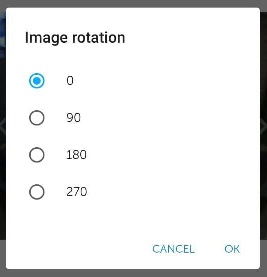 ).
).