


Page History
...
| Section | |||||||||||||||||||||||
|---|---|---|---|---|---|---|---|---|---|---|---|---|---|---|---|---|---|---|---|---|---|---|---|
|
Настройка сервера ПК Интеллект/ПК Axxon Next
Для передачи видео с камеры Android-устройства на сервер ПК Интеллект/ПК Axxon Next необходимо выполнить следующие действия:
Configuring the Intellect/Axxon Next server
The mobile client has two modes of operation: RTSP server and RTMP. The mode is selected in the mobile client settings.
To transfer video from the Android device camera to the Intellect/Axxon Next server in the RTMP mode, do the following:
- Make sure that the Java Runtime Environment and Node.js. are installed on the Intellect/Axxon Next server.
Download and install the livestream_setup.exe distribution kit with the Livestream and rtmp2rtsp services. The default services installation directory is
- Убедиться, что на сервере ПК Интеллект/ПК Axxon Next установлены Java Runtime Environment и Node.js.
Скачать и установить дистрибутив livestream_setup.exe c сервисами Livestream и rtmp2rtsp. Директория установки сервисов по умолчанию: C:\Program Files (x86)\Livestream.
Info title Примечание Сервис Livestream создаёт несколько виртуальных onvif камер, которые добавляются в конфигурацию сервера ПК Интеллект/ПК Axxon Next. Сервис rtmp2rtsp принимает rtmp поток, затем конвертирует его в rtsp и направляет на виртуальную onvif камеру сервера.
Note The Livestream service creates several virtual ONVIF cameras that are added to the Intellect/Axxon Next server configuration. The rtmp2rtsp service receives the RTMP stream, then converts it to RTSP and directs it to the server's virtual ONVIF camera.
After you install the services, you can set the following parameters using the Windows system variablesПосле установки сервисов помощью системных переменных Windows можно задать следующие параметры:
Code Block LIVESTREAM_ONVIF_COUNT \\ number количествоof виртуальныхvirtual ONVIF-камер cameras, по умолчаниюdefault = 5 LIVESTREAM_ONVIF_PORT \\ port портof the первойfirst виртуальнойvirtual камерыcamera. All Всеother остальныеcameras камерыreceive получаютthe портport поin порядкуorder, по умолчаниюdefault = 1961.
Note title Внимание! - Указанные порты не должны быть закрыты брандмауэром.
- Для применения изменений необходимо перезапустить сервисы с помощью пакетного файла restart.bat, который находится в директории установки сервисов.
Attention! - The specified ports should not be blocked by a firewall.
- To apply the changes, it is necessary to restart the services using the restart.bat batch file located in the services installation directory.
After you start the services, the После запуска сервисов в директории установки появится файл livestream.out.log . В этом файле для каждой камеры находятся url для отправки и приёма видео с Android-устройства, напримерfile will appear in the installation directory. This file contains url for each camera to send and receive video from the Android device, for example:
Code Block onvif device started at port 1961 onvif device url = http://host:1961/onvif/device_service push video to url = rtmp://host:1935/TOKEN/1961 video url = rtsp://localhost:1937/TOKEN/1961
- Manually add IP cameras to Intellect/Axxon Next and specify the following parameters:
- Type (manufacturer) - ONVIF
- Тип (производитель) – ONVIF 2.x;
- IP address - адрес – 127127.0.0.1;
Порт – номер порта камеры из строки Port - the camera port number from the "onvif device url" в файле string in the livestream.out.log file.
Info title Примечание О настройке IP-камер см. ПК Axxon Next Создание и удаление IP-устройств, ПК Интеллект Настройка IP-устройств.
Настройка мобильного Клиента Axxon Camera
...
В поле Token (2) оставить значение по умолчанию TOKEN.
| Info | ||
|---|---|---|
| ||
Приложение авторизуется на сервере с параметрами по умолчанию: User=1, Password=1. |
...
Установить флажок Force direct pushing (3), чтобы отключить взаимодействие с сервисом livestream и использовать порты по умолчанию.
| Info | ||
|---|---|---|
| ||
Может быть полезным в случае возникновения проблем с передачей видеоизображения. |
...
- В resolution back (5) выбрать разрешение основной камеры.
- В resolution front (6) выбрать разрешение фронтальной камеры.
- В fps (7) задать частоту кадров .
- В bitrate (8) задать битрейт видеоизображения.
Note For details about configuring IP cameras in Axxon Next see Adding and removing IP devices, in Intellect see Configuring IP devices.
To transfer video from the Android device camera to the Intellect/Axxon Next server in the RTSP server mode, do the following:
- Create a video capture device operating over the RTSP protocol (for Axxon Next see Configuring connection of video cameras via RTSP, for Intellect see Configuring multimedia receipt using RTSP protocol).
- Specify the URL from the application in the settings of this device:
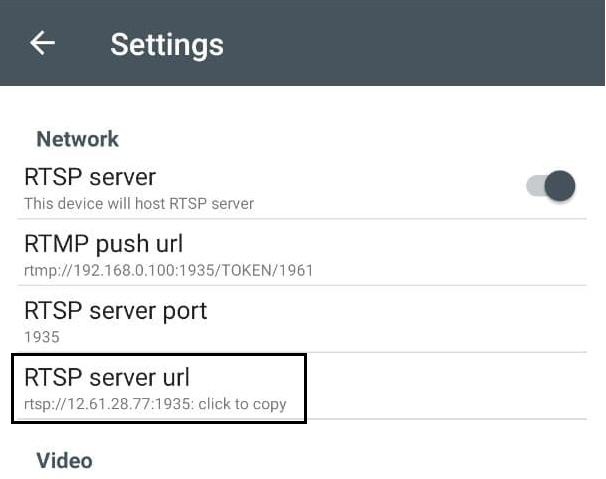
Configuring the Axxon Camera mobile client
- Go to the mobile application settings by clicking the
 button.
- In the Network settings group, set the parameters as follows:
In the RTSP server field (1), move the switch to the position
 to use the RTSP server mode. If the switch is in the position
  , then the RTMP mode will be used.
In the RTMP push url field (2), specify the value of the "push video to url" string from the file on the livestream.out.log server to use the RTMP mode. In the RTSP server mode, you can skip this parameter.
In the RTSP server port field (3) set the port number of the RTSP server. In the RTMP mode, you can skip this parameter.
The RTSP server url field (4) field contains the URL of the video stream in the RTSP mode. To copy it, tap on the field once.
- In the Video settings group, set the parameters as follows:
- In the Resolution back field (5) select the resolution of the main camera.
- In the Resolution front field (6) select the resolution of the front camera.
- In the FPS field (7) set the frame rate.
- In the Bitrate field (8) set the bitrate of the video.
| Note | ||
|---|---|---|
| ||
To ensure the correct operation of the application, make sure the time on the Android device and the Intellect/Axxon Next server is synchronized | ||
| Note | ||
| ||
Для корректной работы приложения на Android-устройстве и сервере ПК Интеллект/ПК Axxon Next время должно быть синхронизировано. |