
Go to documentation repository


Page History
...
| Section | ||||||||||||||||||||
|---|---|---|---|---|---|---|---|---|---|---|---|---|---|---|---|---|---|---|---|---|
|
...
Event processing
To start event processing an event, do the following:
- Right-click on an the event in the table.

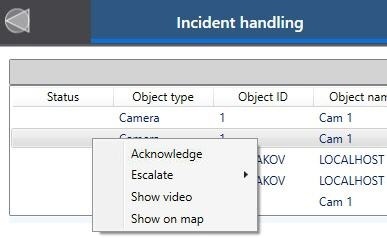
- Select Acknowledge.
After that, The event gets the Acknowledge status, and the first element will be is displayed in the event handling processing interface. After processing each element, the next element will be displayed. The last element will always be the button. There are 6 seven different types of elements available:
- Button.
To continue processing the event processing, click the button. If this element is the last in the logic , then and you want to close the event processing interface after clicking the button, select the Yes value for the event processing will be completed. Finish parameter during the setup of this button. For more details, see Configuring the button.
 - Date/time.
In the Incident manager window, the operator can specify the date and/or time of the processed event. For more details, see Configuring the date/time.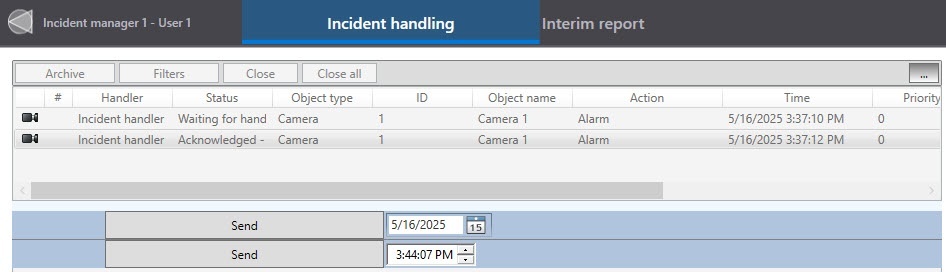
Ways of how you can set it up:- Date setting:
- Manual date entry.
- Selecting a date via the standard calendar window.
- Time setting:
- Manual time entry.
- Adjusting with up and down buttons.
- Date setting:
- Radio button.
To continue the event processing the event, select one of the values, set the radio button in the required position. For more details, see Configuring the radio button.
- List.
To continue processing the event processing, select the required value from the list. There can be several lists. For more details, see Configuring the combobox.
- Checkboxes.
To continue processing the event processing, set one or more checkboxes. For more details, see Configuring the checkbox.
Comment.
To continue processing the event processing, enter a comment and click the Send button. The name of the button is set by the user (see Configuring the button).
Info title Note Depending on the Incident incident manager settings, the comment can be filled in automatically and blocked from editing. For more details, see Configuring the comment.
Image.
To continue processing the event processing, add images an image and click the button (. The text on the Next button in the image below). The following options for button depends on the administrator settings (see Configuring the image). In the example below, it is the Next button.
The options of working with an element are available:The element already displays the image specified by the settings or the image from the camera or the map associated with the event. The event can be associated with several cameras, hence, when the event occurs, the images are generated from each associated camera, and you must select one of them. To do this, use the following buttons:
To
update the image, click the + button (1)
. As a result, the image from the camera or the map will be added at the moment when the event occurs. The button is applicable, for example, if the image has been deleted or it must be updated.
To delete an image, click the - button (2)
.
To scroll images, use
the < and > buttons (5, 6).
The field (3) displays the number of the selected image, the field (4) displays the total number of
image options. To go to a specific image, enter its number in the field (3).

If you create and configure the Equipment detection (PPE) object for a camera, the borders around detected objects can appear on the frame. The border color and thickness are determined by the RectColor and RectLineThickness registry keys (see Registry keys reference guide).
- The element doesn’t have any images, and they must be uploaded. To do this, it is necessary to upload images, then click the + button (1), and a standard Windows Explorer window will open, in which you can select images. The rest of the steps are similar to those described in the paragraph above.
Info title Note
| Info | ||
|---|---|---|
| ||
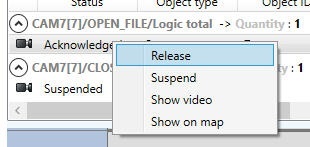
An The event with the Acknowledged status is available for processing only by for the operator who took it. To release an the event without processing, right-click the event and select Release:
|

After you complete all the stages, the event processing interface will close, and, if it was specified in the logic settings, a report will be displayed indicating the actions and the user who performed them will be displayed (see see Interim report).
Suspending
...
event processing
If the Operator proceeds operator goes to process another event without completing the processing of the current eventone, the event will have gets the Suspended status status, and the processing elements will become inactive. In this case, the event will be is unavailable for processing by other operators.
The operator can independently suspend the event processing of an event if the appropriate permissions rights are given (see Configuring user rights in Incident manager). To do this, right-click on the event and select Suspend:
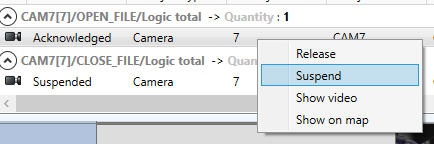

To continue processing the paused suspended event, right-click on the event in the table again and select Acknowledge.
Escalating events
Event escalation
In the settings, you can set the The ability to escalate an event for processing by to another operator of the system can be enabled in the settings —escalation (see Configuring user rights in Incident manager). Escalate the event as follows
To escalate manually, do the following:
- Right-click on an the event in the table.
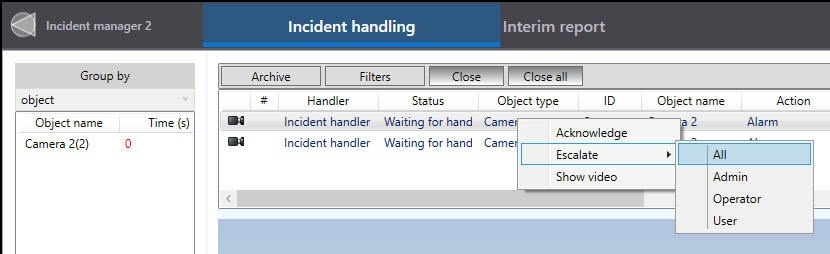
- Select
Click Escalate,and
thenselect
the required Incident manager interface.Note title Attention! The selected Incident manager should be open on the screen, otherwise the event will not be escalated.
to whom in the drop-down list:
All—escalation for all users, that is, any user can take the escalated event into processing.
Specific user from the list—the escalated event is assigned to the selected user.
If you don't set the option to see and work with the escalated events in the settings (see Configuring user rights in Incident manager), after After escalation, the event will disappear from the list and will be displayed for another operator with the Escalated/<Last name of the operator who escalated it> status. In this case, the event will be in the state that as it was at the time of escalation: if the operator started processing, then the event will be at an unfinished stage of processing.
Processing event group or event filter
the unfinished stage.
Additionally, you can automatically escalate events after the specified time (see Selecting events to display and handle). In this case, the automatically escalated event will become unavailable for processing by the current operator and will be displayed with the Escalated/Waiting for processing status.
Event group processing
Event group processing Processing an event group is possible if it is enabled in the Configuring the events grouping in Incident manager. Possible options:
- After processing one of the a group events, all remaining events of this group will be automatically closed.
- Only the first event of the a group is displayed in the event list display window. The rest of the group events will be automatically closed after the first event is processed.
- When you escalate one event in of a group, all events of a group is escalated, all events of the entire group are automatically escalated tooare automatically escalated.
If the operator processes an event from a group, all events of this group will be blocked for other operators, and new events of a group will automatically change their status. In other words, all events of the selected group, including incoming new events, will be available for processing only to one operator until they process all events of a group. Other operators cannot process events from this group: if they try to process an event from this group, the message Group is blocked will be displayed.
| Info | ||
|---|---|---|
| ||
If the operator took one event from a group into processing and released it without processing, the blocked events of a group are released again for other operators. |
The color of the group name can also be changed at the group processing, see Grouping events.
Closing events without processing
If you set the ability to close events without processing them is enabled in the settings (see Configuring user rights in Incident manager), then 2 two buttons are displayed in the upper right corner of the events event table:

- The Close . It button is used to close one event; select the required evet it in the table and click this the button.
- The Close all . It is button is used to close all events.
| Tip |
|---|
Event statuses are described on the Event information page. |
Overview
Content Tools