
Go to documentation repository


Page History
The repair edit/restore mode is used to re-install all INTELLECT™ software componentsreinstall all Axxon PSIM components. Use this function when, for example, some files were accidentally deleted from the installation directory.
To launch repair the edit/restore mode, restart INTELLECT™ software installation from the installation kit, you need to restart Axxon PSIM installation without deleting the previous version of the program. For correct repairing . To edit/restore Axxon PSIM correctly, make sure that installation kit the distribution package is located in the same directory path as when it was during installation was performed or enable or that the operating system is configured to save the *.msi files cashing in the OScache.
| Info | ||
|---|---|---|
| ||
To ensure that INTELLECT™ software is installed correctly all applications should be closed before the installationreinstall Axxon PSIM correctly, close all applications on the computer before the reinstallation startup. |
To repairINTELLECT™ softwareedit/restore Axxon PSIM, do the following:
Open the folder containing the unpacked
installation kit.distribution package.

Info title Note Here we describe how to edit/restore Axxon PSIM using the installer. The same process can be started using the uninstaller: open Windows Start menu → Settings → Apps, find Axxon PSIM in the list and click Uninstall. The uninstaller window will open, select the Repair option and proceed according to this manual.
Run the Setup.exe executable file used for running Axxon PSIM installation Run setup.exe file, designed for running the Intellect software install program.
As a result, the Select Actionaction dialog box is displayed.Info title Note. The following files may be run for repairing the Intellect software instead restoring Axxon PSIM instead of Setup.exe: - Product.msi – —to repair the INTELLECT™Axxon PSIM;
- Redist.exe – —to install additional components.
- To select INTELLECT™ software Axxon PSIM components repair restore mode, select Repair installation Edit / Restore installation type and click Next.
The Repairing Intellect dialog box is displayed.
The Software Installation dialog box is displayed.To continue INTELLECT™ software installation, click Continue Anyway.
As soon as all files are copied, the Repair Complete dialog box is displayed.
- Set the checkboxes next to the components that need to be restored and click the Install button.

Axxon PSIM restore dialog box will be displayed.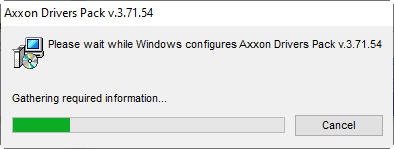
When the restore process is finished, the Installation complete dialog box will be displayed.
- Click the Finish button.
INTELLECTTM software Axxon PSIM is now repairedrestored.
Overview
Content Tools