
Go to documentation repository


Page History
One You can select and configure cameras for displaying on the Web-server home page in two ways:
- Individually . The using the settings panel of the the Web-server object is used.
In bulk . The using the Add/Edit cameras dialog box is usedwindow.
Info title Note. The procedure of bulk selection of cameras to transmit video signals via the Information on how to bulk select cameras in order to stream video via Web-server is given in described in Bulk selecting and configuring cameras for the Web-server section.
To select cameras for displaying on the Web-server home page, do the following:
Go to the List of cameras tab on the settings panel of the Web-server object (1).
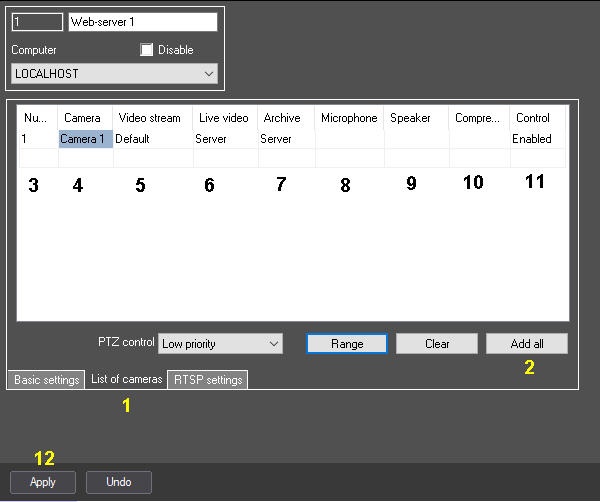
Info title Note. To select all cameras created in the system use the Add all button (2). In From the Number dropdown drop-down list, select the number of a required camera (3). Being Of you left-clicked click in the Camera field, it is automatically filled in with the camera name with the selected number (4).
Info title Note. To select all the cameras registered in the system, click the Add all button. In the Video steam dropdown list From the Video steam drop-down list, select the number of the stream that is you want to be displayed in the Web-server interface (5). Information on how to configure video streams is given in the Configuration of multistream video section.For the information on configuring streams of a camera, see Configuring the multistream video.
From the Live video drop-down list, In the Live video dropdown list select the source of live video that you want to be displayed in the Web-server interface (6). If you select the Server value is selected, then live video is received from the Server on the basis of which the corresponding corresponding Camera object is created.If If you select the Videogate value is selected, then video will be received from the corresponding videogate. A camera is to must be configured in the corresponding Videogate – (see the Selecting and configuring the cameras for the Videogate module section.).
From the Archive drop-down list, select the source of archive video that you want to be displayed in the Web-server interface (7). If you select the Server value, then archive video If the Server value is selected, then archive footage is received from the Server on the basis of which the corresponding corresponding Camera object is created. If the you select the Videogate or Backup archive value is selected, then archive footage video is received from the corresponding videogate or a backup archive. A camera is to must be configured in the corresponding Videogate or Backup archive.
In the Archive dropdown list select the the source of archive footage to be displayed in the Web-server interface (7).
- Select the Microphone object associated with the camera from the Microphone drop-down list if a sound came from the camera is to be passed over the Web-server 2.0 (8).
- If you want to send audio from a camera to the Web server 2.0, from the Microphone drop-down list, select the Microphone object connected to the camera (8).
- If you want to playback the audio from the Web server 2.0, Select the Speaker object associated with the camera from the Speaker drop-down list if a sound came from the Web-server 2.0 is to be played , select the Speaker object connected to the camera (9).
Note title Attention! Steps 6 and 7 are to be executed only in case if You must do steps 4 and 5 when the Web-server runs server works together with the Web-server 2.0 module, which , in its turn , is used to work with the an iOS -based or Android mobile clientClient. For more information on the Web-server 2.0, see section see Configuring the server for the clients connection Server to connect the Clients via the Web - server 2.0 module.
By default, the compression ratio level of the video signal transmitted to the Surveillance Video surveillance monitor through of the Web-Server server module is the same as the compression ratio level of the video signal before its recording to the disk or transmitting over the network (the blank value is selected in the Compression dropdown drop-down list). To change the compression ratiolevel, select the required compression (level from 1 -to 5, where 1 is minimum compression ratiolevel, and 5 is maximum ) ratio in level from the Compression dropdown drop-down list (10).
Info title Note. The The compression level parameter
for the signal transmission to remote workstationsthat corresponds to the level of video signal compression for its transmission to the Client via the Web-server module is
inverseinversely proportional to the Recording quality parameter specified in the settings of the Camera object.
Increase ofIncreasing the video
signal’scompression
level decreases the network traffic while connectinglevel reduces network traffic when the Client connects to the Web-server.
ButHowever, if the compression level is set, the video signal on the Server
has tomust be recompressed
in case of setting the compression level that results in greater load on Server’s central processor. The compression level is selected, which leads to a significant increase in the load on the Server CPU. You must select the compression level empirically.
- By default, the camera control (including arming/disarming, PTZ control, control over recording to the archive) in accordance with is enabled according to the user rights is enabled. To disable the camera control, select the the Disabled value in from the Control dropdown drop-down list (11). As a result, the camera control in from the Web-server interface is disabled regardless of the user rights.
Repeat steps 2-9 5 for all required cameras.
Info title Note. .
- To save the changes, click the Apply button (12).
Cameras for displaying on the Web-server home page are now selected.
Overview
Content Tools