
Go to documentation repository


Page History
Parameters of cameras You can be bulk selected and edited select and edit the parameters of cameras for displaying on the Web-server home page.
Bulk To bulk select cameras as follows, do the following:
- Go to the settings panel of the Web-server object.
- Click the Range button in On the List of cameras tab, click the Range button (1).

- As a result, the Add/Edit cameras dialog box appearsCamera Objects window opens.
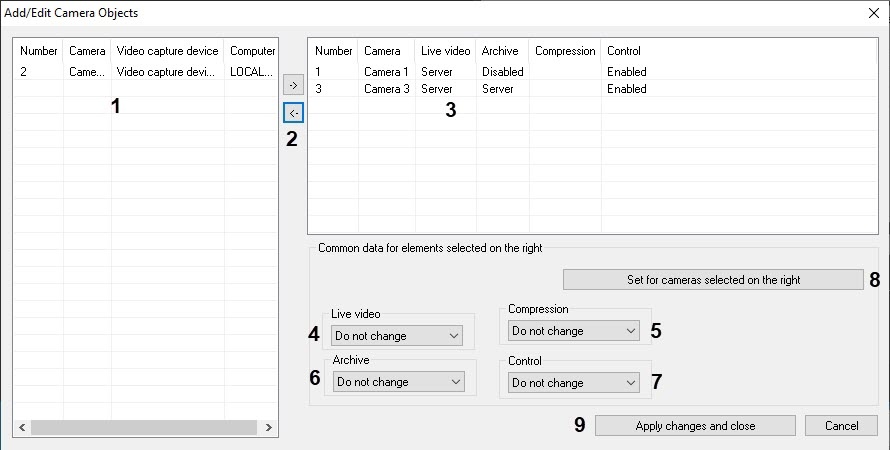
- Select the required cameras in the left list on the left of the Add/Edit cameras dialog box Camera Objects window (1).
Move the selected cameras to the right list on the right by clicking the
 button (2).
Info title Note. The right list on the right is the list of cameras selected to stream video via the Web-server.
The button
 button performs reverse action, i. e. it It is used to move the selected cameras from the right list to the left one list (2).
As a result, the selected cameras are displayed in the right list on the right of the Add/Edit cameras dialog box Camera Objects window (3).
If necessary, select the names of the required cameras in the right list on the right to bulk edit the parameters (4).
Note title ImportantAttention! The same parameter values will be set for all selected cameras.
- In From the Live video dropdown drop-down list, select the source of live video that you want to be displayed in the Web-server interface (4). If the Server value is selected, then video will be is received from the Server on the basis of which the corresponding corresponding Camera object is created. If the Videogate value is selected, then video will be is received from the corresponding videogate and the camera is to must be configured in the corresponding Videogate – (see Selecting and configuring the cameras for the Videogate module).
- By default, the compression level of the video sent signal transmitted to the Video surveillance monitor of the Web-server module is the same as one before storing video on the compression level of the video signal before its recording to the disk or transmitting it over the network (an empty the blank value is selected in the Compression dropdown drop-down list). To change the video compression level, select the required compression level ( from 1 to 5) in the Compression dropdown list. , where 1 is the minimum compression level, and 5 is the maximum compression level level from the Compression drop-down list (5).
Info title Note. The video compression level parameter that corresponds to the level of video signal compression for its transmission to the Client via the Web-server module is inversely related proportional to the Quality Recording quality parameter specified in the settings of the Camera settings object.
Video Increasing the video compression level increase reduces network traffic when connecting the Client connects to the Web-server. However, if the video compression level is set, the video signal on the Server must be recompressed, which leads to a significant increase in the load on the Server – it results in significant increase of Server CPU load. The You must select the compression level is selected empirically. - In
From the Archive
dropdowndrop-down list, select the source of archive video that you want to be displayed in the Web-server interface (6). If
theyou select the Server value
is selected, then archive video
will beis received from the Server on the basis of which the
correspondingcorresponding Camera object is created. If
theyou select the Videogate or Backup archive value
is selected, then archive video
will beis received from the corresponding videogate or a backup archive
and the camera is to. A camera must be configured in the corresponding Videogate or Backup archive.
- By default, the camera control (including arming/disarming, PTZ control, arm/disarm and store to archive controlcontrol over recording to the archive) is enabled according to the user rights. To disable the camera control, select the Disable Disabled value in from the Controldropdown drop-down list (7). As a result, the camera control in from the Web-server interface will be forbidden regardless is disabled regardless of the user rights.
- To save specified parameters, click the Set for cameras selected on the right button (8).
- As a result,the specified parameters are displayed in the rightlist on the right of the Add/Edit cameras dialog box Camera Objects window (3).
- Repeat steps 4-13 to bulk edit all required cameras.
- To save the changes and close the the Add/Edit cameras dialog box click Camera Objects window, click the Apply changes and close button (9).
- The specified camera settings will be displayed in the List table on the settings panel of the Web-server object (2).
- To save the changes, click the Apply button (3).
Cameras are now bulk selected.
Overview
Content Tools