
Go to documentation repository


Page History
| Note | ||
|---|---|---|
| ||
For full operation of the settings of the User object, we recommend installing the Access Manager module as part of the ACFA PSIM subsystem (for details, see ACFA PSIM Installation Guide. Introduction, Guide for configuring and working with the Access Manager module). If you installed the Access Manager module, the values of the fields are synchronized. |
You can use the settings of the User object to configure the access control system.
The Access control tab
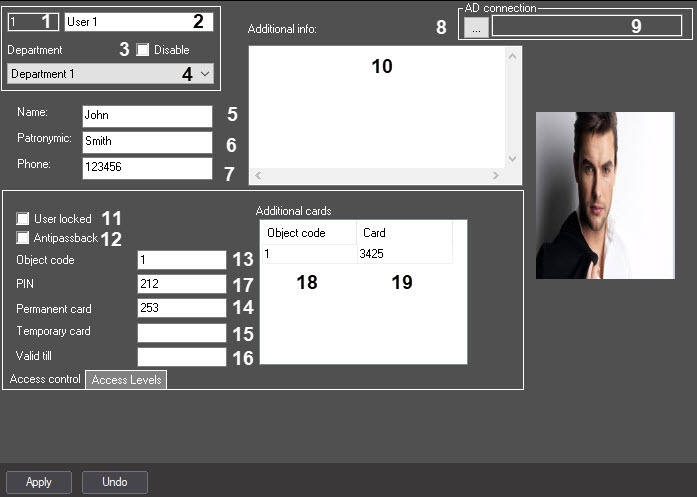
The table describes the main setting parameters of the User system object
The settings panel of the User object is shown in the figure.
Basic elements of the settings panel of the User object are described in the table.
№ | Parameter | Method |
of setting the parameter value | Parameter description |
Representation | Default value | Value range |
1 | The |
Identification number* | Automatically | Displays the identification number of the User system object in the system |
Sequence of numbers
Digits, letters, periods, hyphen, dash, and underscore | NA | A line containing digits, letters, periods, hyphen, dash, and underscores. |
Depends on the number of the User objects in the system | |
2 | The |
Name* | Enter the value in the field | Sets the name of the User object in the system (usually the user's last name) | Latin alphabet, Cyrillic, digits, and service characters |
User | A line containing a sequence of any |
characters (letters, digits, service characters |
except > and < |
characters), |
case- |
insensitive. Number of |
characters—from 1 to 60. Do not |
enter "rs" in this field when registering Operator accounts, as this |
value is used |
as a default username in |
Axxon PSIM Web Report System |
3 | The Disable | Set the checkbox |
Disables the |
User object |
in the system | Boolean type |
No
| Clear | Set—the User |
object is disabled and |
isn't used Clear—the User |
object is enabled and |
used | ||
4 | The Department | Select the value |
from the list |
Sets the Department parent object for the given User object |
Names of the Department objects registered in the system |
Name of the Department parent object | Depends on the number of the Department objects in the system | |
| 5 | The Name field | Enter the value in the field |
| Sets the user's |
| name | Latin alphabet, Cyrillic, and service characters |
| NA | A line containing a sequence of any |
| characters | ||
| 6 | The Patronymic field | Enter the value in the field |
| Sets the user's patronymic | Latin alphabet, Cyrillic, and service characters |
| NA | A line containing a sequence of any |
| characters | ||
| 7 | The Phone | Enter the value in the field |
| Sets the user's phone number for |
| the two-factor authentication | Phone number |
| NA | + [country code][city code][subscriber number]
|
| 8 |
| The AD connection button | Click the button | Opens a |
| window to configure the connection between the |
| Axxon PSIM user and the Windows Active Directory |
| user |
| NA |
| NA |
| NA |
| 9 |
| The AD connection field | Automatically | Displays the Active Directory user identifier connected with the |
| Axxon PSIM user | Latin alphabet and service characters |
| NA | Depends on the |
The settings of the User object are intended to configure the access control system. They are usually set using the Access Manager module in the ACFA Intellect subsystem (see Access Manager Module Settings and Operation Guide). In the Access Manager you can also add the photo displayed on the User object settings panel.
| values of Active Directory identifiers | ||||||
| 10 | The Additional info field | Enter the value in the field | Specifies additional information about the user. When you hover the mouse cursor over the user's photo, a pop-up window with the full content of this field is displayed | Latin alphabet, Cyrillic, digits, and service characters | NA | A line containing a sequence of any characters |
| 11 | The User locked checkbox | Set the checkbox | Enables the function of locking the User object in the system | Boolean type | Clear | Set—the User object is locked Clear—the User object is active |
| 12 | The Antipassback | Set the checkbox | Enables the function of antipassback | Boolean type | Clear. Note. If you have the Access Manager module installed, the default value will depend on the module settings (see Configuring the rights to manage objects in Access Manager) | Set—antipassback is prohibited Clear—antipassback is allowed |
| 13 | The Object code | Enter the value in the field | Sets the object code of the access control | Latin alphabet, Cyrillic, digits, and service characters | NA | A line containing a sequence of any characters, letters, and digits Note. If you have the Access Manager module installed, the value range will depend on the module settings (see Configuring access cards) |
| 14 | The Permanent card field | Enter the value in the field | Sets the number of the permanent card of the User object | Latin alphabet, Cyrillic, digits, and service characters | NA | |
| 15 | The Temporary card field | Enter the value in the field | Sets the number of the temporary card of the User object | Latin alphabet, Cyrillic, digits, and service characters | NA | |
| 16 | The Valid till | Enter the value in the field | Sets the date after which the validity of the temporary card of the User object is limited | Digits and service characters. Date in the format:
| NA | NA |
| 17 | The PIN field | Enter the value in the field | Sets the PIN code of the user card | Latin alphabet, Cyrillic, digits, and service characters | NA | A line containing a sequence of any characters. Note. If you have the Access Manager module installed, the value range will depend on the module settings (see Configuring the user PIN code) |
| The Additional cards table | ||||||
| 18 | The Object code column | Enter the value in the column | Sets an additional object code of access control | Latin alphabet, Cyrillic, digits, and service characters | NA | A line containing a sequence of any characters. Note. If you have the Access Manager module installed, the value range will depend on the module settings (see Configuring access cards) |
| 19 | The Card column | Enter the value in the column | Specifies an additional card code of access control | Latin alphabet, Cyrillic, digits, and service characters | NA | |
*The name of the element isn’t displayed on the settings panel of the object
The Access Levels tab
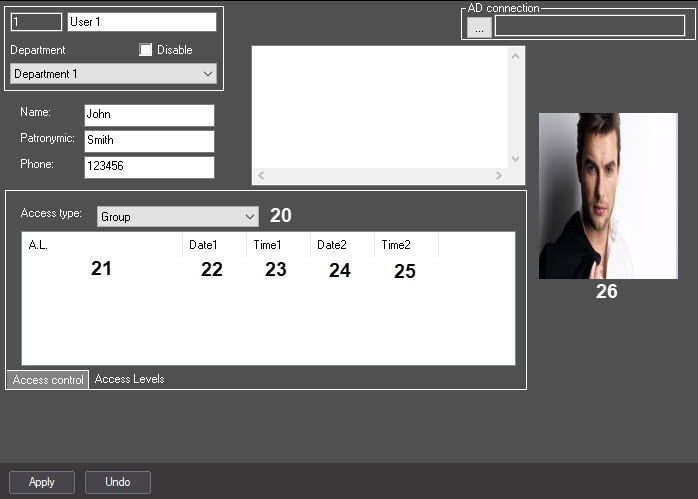
№ | Parameter | Method of setting the parameter value | Parameter description | Representation | Default value | Value range |
| 20 | The Access type drop-down list | Select the value from the list | Sets the access level for the user | List of access types | Group
|
If you set the Group access level, the user is assigned the access level of the department to which they belong |
| 21 | The A.L.** drop-down list | Select the value from the list | Sets the user's access level | List of access types | NA | NA |
| 22 | The Date1** field | Automatically | Displays the start date of the temporary access level. Format: DD.MM.YYYY | Digits and service characters except: < | > | NA | NA |
| 23 | The Time1** field | Automatically | Displays the start time of the temporary access level. Format: HH:MM:SS | Digits and service characters except: < | > | NA | NA |
| 24 | The Date2** field | Automatically | Displays the end date of the temporary access level. Format: DD.MM.YYYY | Digits and service characters except: < | > | NA | NA |
| 25 | The Time2** field | Automatically | Displays the end time of the temporary access level. Format: HH:MM:SS | Digits and service characters except: < | > | NA | NA |
| 26 | Photo area* | Automatically | Displays a photo of the User object | Graphical representation | NA | NA |
| Info | ||
|---|---|---|
| ||
Using the Access Manager module as part of the ACFA PSIM subsystem (see Guide for configuring and working with the Access Manager module), you can specify the photo displayed on the settings panel of the User object. You can also add or change the user's photo using the Face recognition and search module that is a part of Face PSIM (for details on how to configure and work with this module, see Face PSIM documentation in the AxxonSoft documentation repository). |
*The name of the element isn’t displayed on the settings panel of the object.
** To change these parameters, you can use the Access Manager module as part of the ACFA PSIM subsystem (see Assigning a temporary access level to a userFace recognition and search interface being part of Face-Intellect software also allows adding and editing user's photo (see Face-Intellect documentation in AxxonSoft documentation repository for details on its setting up and configuration).
Overview
Content Tools