
Go to documentation repository


Page History
INTELLECT™ provides In Axxon PSIM, you can control the PTZ control option device using the Operator operator query panel interface object. The Operator operator query panel interface object is an individual user dialog box with the relevant panel that contains the elements to control a certain type of PTZ device.
The operator query panel displays the unique control panel that is designed by the PTZ device vendor and is bundled with the PTZ software. The files of the unique PTZ control panels . Its files are stored in the Program folder Program folder of the INTELLECT™ Axxon PSIM root installation directory and provided along with the PTZ software.
Create To create and configure the Operator operator query panel as follows: in Axxon PSIM, do the following:
- Open the Programming tab in the System settings dialog box (1).
Create a the Macro object under the Macros object in the Programming tab (2). Specify the on the basis of the Macro object by specifying the object's ID and name.
Info title Note The Macro object object is necessary required to refer to INTELLECT™ the Axxon PSIM program core and to display the Operator operator query panel on the screen.

- Open the Hardware tab in of the System settings dialog box window (3).
- Create the Operator query panel object under on the basis of the Computer object in the Hardware tab object (4).
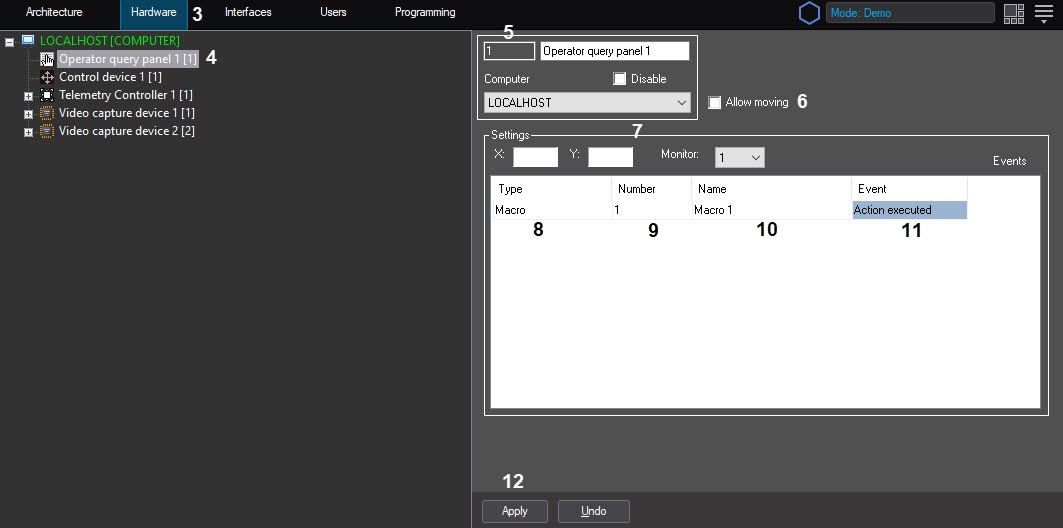
- Specify When you create the Operator query panel object, specify the name of the file name (without extension) of the dialog boxwindow, used for PTZ device control, in the ID number field (5). The file should be created with
savedInfo title Note First, create this file using the ArpEdit utility and
program folder of the INTELLECT™place it in the
request dialog box file examplesProgram folder of the Axxon PSIM installation directory (see Creating a dialog box form). You can also
obtain examples of dialog window files by contacting AxxonSoft technical support.
When you create the Program object, select the name of the computer and specify the Always value in the time schedule (see The Program system object). As a result, the Program folder is created automatically. All files with the .dlg extension created with the ArpEdit utility are added to this folder.

- To activate the moving option for the Operator query panel objectmove the operator query panel across the screen by using a mouse, set the Allow moving checkbox checked (6).
- Specify the In the X and Y fields, specify the coordinates of the Operator operator query panel position on the screen in the relevant fields. The .
settings correspond to the screenInfo title Note The values of the X and Y
topfields match with the coordinates of the
Operator query panelupper left corner of the
shownoperator query window on the screen and are
screen sizes correspondingly (7)expressed as a percentage of the horizontal and vertical
dimensions of the screen, respectively.
- Select the type of the Macro objects in the list of objects and events
- Macro value from the drop-down list in the Type column (8). Specify
- Select the ID of the Macro object ,
- created to call up the Operator
- operator query panel from the drop-down list in the Number column (9).
- As a result, the name of the selected Macro object is automatically displayed in the Name column (10).
- Select the Action executed item from the drop-down list in the list of possible events Event column (11).
- To save the changes click Click the Apply button (12). .
Creating and configuring the operator query panel is complete.
Overview
Content Tools