
Go to documentation repository


Page History
...
Jog-Wheel (not integrated into the Intellect Axxon PSIM software package!) is a rotary control rotating only around its axis. When released, the control returns to its original position. In the illustration it is located at the bottom left (outer ring).
...
The following keys to manipulate the device interface are also available (not related to Intellect Axxon PSIM):
- Pressing the button on the remote control joystick (OK) (equivalent to pressing the ENTER key).
- Cancel the action / return one step back in the remote control menu (equivalent to pressing the ESC key).
- Numbers / letters are entered from the numeric keyboard, the mode (upper/lower register, digits) is switched by the SHIFT key.
- Moving through the menu items and within the fields is carried out by deviating the remote control vertically / horizontally.
Configuring the PTZ control device before adding it to
...
Axxon PSIM
Before creating the corresponding object in Intellect Axxon PSIM software package, configure the UNIVIEW KB-1100 PTZ control device as follows:
- Switch on the control device.
- Enter username and password in the device display. The default credentials are as follows:
- login: admin
- password: 123456
- Configure the device network configuration. To do this, in the Local Cfg -> Net Cfg menu, set the following settings:
- IP address
- Mask
- Gateway
- Add Intellect Axxon PSIM Server/Client to the internal configuration of the device. To do this, in the Dev Manage -> Manual Cfg -> Add Dev menu, set the following settings:
- ID – enter any number (range: 1-240, the number must not coincide with the ID of the remote control or other already added device).
- name – enter a string (1-8 characters).
- DType – select VM (VideoManagementSystem, i.e. Intellect Axxon PSIM).
- LType – select NetWork (the device is integrated for connecting to Intellect Axxon PSIM via the network).
- After selecting LType, press the button on the joystick and enter the IP address of the Intellect Axxon PSIM Server/Client and the port used (60000 by default).
- Connect to the Intellect Axxon PSIM Server/Client added in the previous step. To do this, enter the above ID in the FindDev -> Dev ID menu or select the found profile in the Dev Manage -> Search Dev menu.
- If the device is found, information about it will be displayed on the device display.
- Press on the ID field. As a result, it will be possible to work with the control device in Intellect Axxon PSIM.
Setting up the UNIVIEW KB-1100 control device is completed.
Configuring the remote control in
...
Axxon PSIM
To configure the connection of the UNIVIEW KB-1100 PTZ control device to the Intellect Axxon PSIM software package, proceed as follows:
- Create the Control device object under the Computer object on the Hardware tab of the System settings dialog window (1).
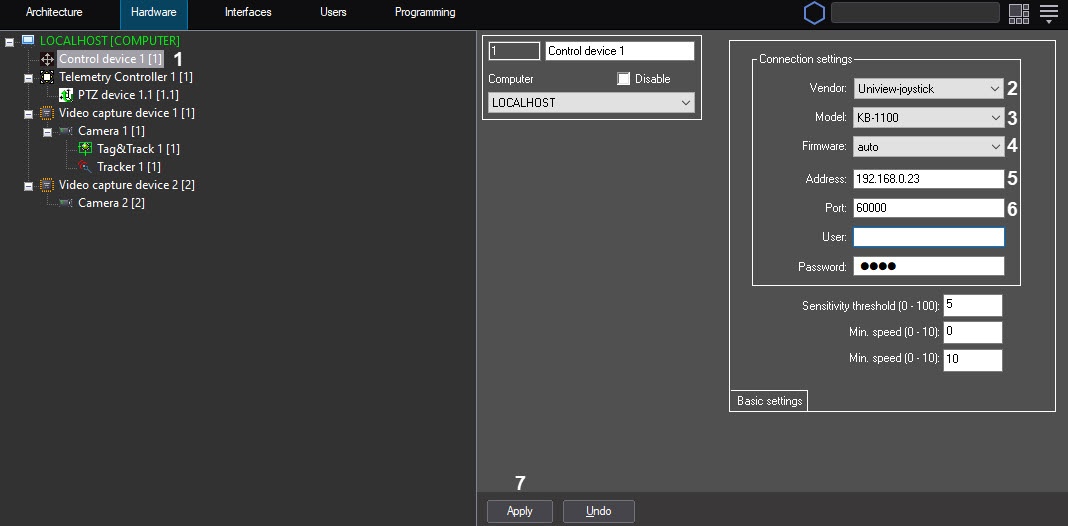
- Select Uniview-joystick from the Vendor dropdown list (2).
- Select KB-1100 from the Model drop-down list (3).
- Select auto from the Firmware drop-down list (4).
- In the Address field, enter the IP address of the control device (5).
- In the Port field, enter the port number specified in step 4e of the device configuration (6).
- Click the Apply button (7).
Configuring the connection of the UNIVIEW KB-1100 PTZ control panel to the Intellect Axxon PSIM software package is now complete.
...
Overview
Content Tools