
Go to documentation repository


Page History
...
- Go to the settings panel of the Intercom Subsystem object for which the report is to be created.
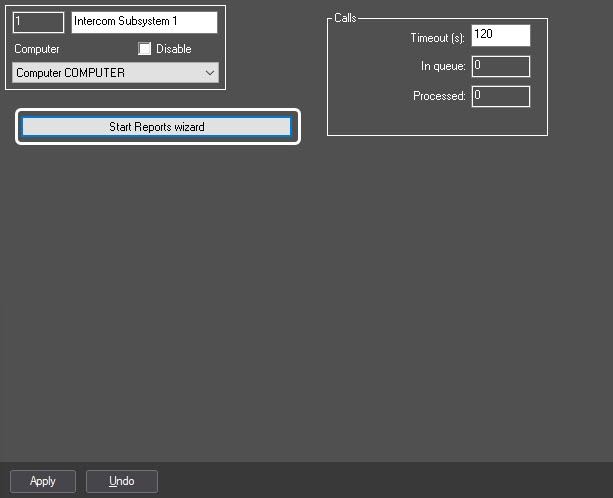
- To start the reports wizard, click the Start Reports wizard button.
- As a result, the Reports wizard for security intercom terminal dialog box will display.
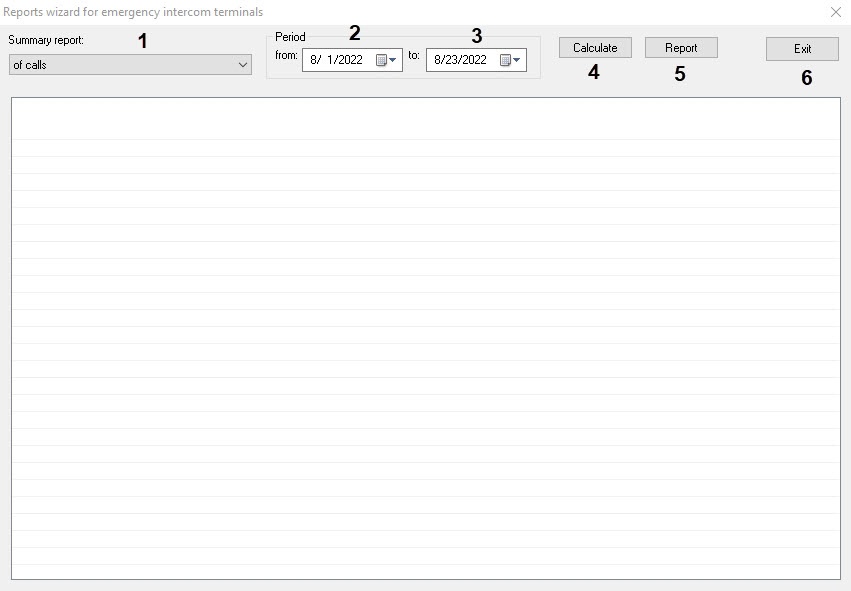
- From the General report: drop-down list, select the required report type (1).
- Select borders of time period for which the report is to be created in calendars available in from and to drop-down lists of Period group (2,3).
- To create the report, click the Count Calculate button (34).
As a result, the general report will be displayed as a table.
Info title Note. To view the archive data by calls, double-click the corresponding table line. As a result, the Display 4321 interface object with located Monitor 4321 and Audio player 4321 objects will be activated. Playback of archive video record starts automatically.
Display 4321, Monitor 4321 and Audio player 4321 objects are automatically created and configured at the first view of archive.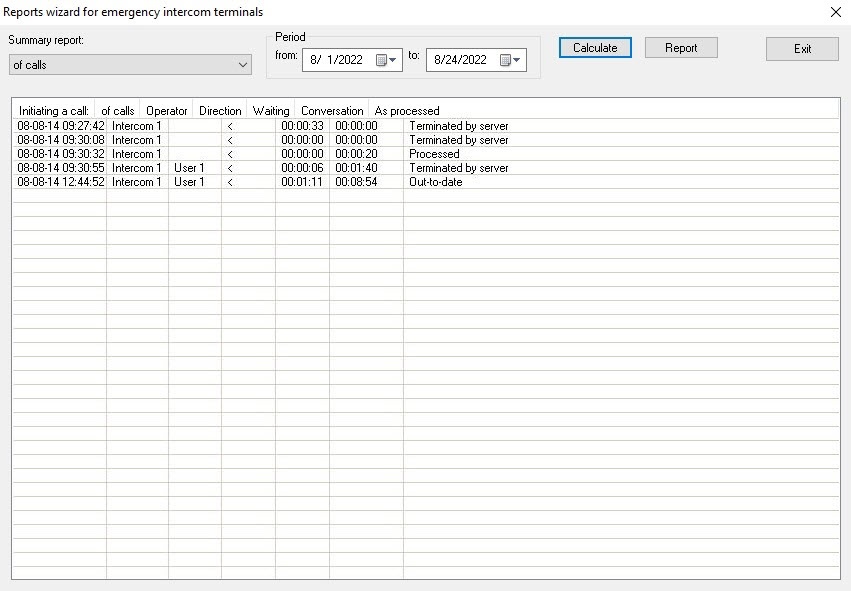
- To export and print the report, click the Report button (5).
- To close the Reports wizard for security intercom terminal dialog box, click the Exit button (6).
Working with the reports log is completed.
Overview
Content Tools