
Go to documentation repository


Page History
Objects are added to intellectpsim.dbi as follows:
- Go to IntellectAxxon PSIM's root folder and open the intellectpsim.dbi file with a text editor.
Add the objects to intellectpsim.dbi. For each object, you must supply its name (used for identification) in brackets and then declare its fields. Below is the field declaration syntax:
<Field name>, <Type> [, <Size>]Info title Note. The Size may be set for fields of the CHAR type only.
The table below shows the fields mandatory for all objects in IntellectAxxon PSIM.
Field
Description
id
Unique object ID
name
Object name
parent_id
Parent object ID
flags
Parameter for internal system use
Note title Attention! The flags field may not be used by external applications. The following table describes the allowed data types.
Data type
Description
BIT
Used for creating a flag field that takes a logical value, Yes or No.
CHAR
Used for fields that contain short character sequences.
DATETIME
Used for fields that contain dates and times. The date format is YYYY-MM-DD and the time format is HH:MM:SS.XXX.
DOUBLE
Used for fields that contain floating-point numbers.
INTEGER
Used for fields that contain integer numbers.
TEXT
Used for fields that contain text strings.
Beside the mandatory fields, the objects of the DEMO module module contain the following fields:- port – COM port address;
- address – device address.

- Save the changes to the intellectpsim.dbi file.
- Go to Intellect Axxon PSIM's root folder and run the idb.exe utility.

- In the Select data source list, select Basic data (1).
- Click the Update database button (2).
The system will start updating the database structure. The progress will be shown in the Protocol window of idb.exe.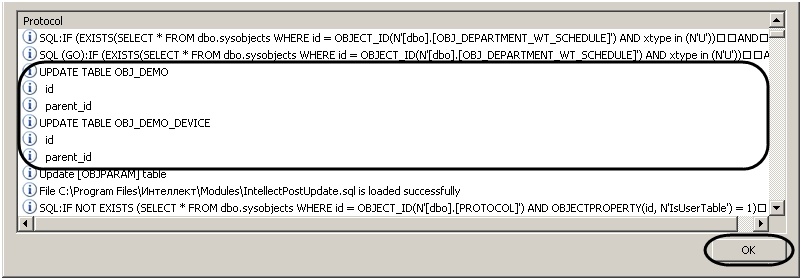
- Click OK to close idb.exe.
As a result of the database structure update, tables are created in IntellectAxxon PSIM's configuration database.
Overview
Content Tools