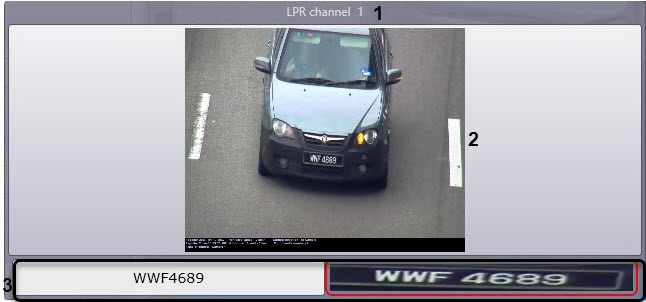
The You can see the passing vehicle data is displayed in the Events monitor window.
| Info |
|---|
|
The Events monitor component may not be displayed due to the corresponding system settings. |
In the Events monitor window, the following data is displayed:
- LP License plate recognizer (the name of the corresponding corresponding LPR channel object) (1);
- An image of a vehicle video frame with a caption in the black area, which can contain the following data (2):
- date Date and time of receiving data about the vehicle;
- vehicle speed;
- vehicle direction;
- speed detector ID number;
- name of the video camera that detected the vehicle;
- the vehicle data.
- Vehicle license plate.
- Country.
- Type of license plate (only for the Vehicle type recognition module, RR vendor and model recognizer module, or AR MMR module).
- Vehicle speed.
- Vehicle direction.
- Speed, permitted on the controlled road area.
- ID of speed detector.
- Control point—name of the camera that captured the vehicle.
- GPS coordinates.
- Vehicle vendor (only for the Vehicle type recognition module, RR vendor and model recognizer module, or AR MMR module).
- Vehicle model (only for the Vehicle type recognition module, RR vendor and model recognizer module, or AR MMR module).
- Vehicle color (only for the Vehicle type recognition module, RR vendor and model recognizer module, or AR MMR module).
- Other and other information about the speed detector (see Setting up the frame sign parameters).
| Info |
|---|
|
To change the composition of the titles, use the TitleFields registry key. Titles are specified in the format "date_and_time, number, country, speed, direction, allowed_speed, device_number, place_control, gps, type, make, model, color" case-insensitively (for details, see Registry keys reference guide, for more information on working with the registry, see Working with Windows OS registry). You can use the parameters of the FontSize.N and TimestampFontSize.N registry keys to change the size of the black area containing captions and their font (see Registry keys reference guide. For more information on working with the registry, see Working with Windows OS registry). |
Recognized license plate and the license plate identified LP number and the LP image (3).
| Info |
|---|
|
- If the LP number license plate hasn't been recognized, the UNDEFINED message will be displayed in the field.
- If the characters of the recognized number license plate are displayed incorrectly, it is necessary to change the font of the recognized number license plate to the one that will contain all the characters of the corresponding country LP numbers license plates (see Setting up the font of the recognized LP number).
- The image of the recognized license plate is compressed or stretched to fit the red frame. By double-clicking in a separate window, you can view the image of a recognized license plate. The set window sizes are saved after you restart the computer.
|
| Info |
|---|
|
- In case the AUTO-Uragan or CARMENor AR-Auto module is used for identificationrecognition, allowed speed, vehicle speed and ID of speed detector ID number are displayed only if the Speed traps server module is connected.
- In case the alarm is registered for a vehicle (overspeeding, and/or identification of a plate in the external plates database), the field with a video frame is highlighted with in red (2).
|


