
Go to documentation repository
Before starting the search, select the POS -terminals to search in by checking the appropriate checkboxes in the table belowterminals, the data of which will be searched, by setting the checkboxes next to the required POS terminals (1) in the POS terminals state table.

Click the Search Find button (2) to start searching. To stop searching at any time, click the Cancel button (3).
| Info | ||
|---|---|---|
| ||
Search cancellation may not work (depends on the type of database management system used in POS PSIM). |

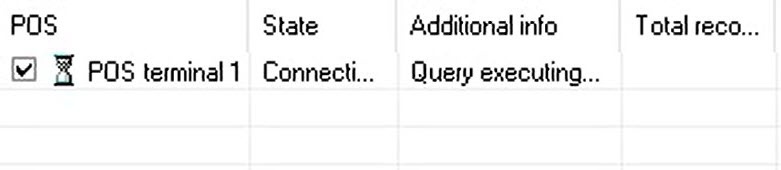
The search status (Query executing…executing) is displayed in the Additional info column for all selected POS - terminals.
To stop searching at any time, click the Cancel button.
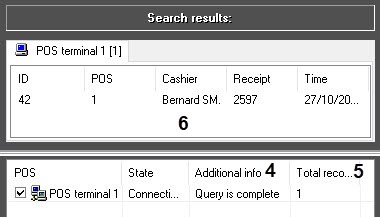
The search process stops when all selected POS - terminals are processed, i.e. the Additional info column reads Search complete (4) displays the Query is complete state for all selected POS - terminals. The number of found records for each POS - terminal will be displayed in the Records found column Total records column (5) of the POS - terminal status table, while the . The list of all found transactions will be displayed in the search results table (6).
...

