To remove the Intellect Web WEB Report System PSIM, do the following:
- Launch the Intellect Web Report System removal process in Start the process of removing WEB Report System PSIM in one of the following ways:
Run: - Go to Start →
Intellect → Delete the reporting subsystem.- Axxon PSIM → Uninstall Report System.
- In the root directory of the distribution package, run
Run - the setup.exe
executable - file
in the distribution root directory- . The version of the distribution
kit - package and the version of the currently
installed Intellect Web - installed WEB Report System
should - PSIM must match.
- As a result of one of these actions the dialog box , the window for selecting the type of action selection is displayed. Select the Remove operation and click Next.
 Image Removedopens. Select Remove.
 - Leave the Save program settings and configuration files (recommended) checkbox set if you want to save settings of WEB Report System PSIM in the database.
Image Added
| Note |
|---|
|
If you clear the Save program settings and configuration files (recommended) checkbox, the following warning appears: 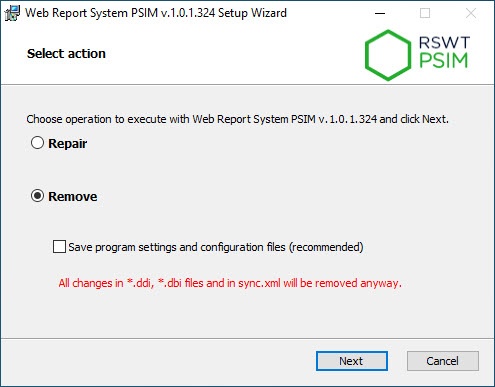 Image Added Image Added
If you remove WEB Report System PSIM without saving the configuration, all .ddi and .dbi files, as well as the sync.xml file, will be erased. |
- Click the Next button.
| Info |
|---|
|
Click the Cancel button if you want to cancel the removal of WEB Report System PSIM. |
As a result, the process of removing the installed Intellect Web - components of WEB Report System
components - PSIM from the computer hard disk
will start- starts.
Image Removed Image Added
- After successful removal of the Intellect Web Report System componentsthe components of WEB Report System PSIM are successfully removed, a message about the completion of the uninstallation removal process will be is displayed. Then click Finish.
Image Removed
 Image Added
 - Click the Finish button.
The removal of Intellect Web WEB Report System PSIM is completed.


