
Go to documentation repository


Page History
| Section | |||||||||||||||||||||
|---|---|---|---|---|---|---|---|---|---|---|---|---|---|---|---|---|---|---|---|---|---|
|
General information
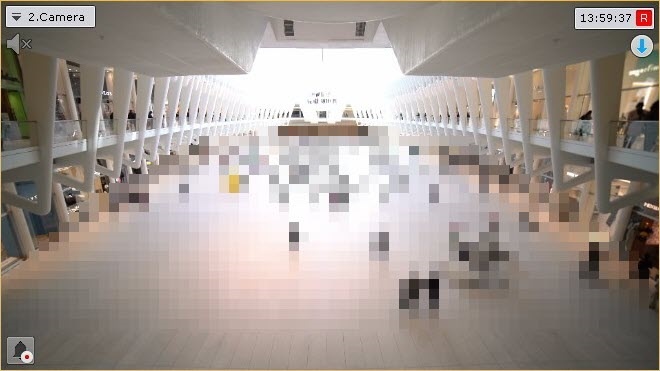
A privacy mask is an area that hides certain parts of the frame to ensure privacy. For example, when cameras are installed in an office, you can use a privacy mask to cover employees' computer screens to prevent the leak of logins, passwords, and other sensitive information. In critical infrastructure, you can use a privacy mask to hide sensitive elements such as control panels and screens containing critical data.
You can
...
apply a privacy mask to the video image
...
:
- when viewing live videos;
- when viewing the archive;
- on exported videos and still frames.
The detection tools that support privacy mask:
- Configuring Face detection;
- Configuring Face detection (VL);
- Configuring Face Detection and Temperature Control;
- Configuring Masks Detection;
- Person-based privacy masking configuration;
- Specific settings for People masking detection tool.
| Note | ||
|---|---|---|
| ||
|
...
|
...
|
...
|
...
|
...
|
...
|
...
The mask will be
| ||
| Note | ||
|---|---|---|
| ||
|
The detectors that support privacy mask:
- Face detector TV;
- Face detector VA;
- Face detector VL;
- Face detector and temperature control;
- Mask detector TV (detection of a medical or similar mask on the face);
- Mask detector VL;
- Mask detector VA;
- Person-based privacy masking;
- People masking (based on data from the pose detector).
Configuring a privacy mask
To configure a privacy mask, do the following:
Select the
Video Camera
object object and click
the the
 button.
Info title Note - The button is inactive
, - if the text overlay button is
active - active
 (see Putting a text over the
camera - active
- For your convenience, you can click
the - the
 button and configure the mask on a still frame. To undo, click this button again.
- the
In the preview window, sequentially set the anchor points of the closed area that you want to hide when viewing the live video image
. . The selected area is masked with a mosaic mask.

Info title Note When
the an area is being constructed,
the anchor points are connected by a two-color dotted line, which outlines the area's borders.
Action
Result
Left or right click in the
video surveillance Surveillance window
Create a new anchor point
in the of an area
Right-click
on a created anchor point
Delete
the area an anchor point of an area
Point the cursor to an anchor point and holding down the left mouse button, move the mouse
Move
the area an anchor point of an area
Click the
 button
Delete
the areaClick the
button.
Set the checkbox.
Click the OK button.an area
- You can specify several areas.
- Click the Apply button
- button to save the changes.
| title | Note |
|---|
You can mask the selected area with black color (by default), or with a mosaic mask. To apply the mosaic mask, do the following:
Privacy mask configuration is complete. When you view a video image from this camera, the selected area will be is hidden.
Overview
Content Tools