
Go to documentation repository


Page History
| Section | |||||||||||||||||||||
|---|---|---|---|---|---|---|---|---|---|---|---|---|---|---|---|---|---|---|---|---|---|
|
Configuring the parameters
To configure the Close-standing people detector, do the following:
- Create the Human pose detector (see Configuring the Human pose detector).
- Below the Human pose detector, click Create… → Close-standing people detector.
...
By default, the Close-standing people detection tool triggers detector generates an event when "skeleton" bounding boxes around individuals people collide.
| Info | ||
|---|---|---|
| ||
Bounding boxes are not displayed in the interface. They are usually a bit larger than the "skeletons" dimensions. |
If necessary, you can change the detector parameters. The list of parameters is given in the table:
| Parameter | Value | Description |
|---|---|---|
| Other | ||
| Enable | Yes | The detector is enabled by default. To disable the detector, select the No value |
| No | ||
| Name | Close-standing people detector | Enter the detector name or leave the default name |
| Type | Close-standing people detector | Name of the detector type (non-editable field) |
| Basic settings | ||
| Distance sensitivity | 2 | Specify the distance between people in meters at which the detector must generate an event. An event is generated if the distance between people in the frame is equal to or less than the specified distance. The value must be in the range [0, 20] |
| Leveling rod length | 1.7 | Specify the average height of a person in meters, according to which the leveling rods are set. The value must be in the range [0, 3] |
| Number of measurements in a row to trigger detection | 4 | Specify the minimum number of frames with close-standing people for the detector to generate an event. The value must be in the range [1, 100]. Increasing the value can help eliminate false events but increases the risk of skips. Decreasing the value can help reduce skips, but increases the probability of false events |
To save the parameters of the detector, click the Apply  button. To cancel the changes, click the Cancel
  button.
Configuring the detection area
To configure the detection area, do the following:
- Click in the preview window.
- Select Detection area.
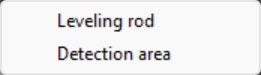
- Set the detection area using the anchor points
 .
.Info title Note - For convenience of configuration, you can "freeze" the frame. Click the
 button. To cancel the action, click this button again.
 - To hide the detection area, click the
 button. To cancel the action, click this button again.
 - To remove the detection area, click the
 button.
- For convenience of configuration, you can "freeze" the frame. Click the
- Click the Apply
 button.
Configuration of the detection area is complete.
Configuring the frame perspective
If you want to change the distance that must generate an event, you must configure You can set another triggering distance by adjusting the frame perspective:
| Note | ||
|---|---|---|
| ||
For portrait-oriented scenes (such as corridor, shopping aisle, warehouse aisle, etc.) perspective adjustment is a must.and so on), we recommend configuring the perspective in any case. |
- In the preview window, click the
 button.
 - Click Select a detection tool, and click the button in the preview window.
- Select Leveling rod.
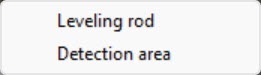
- Specify the size of the same object in different areas
- parts of the frame .
- by eye:
- To create a leveling rod, left-click
on - the video image
and - to add two anchor points.
Set at least
three leveling rods. three calibration rods. The lower anchor points of any three rods must not be located on the same line (horizontal, vertical, slanting, and so on).
- The size of the leveling rod
should - must be about the average height of a person at this
point in - part of the frame.
- You can resize the rod by stretching its anchor points
-
 . You
. You
can move -
- can move it on screen
by 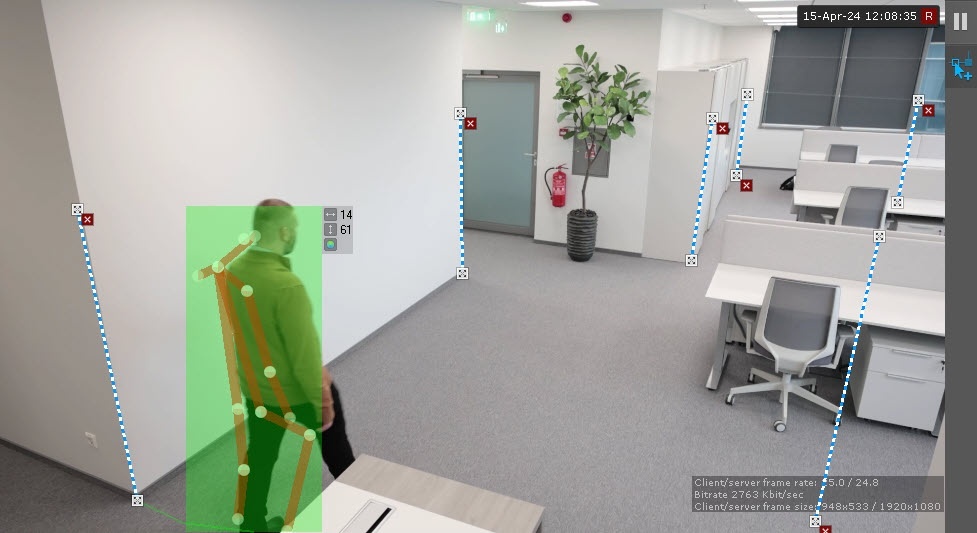
Note title Attention! When
setting you set up
the leveling rods, the following conditions
should must be met:
The - the rods that are located at the same distance from the
video - camera lens
, should - must be of the same size
.- ;
The - the feet of the rods
should - must be located on the same surface (
e.g. - for example, floor)
.- ;
In in complex scenes,
it is recommended to add we recommend adding more than three rods to increase the accuracy of the detection
.;
In in the parts of the frame where the lens vertical distortion is observed, the rods
should must be parallel to the nearest vertical objects (
e.g. door, for example, door or wardrobe)
.;
- for portrait-oriented scenes (such as corridor, shopping aisle, warehouse aisle,
etc.- and so on), the arrangement of the rods
should - must form triangles.
Info title Note
For your - For convenience of configuration, you can
click the - "freeze" the frame. Click the
 button. To cancel the action, click this button again.
- "freeze" the frame. Click the
- The area for detection is displayed by default. To hide it, click the
-
 button.
-
- In the Distance sensitivity field (1) enter a triggering distance value in meters between people. The detection tool will trigger if the distance between people in the frame becomes equal or less than the specified value. The value should be in the range [0; 20].

In the Leveling rod length field (2) enter the average height of a person (in meters), according to which the leveling rods are set. The value should be in the range [0; 3].
- Set the minimum number of frames in which the detection tool should detect close-standing people in order to trigger (3). The value should be in the range [1; 100].
- To cancel the action, click this button again.
- To delete a rod, click the
 button.
- Click the Apply
 button.

| title | Attention! |
|---|
button and configure the mask on a still frame. To undo| title | Note |
|---|
Configuration of the Close-standing people detector Configuring the frame perspective for the Close-standing people detection tool is complete.
Overview
Content Tools