
Go to documentation repository


Page History
| Section | |||||||||||||||||||||
|---|---|---|---|---|---|---|---|---|---|---|---|---|---|---|---|---|---|---|---|---|---|
|
General information
This macro allows you to record events to the archive and stop recording after certain conditions are met.
Configuring an action
To configure recording to archive, do the following:
- Go to the Programming tab.
- In the Event rules or Cycle rules list, click Create... (see Configuring macros).
- Select a start condition that triggers a macro (see Configuring start conditions).
- Click the
 button below start conditions.
 - From the drop-down list, select Camera: Start recording.
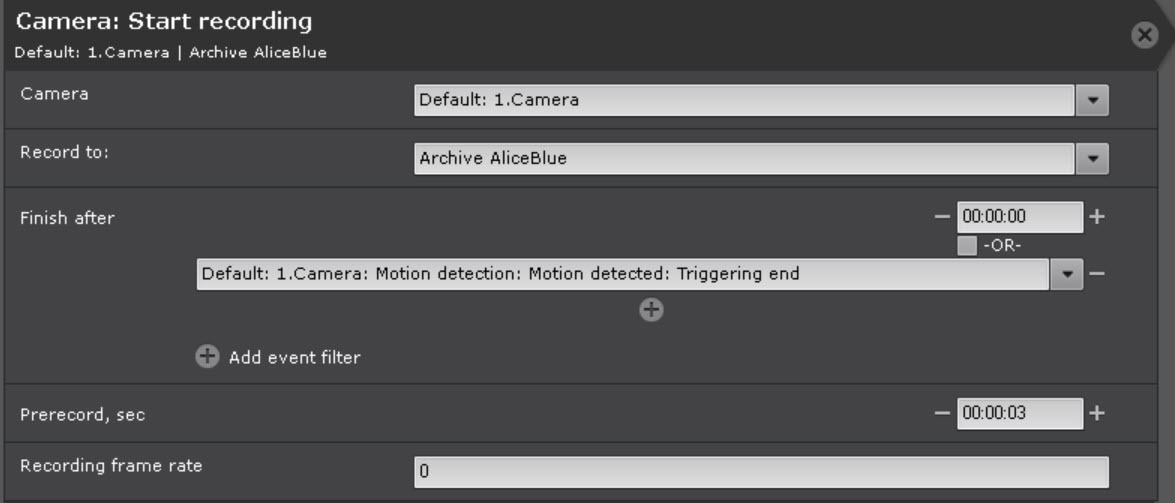
- In the Camera parameter, select
To configure Record to archive:
- Selecting
- a camera or group of cameras for recording (1). An implicit selection of a video camera is also allowed −
- , video from which you want to record to the archive. In addition, an implicit camera selection is allowed—Camera that initiated command execution.
Note title Attention! If
the start of the macro was triggered by the activation of a macro is initiated by an event from an input or output (see Configuring start conditions) that is not connected to any camera, you need to select a specific camera
herefor this action. If you select a group of cameras or a camera that
triggered initiated the
commandmacro, the action
will not doesn't start.
Select - In the Record to parameter, select an archive to write
- record to (2)
- .
- In the parameters of the Finish after group, specify the Configuring
- conditions that end recording.
Condition
Description
Timer
(3) Only a timer value is set. Recording stops
according to the time setting.after a specified time
Event filter
(5)One or several events are set, the timer is set to 00:00:00. Recording stops
on when any
IF event
.from the filter occurs
Timer
(3) +
Intelligent event filter
(IF) (5)One or several events are set, the timer is set to non-zero. Recording stops when the set time interval expires after any
IF event (trigger) occurs.event from the filter occurs
Timer + OR checkbox + event filter
Timer (3) + OR flag (4) + IF (5)One or several events are set, the timer is set to non-zero, the OR
flag checkbox is set. In this case, the recording stops
on when any of the two conditions occurs first: after the time interval expires or
if an IF event (trigger) occurs. when any event from the filter occurs
Info title Note The OR flag - You can
be - set the OR checkbox only if the timer setting is not 00:00:00.
An implicit selection of an event is
allowed − allowed—Last event for condition that initiated execution.
For example, if the event that
triggered initiated the execution of the command
was the Start time of detection tool trigger is Triggering start from any type of
detection toolsdetector, then the end event
will be the End time of detection tool trigger is Triggering end from the same
tooldetector.
Set the pre-alarm recording time (6)In the Prerecord, sec parameter, set the prerecord time in seconds. The maximum
pre-alarm recording prerecord time is 30 seconds.
Note title Attention! - By default, the
pre-alarm recording - prerecord time interval is set to the value specified in
Archive - the archive settings (see Configuring recording to an archive).
- The
longest pre-alarm recording time available in the Archive settings is used- duration of the prerecord time corresponds to the longest value among the set values.
- Changing
this - the value of the prerecord time in a specific macro does not affect the
Archive - archive settings.
If - In the Recording frame rate parameter, enter the required frame rate value if you have cameras in continuous recording mode (see Configuring recording to an archive) and you want to record with specified fps (see example 2)
- change the
- frame rate , enter the required frame rate (7)
- in some cases. After the macro command
- completes, recording resumes at the frame rate specified in the archive settings.
You can use special codes - values:
0
− do —do not change the current frame rate (default).
-
1− record only I-1—record only key frames.
1000
− record —record at the standard
fps FPS of the camera.
Note title Attention!
Fps for pre-recording will not - FPS for prerecord doesn't change.
- If the macro
command - is set to complete some time after a specified event
has been received (see p. 3)- is received, the frame rate
will change - changes for this
Check-in Event-- time.
- When
you prune by frame dropping, in - decimating all video streams except MJPEG, only
I-fames (Intra-Coded Frame or Key Frames) - key frames are saved, so
please use codes: - we recommend using special values for them -1 and 1000.
- If you
go for - specify a custom frame rate
this will lead to dropping some - , decimation is performed by key frames.
MJPEG video contains only I‑frames (Intra-coded pictures with a complete image)- In MJPEG video stream all frames are key frames, so it makes sense to set
a desired frame rate here.- an explicit frame rate value for it.
- Click the Apply
 button.

Configuration of the Start recording action is complete.
Example use
Example 1
.A macro -command to initiate VMD-triggered to start recording to the Archive from the archive when the motion detector generates an event on any camera within the Default Axxon-domain (see Configuring start conditions).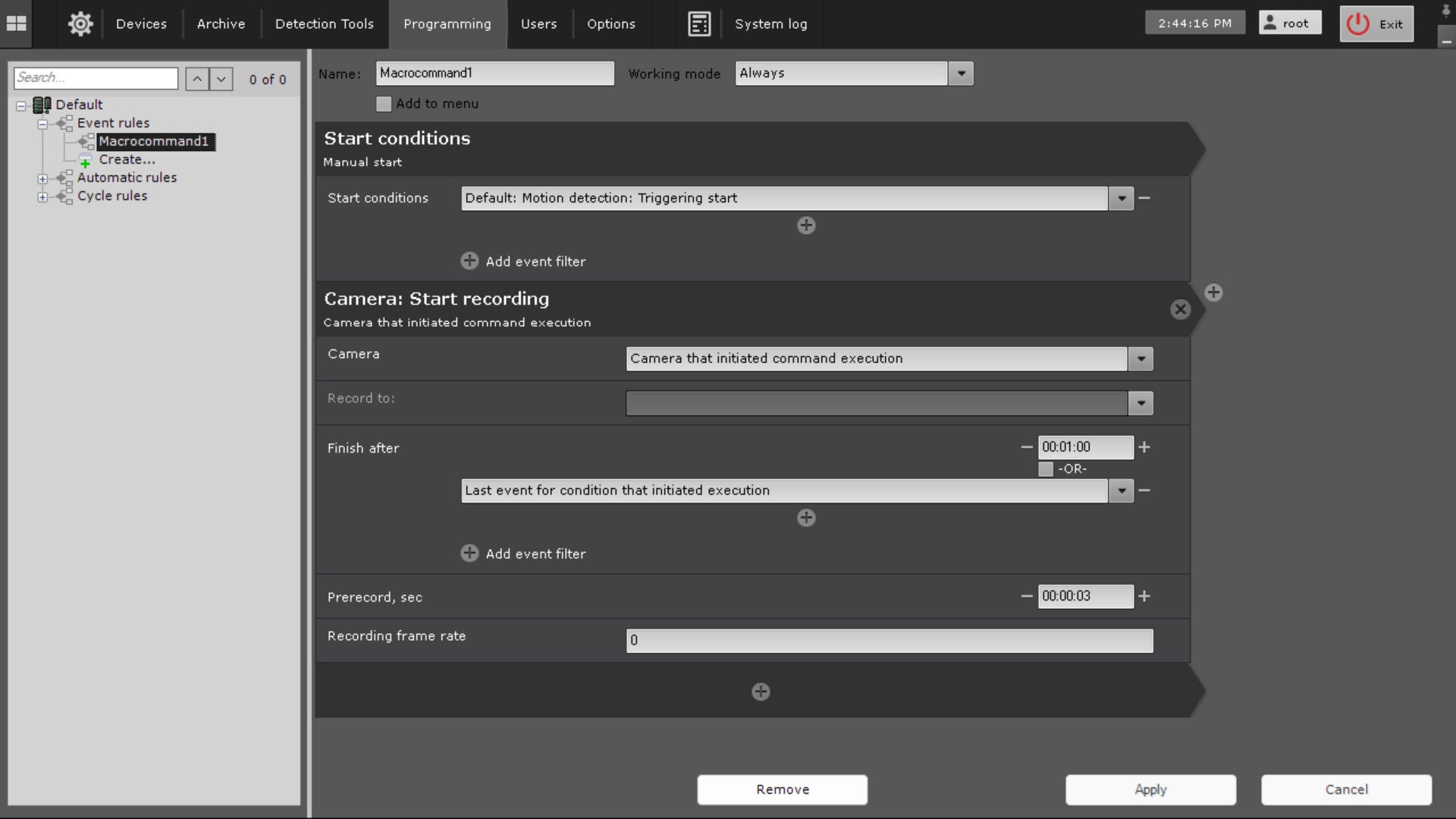
Example 2
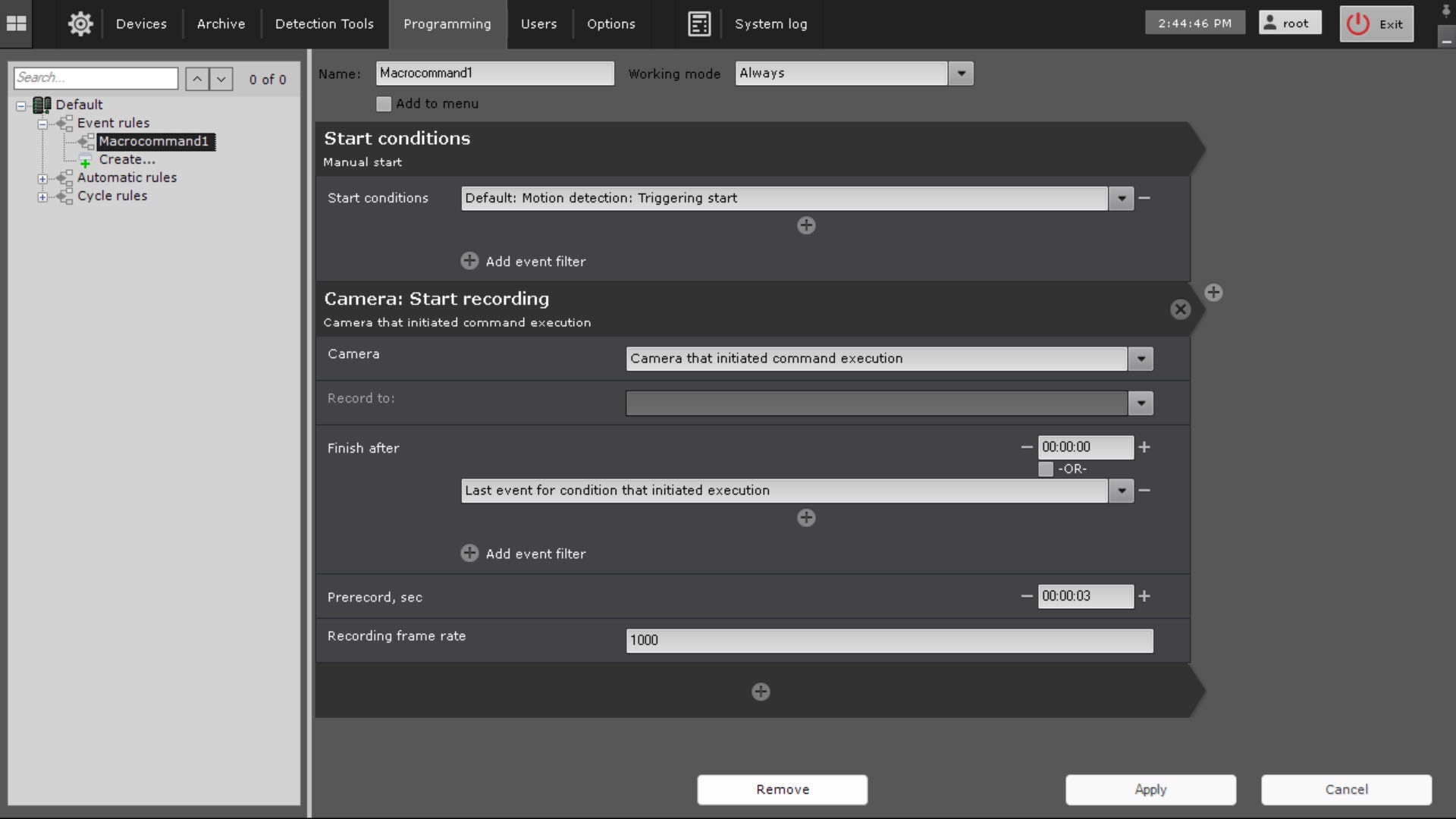
. All video cameras from the Default Axxon Domain -domain are set to continuously record video at the specified fps by dropping frames with decimation to the archive (see Configuring recording to an archive). When you have a motion detection event, you need to switch to full fps recording. Configure the following macro to do so: . A macro records to the archive by events from the motion detector at full frame rate.
Axxon One operation with Windows Defender software
If you have Windows Defender software installed in your system, some problems can occur when accessing and saving data to the archive, as well as significant slowing down of Search in archive.
As a workaround, you can either disable Windows Defender or add AppHost.exe, AppHostSvc.exe, and vfs_format.exe files to the exceptions list.
Overview
Content Tools