
Go to documentation repository


Page History
General information
This action sends E-mails emails to the specified addresses. Exported You can attach exported videos or frames can be attachedto an email.
| Note | ||
|---|---|---|
| ||
Connection to AxxonNet is required to receive alerts by E-mail (see AxxonNet.com). |
To configure the E-mail notification:
Configuring an action
To configure this action, do the following:
- Go to the Programming tab.
- In the Event rules or Cycle rules list, click Create... (see Configuring macros).
- Select a start condition that triggers a macro (see Configuring start conditions).
- Click the
 button below start conditions.
 - From the drop-down list, select Notification: Send e-mail.
- Specify the following parameters:
- Email notifier—select the system object for the email notification when a macro starts (see Email notifier).
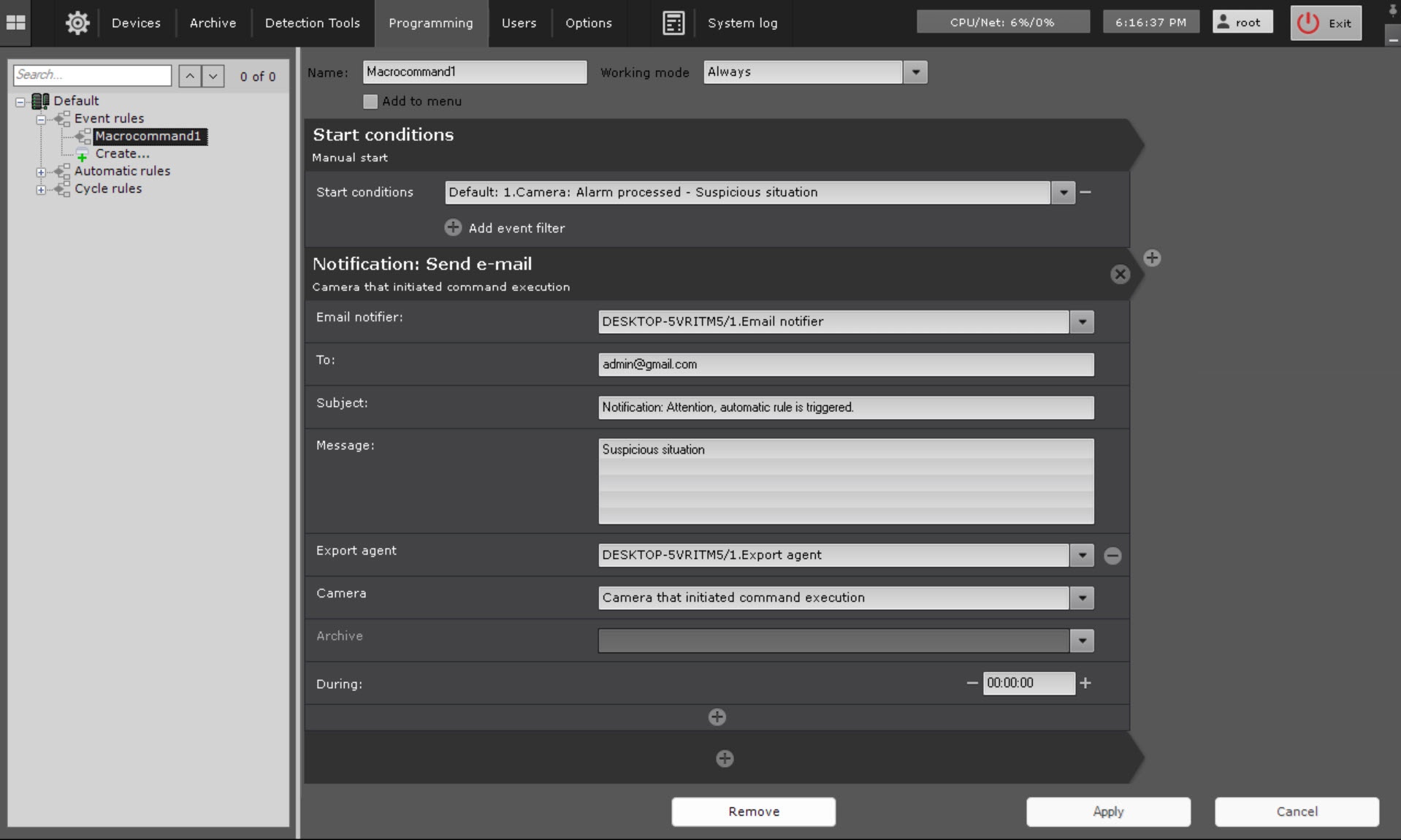
- To—enter the email
Email message (1)− select the system object for the E-mail notifications when a macro starts (see The E-mail notifier object). - Email notifier—select the system object for the email notification when a macro starts (see Email notifier).
- address to which you want to send the message.
Info title Note
- You can enter several email addresses separated by a comma or semicolon.
- Notifications are also sent to the email
- addresses you specified when configuring
the E-mail - the Email notifier object (see
The E-mail - object
- ).
- Subject
(3)− the subject - —subject of the
E-mail - email notification that will be sent when a macro starts.
- Message
(4)−- —enter the text that
should - must be sent in the
E-mail ).- email notification when a macro starts.
Info title Note You can use templates in the message (see Text templates in
macros- email notification when a macro starts.
- In the Export agent parameter, select an export agent.
- In the Camera parameter, select a camera or group of cameras.
- If necessary, you can attach exported video or a frame to your message.
Click the - To do this, you must add and configure additional parameters
. Configuration - (you can add them by clicking the
 button). Configuration of these parameters is identical to configuration of export (see
Starting - (you can add them by clicking the
- Start export).
Info title Note If
the During is not specified, the - Start export).
you don't specify the During parameter, a frame is sent. You can
set specify the format of video and frame export in the settings of the Export agent
settings (
see see Configuring Export agent).
If - Set the All in one email checkbox if a macro is
launched from - initiated by a group of cameras (see Configuring
filters for event-driven macros), you can - start conditions) and you want to send the frames from all cameras in the group in a single
E-mail - email message.
To do this, set the All in one email checkbox (6). If this checkbox is not set, there will be a separate E-mail - If you don't set the checkbox, there is a separate email for each camera in the group.
- Click the Apply
 button.
 To (2): enter the E-mail
 Multiple E-mail addresses can be specified. Separate them with comma (,) or semicolon (;).
| title | Note |
|---|
 button (5) to
 Configuration of the Notification: Send e-mail action is complete.
Overview
Content Tools