
Go to documentation repository


Page History
| Section | |||||||||||||||||||||
|---|---|---|---|---|---|---|---|---|---|---|---|---|---|---|---|---|---|---|---|---|---|
|
| Tip |
|---|
Registering local users
To register a local user, do the following:
- Click the Create link at
To add a new local user:
- At
- the end of the list for a particular role click the Create link.
- of a role, to which you want to add a user.
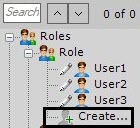
The new user is then - added to the system, and the permissions configuration
- additional settings panel for that
- this user opens on the right.
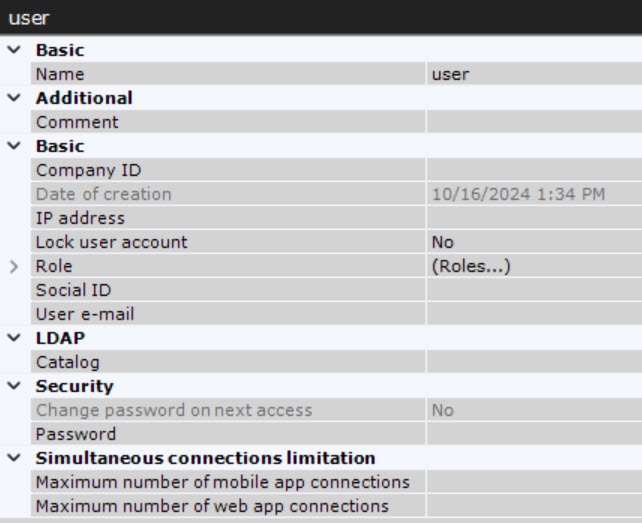
- In the Name parameter, enter a user name (1).
Select the role you want to attribute to the user (2).
Enter the password in the Security configuration group (3).- .
- In the Security settings group, enter a password:
- In the Password parameter, click the
 button
Click - In the Password parameter, click the
- . The Change password
window - window opens.
- window opens.
- Enter the user's assigned password in the Password field.
- Retype the assigned password in the Confirmation field.
- Click OK to save the settings.
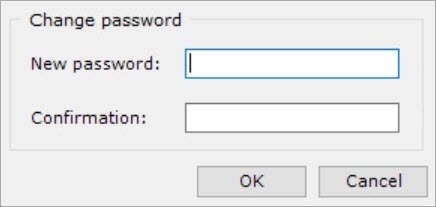
In the New password field, enter a user password (see Security policy).
- In the Confirmation field, reenter the password.
- Click the OK button to save the settings.
In the Change password on next access parameter, select the Yes value if you want to change the specified
To force a user to change the password upon the next connection to the Client
, set the corresponding parameter (4) to Yes.If .
- In the Maximum number of mobile app connections parameter, specify the maximum number of connections if you want to limit the number of connections for a user through Web or mobile Clients, do as follows: specify a maximum number of connections (5). The Maximum number of web app connections parameter also sets a limit on maximum number of RTSP queries from a particular
- via the mobile Client (see AxxonSoft mobile Clients. Documentation).
- In the Maximum number of web app connections parameter, specify the maximum number of connections if you want to limit the number of connections for a user via the Web-Client (see Starting and logging in to the Web-Client). The parameter also sets a maximum number of RTSP stream requests for this user.
Note title Attention! The limit on the number of connections will take effect after the server is restarted (see Launching and Closing the Axxon One Software Package Limiting the number of connections for the Maximum number of mobile app connections and Maximum number of web app connections parameters takes effect after you restart the Server (see Starting and stopping Axxon One software).
If necessary, enter additional information about the user
(in the corresponding fields: User e-mail, IP address,
personal and company ID, etc.) in appropriate fieldsCompany ID, Social ID.
- Click the Apply
 button.
A local user has been registered and added to a role.
All created users are displayed in the Users list.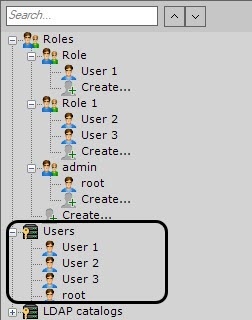
Adding local users to a role
You can add a local user to a role or several roles:
- Using the Roles parameter:
- In the Users list, select a user, who you want to add to a different role.
- In the Roles parameter, in the user settings, click the
 button.
 - In the window that opens, set the checkboxes next to the roles, to which you want to add the user. You can select one or several roles.
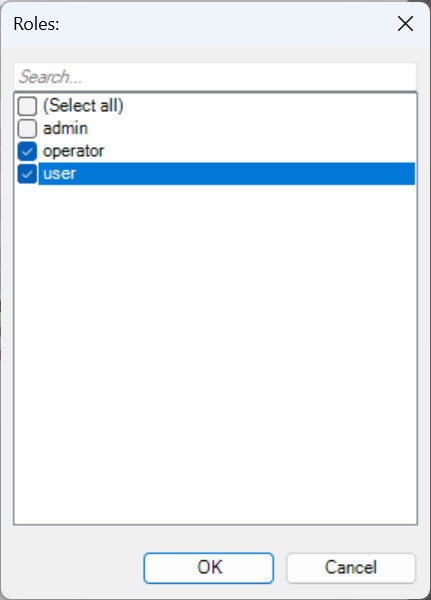
- Click the OK button.
- Click the Apply button
to save the settings. - .
- By dragging and dropping:
- In the Users list, select a user, who you want to add to a different role.
- Move the user to the required role.
Info title Note To copy the user to another role, press the Ctrl key and move the user to the required role.
- Click the Apply button.
As a result, a local user is added to one or several roles.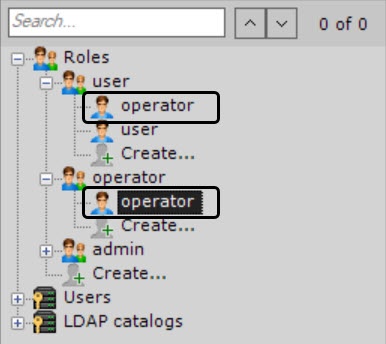
User access permissions are summarized from all roles, to which the user belongs, that is, the permissions with the highest access to the configuration of Axxon One components are selected from all roles.
Locking a local user
To lock an account of a local user, do the following:
- Select a user from the Users list or select a user of a specific role.
- In the Lock user account parameter, select the Yes value.
- Click the Apply button.
As a result, the selected user is locked. Locked users cannot log in. To unlock the user, in the Lock user account parameter, select the No value (see Registering local users).
Removing a local user
To remove a local user from the tree, do the following:
- Select the user that you want to remove.
Note title Attention! You cannot remove a user you are logged in as.
- Click the Remove
 button.
 - Click the Apply button.
As a result, a local user is removedThe user has now been added and assigned a role.
Overview
Content Tools