
Go to documentation repository


Page History
| Section | |||||||||||||||||||||
|---|---|---|---|---|---|---|---|---|---|---|---|---|---|---|---|---|---|---|---|---|---|
|
General information
The
To view the system status data, you need to:
...
web interface of the self-diagnostics service is available for monitoring the system statuses and analyzing its performance.
Access to the self-diagnostics service
To go to the monitoring interface, do the following:
- Open the web browser.
- In the address line, enter: http://127.0.0.1:20040/ .
- .
- Click the Enter button.
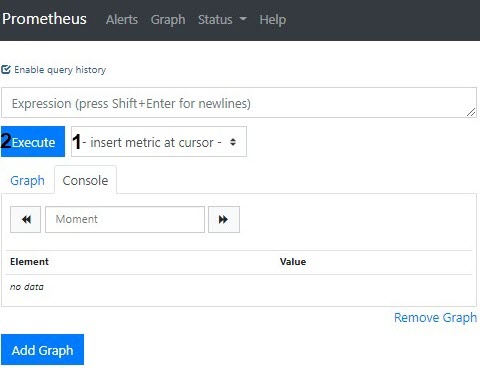
Interface and queries execution
The service interface allows viewing metrics as a table or graphs. To run a query, do the following:
Select the
required metric
in from the drop-down list
(1
) or enter the query manually in the Expression field.
You can:
- Use several metrics at a time. The system has the following available metrics:
Metric
Description
ALERTS_FOR_STATE
Troubleshooting by self-diagnostics service- Use several metrics at a time. The system has the following available metrics:
Found and fixed malfunctions. Contains the alertname parameter with the problem type.
Code Block language go title Example ALERTS_FOR_STATE{alertname="ipint_is_not_activated",ep_name="hosts/Server1/DeviceIpint.99",instance="127.0.0.1:20108",job="ngp_
exportexporter",ngp_alert="true"}
Possible values of the alert name parameterDecryption of the alertname values (see General information about the self-diagnostics service) for the ALERTS_FOR_STATE metric:
- low_os_memory
− out - —out of RAM
;- .
- ipint_is_not_activated
− camera - —camera is connected
but does not send data;- , but there is no data from it.
- no_samples_in_detector
− no - —no events from
a detection tool;- the detector.
- restart_services_when_archive_source_not_activated
− the archive is not working;- —the archive recording isn't working.
- restart_services_when_no_samples_in_archive
− recording - —recording to archive with 0
FPS;- fps.
- restart_services_when_no_ping_from_detector_to_
archive − no footage is recorded on detection;- archive—no recording to the archive at the event from the detector.
- logs_disk_space_is_low / db_disk_space_is_low
− out - —out of system disk space.
ngp_archive_channel_fps
The frame rate of all
video cameras when recording to
archive.the archive
ngp_archive_volume_size
The current total size of the archive (in bytes)
ngp_cpu_total_usage
The
percentage of CPU load
on a Server.of the server
ngp_fps
The frame rate of all
Server video server cameras,
all detection tools detectors and
their decoders.Using multiple metrics.
Using expressions to find issues. For example, a query like ngp_fps <17 will return all metrics where fps was less than 17decoders
ngp_people_count
The last captured number of people in the frame by the Crowd estimation VA detector
ngp_errors
Number of errors in the detectors' operation:
ngp_skipped_pp
Number of missed frames by the Crowd estimation VA detector due to the lack of resources for processing
- Apply logic and arithmetic operators for anomaly searching. The full list of
logical - logic and arithmetic operators is
listed - specified in
the Filtering by any of the parameters. For example, a query like - .
- .
Code Block language go title Example. All metrics where fps is less than 17 ngp_fps < 17 - Faltering by metrics parameters using curly brackets.
Code Block language go title Example. Fps values only for the specified source
- .
ngp_fps{ep_name=~"hosts/
V-BELYAKOVTEST/DeviceIpint.2/SourceEndpoint.video:0:0"}
will return fps values only for the specified source- If necessary, set the time range for the data.
Click the Execute
(2).button.
The request allows for:
Viewing results:
- The Console tab
...
- displays the current metrics values in the table format.

When you
...
- specify the date and time in
...
- the calendar, the data
...
- is updated.

...
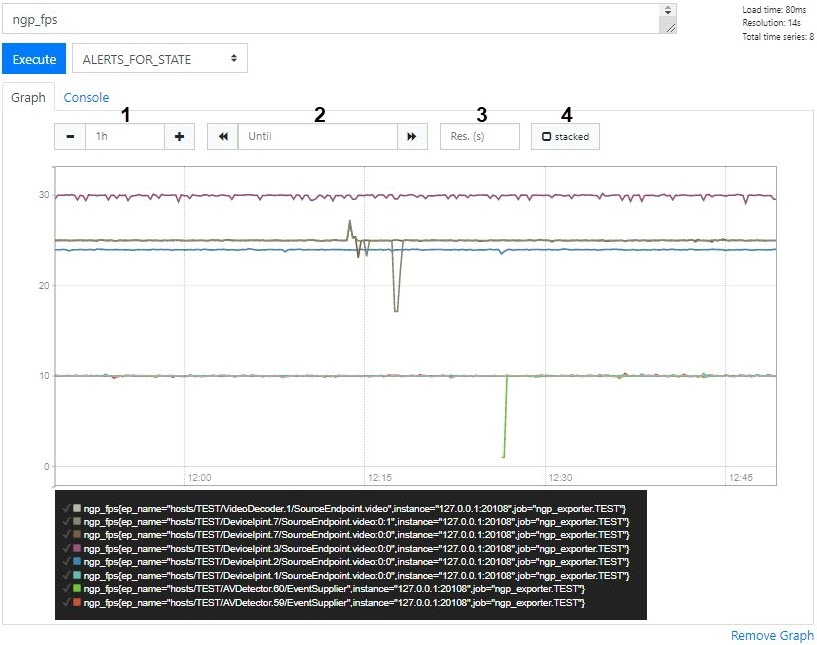
- On the Graph tab you can create the graph of selected metrics at the specified period.
...
- The 1 field—sets the graph time interval.
- The 2 field—specifies the end graph point.
- The 3 field—sets
...
- the interval between data points.
- The 4 checkbox—enables the display mode with accumulation (filling the areas under the graph).
Examples of useful queries for Windows OS
- The CPU loading graph (analog of the System monitor):
Code Block language go sum by (process_id) (100 / scalar(wmi_cs_logical_processors) * (irate(wmi_process_cpu_time_total{process="AppHost"}[10m]))) or ngp_cpu_total_usage - RAM usage by the AppHost processes and a total memory space:
Code Block language go sum by (process_id) (avg_over_time(wmi_process_working_set{process="AppHost"}[5m])) / 1024 or avg_over_time(wmi_os_virtual_memory_bytes[5m]) / 1024 - The percentage of RAM usage:
Code Block 100.0 - 100 * avg_over_time(wmi_os_virtual_memory_free_bytes[5m]) / avg_over_time(wmi_os_virtual_memory_bytes[5m])
Examples of useful queries for Linux OS
- The total RAM usage by the AppHost processes:
Code Block language go sum by (groupname) (namedprocess_namegroup_memory_bytes{memtype="resident"}) - The percentage of RAM usage:
Code Block language go 100 - node_memory_MemAvailable_bytes * 100 / node_memory_MemTotal_bytes - The CPU load by the AppHost processes as a percentage:
Code Block sum by (object_id) (rate(namedprocess_namegroup_cpu_seconds_total{groupname="AppHost"}[1m])) * 100 - The total CPU load as a percentage:
Code Block language go 100 * avg without (cpu) (1 - rate(node_cpu_seconds_total{mode="idle"}[1m])) - RAM usage by the AppHost processes to detect the memory leak:
Code Block language go namedprocess_namegroup_memory_bytes{object_id=~"APP_HOST.*",memtype="proportionalResident"} To fill the chart, select the stacked (4) checkbox.
Overview
Content Tools