
Go to documentation repository


Page History
You can use the Menu... item of the context menu to launch external applications from the Control Panelpanel.

You use the IP address of any object.
...
- Right-click the area that contains the object's name. The context menu opens. Select the Menu... menu item. Then the Menu... dialog box opens.
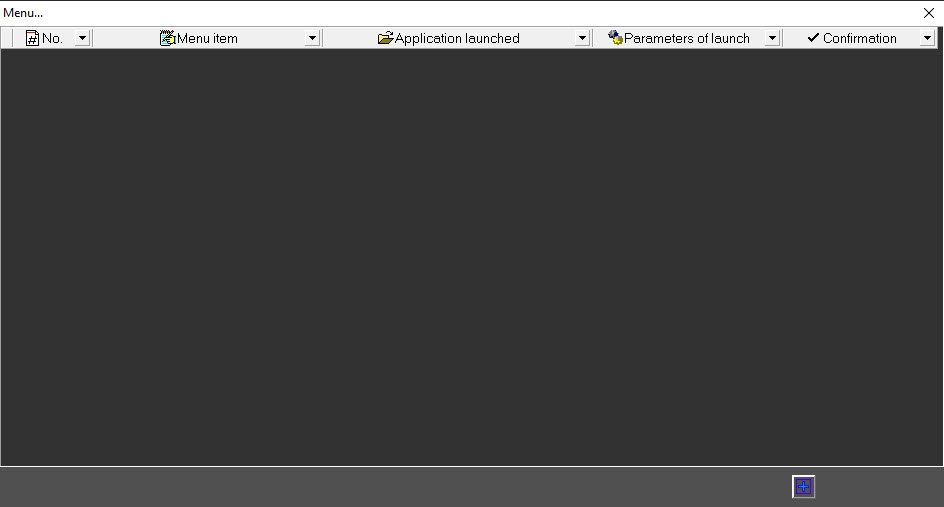
- In this dialog box, click Add entry the button
 (Add record) and enter values as shown in the following figure.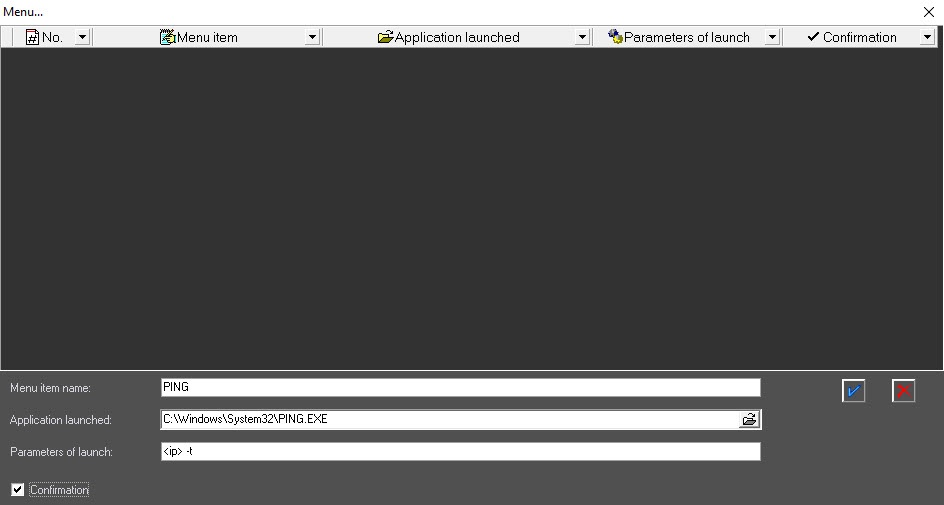
The <ip> string is a reserved expression. When application is called, the real IP address is inserted. Type this string in lowercase. - Click the button
 (OK). The Menu... window shows a new entry that describes the new context menu item.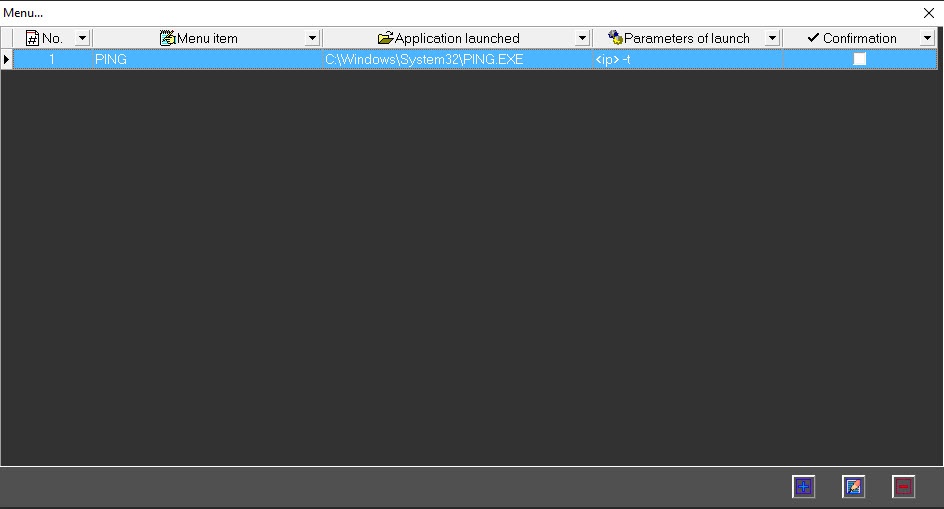
Now, when you right-click on the area with the object name, a context menu will appear with the newly created PING item.

If the Confirmation checkbox was set, the dialog box opens to confirm the command execution when you select this menu item. Click OK to confirm or Cancel if you do not want to execute the action.

After confirmation, the pingPING.exeEXE program is started in a separate window.

For objects that connect to Monitoring PSIM via RS-232 or objects that never connected to it yet, the 127.0.0.1 value will be used instead of <ip>.
...
Overview
Content Tools