
Go to documentation repository


Page History
Preparations Preparation for start-up of the Axxon PSIM software package consist startup consists of installing the its hardware and software components of the software package.
The requirements for computers onto which the on which you want to install Axxon PSIM software package will be installed are as follows are the following:
- Select the a processor in accordance with the computer configuration using the on-line online calculator: https://sale.axxonsoft.com/calc/calculator.jsf. Documentation on the calculator is available here: Documentation.
- RAM—at least 2 GB.
- HDD space available for Axxon PSIM installation—10 GB for installation offree space—10 GB to install Axxon PSIM software + 20 GB for installation of MS SQL Serverto install SQL Server 2019 Express Edition (SP3) (for Server and Remote Administrator Workstations).
- HDD free space available designed for storing video footage—as per requirements to the video archive capacity video archive recording—in accordance with requirements for the archive depth (for Server and Remote Administrator Workstations).
- Video card:
- Discrete: NVIDIA GeForce GT520 1 GB RAM or with higher performance.
- On-boardEmbedded: Intel HD Graphics 530 or with higher performance.
- Windows Operating system—Windows Server 2008 R2 SP1, Windows 7 SP1, Windows Storage Server 2008 R2 SP1, Windows Small Business Server 2011 SP1, Windows Home Server 2011 SP1, Windows Server 2012, Windows 8, Windows 8.1, Windows Server 2012 R2, Windows Storage Server 2012 R2, Windows 10, Windows Server 2016 or , Windows Server 2019, Windows 10 IoT Enterprise, Windows 11.
Installation of theAxxon PSIM software package installation includes the following stages:
- connect the Connect video capture cards to the Servers;servers.
- Connect connect the video cameras and microphones to the video capture cards;
- connect pan/tilt/zoom (PTZ) devices to the Servers;
- .
- Connect PTZ devices to servers.
- Install Axxon PSIM on serversinstall the Axxon PSIM software package to the Servers, Remote Administrator Workstations, and Remote Clients.
The first stage of the Axxon PSIM software package installation involves installing equipment for digitizing video and audio signals on the PC. The Axxon PSIM installation kit includes one or several video capture cards (depending on the purchased type of license) intended to digitize video and audio signals. To install the video capture cards, perform do the following steps:
- Cut off power to the computer onto which the video capture card will be installedinstallation is performed.
- Remove the case cover from the system unit.
- Install the video capture card into a the free PCI (PCI Express) slot.
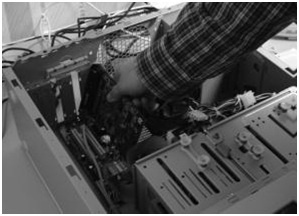
Restore the case cover back onto the system unit.
The Installing the video capture card is now installedcomplete.
The second stage of installation involves connecting video cameras and microphones to the video capture cardscard. The connections are made connection is performed using the provided interface cables with numbered BNC connectors (to connect video cameras) and RCA connectors (to connect microphones) . Connect the that are included in the installation kit. To connect microphones and video cameras to the video capture card as follows, do the following:
- Connect the interface cables to the appropriate corresponding connectors on of the video capture card.

Connect the video cameras to any of the 16 (8, 4) BNC connectors of the interface cable in the numerical order.
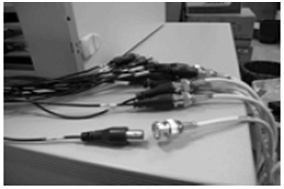
Connect the microphones to any of the RCA connectors of the interface cable with numbers in the range of from 1 to 8.
Video cameras and microphones are now connected Connecting microphones and cameras to the video capture cardscard is complete.
If necessary, the third stage of installation involves connecting available PTZ devices. PTZ devices are connected to the Server server via serial (COM) ports (RS-232 interface). Since PTZ devices typically use an the RS-422 or RS-485 interface, they you must be connected connect them using special RS-422/485 Þ -> RS-232 converters.
Before connecting the you connect PTZ devices, refer to the appropriate documentation in order to become familiar with the pin-out schemes of the PTZ devices and of the utilized convertersdiscover their desoldering schemes and the desoldering schemes of the used converters that are given in the corresponding documentation.
The fourth and final stage of the Axxon PSIM installation involves installing the software provided in the installation kit. You must have the Windows OS administrator rights to proceed with installation.
You can install the install Axxon PSIM software package in one of the following configurations:
- Server—the full-featured Axxon PSIM software kernel (the psimthe Core_server64.exe software executable module). The video surveillance system based on Axxon PSIM software uses Servers to receive Servers are used to accept and process video signals that are coming from analog and IP surveillance cameras.
- Remote Administrator Workstation (RAW)—the full-featured Axxon PSIM software kernel (the psimthe Core_server64.exe software executable module). The video surveillance system based on Axxon PSIM software uses Remote Remote Administrator Workstations are used for remote administering of Axxon PSIM software installed on Servers servers and other Remote Administrator Workstations of the distributed video surveillance system, as well as the specialized platforms: videogate, remote archive server, remote web server, etcand so on.
- Remote Client—the software kernel with limited functionality intended for an the operator workstation work (the psimHost_hostclient.exe software executable module). Remote Client provides remote video surveillance and audio monitoring, i.e. acts as a Client.control, that is, it acts in the client role.
To install Axxon PSIM, do the followingInstall the software as follows:
- Power up the PC and load start the operating system.
- Unpack the installation kit distributed package downloaded from the official website.
- Start the Axxon PSIM software installation.
- Install the required configuration of Axxon PSIM (Server/Remote Client/RAW) configuration by following the setup prompts.
| Info | ||
|---|---|---|
| ||
During the installation process, the software of other producers (third-party software required for the Axxon PSIM operation and drivers for video capture card driver operation) will be cards are also installed. |
Installing Axxon PSIM is now installedcomplete.
Overview
Content Tools