
Go to documentation repository


Page History
| Section | |||||||||||||||||||||
|---|---|---|---|---|---|---|---|---|---|---|---|---|---|---|---|---|---|---|---|---|---|
|
The tabs panel
You can use the The tabs panel is used to switch between different objects settings groupsthe Axxon PSIM object group settings of different types:

- The Architecture tab is used to describe the system structure, the network settings of the computer communication, and the parameters of the event transfer between the computers in a the distributed system.
- The Hardware tab is used to connect and configure the hardware and the software modules. This tab is also used to connect and configure the custom components of the operator 's GUI, such as the Operator query panel and the Alarm notification window.
- The Interfaces tab is used to create and configure the virtual screens and the operatorthe operator's GUI interface components—video surveillance monitors on the virtual screens, audio players, and control panels of various devices and modules.
- The Users tab is used to create user accounts (registration) of users in the digital video surveillance and audio monitoring control system, control users classify their access level rights to the system resources, and assign passwords to users.
- The Programming tab is used to create macros, programs, and scripts, as well as to schedule Axxon PSIM operation and divide the protected area.
The
...
objects tree
The objects tree is arranged as a the multi-level list of the embedded objects.
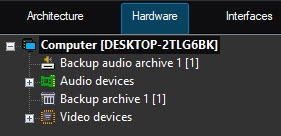
The structure of objects is hierarchical, the lower-order (child) object in the hierarchy can be created only on the basis of the higher-order (parent) object.
...
You can expand the objects tree and view all its groups (branches) or collapse them to hide the irrelevant objects at the current moment.
The
...
object settings panel
The Object object settings panel is used to activate and configure the an object selected in the objects tree.
...
Depending on the type of the selected object, the settings panel displays the necessary required interface elements to enter the parameters its parameter values.
The Apply and Undo buttons
The Apply button is used to save the given object specified identification and setting parameters. The Undo button button is used to return to the previous object identification and setting parameters.

| Info | ||
|---|---|---|
| ||
The parameters entered and confirmed with the After you click the Apply button, you cannot be cancelled with use the Undo button to cancel an action. |
Overview
Content Tools