
Go to documentation repository


Page History
| Section | |||||||||||||||||||||
|---|---|---|---|---|---|---|---|---|---|---|---|---|---|---|---|---|---|---|---|---|---|
|
Purpose
The Display display manager is designed for managing the video walls and attracting the Operatoroperator's attention.
Functions
The Display manager provides display manager has the following featuresfunctions:
- Managing Management of the Video video surveillance monitor added monitors added to the various computers' displays.
- CreatingCreate, edit, editing and deleting Video surveillance monitor layoutsand delete layouts of video surveillance monitors.Creating temporary Video surveillance monitor layouts
- Create temporary layouts of the video surveillance monitors.
Interface description
The Display manager interface of the display manager is shown in the figure:
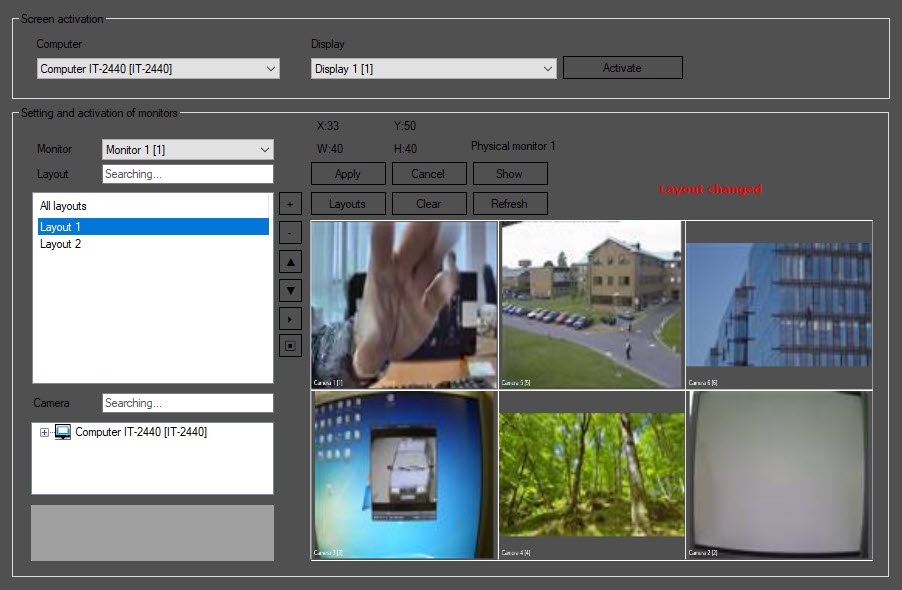
The Screen activation group
The Screen activation group is used for selecting and activating the required Displaydisplay.

The Computer drop-down list is used for selecting a computer to which the required display is assigned. The You can specify the list of computers available in the Computer drop-down list is set during the system configuration - see —see Configuring the Display manager.
The Display drop-down list is used for selecting the required display. In order for the display to be available in this list, it should must be assigned to a computer - —see Assigning the displays to the operator workstations.
The effect of clicking Clicking the Activate button is similar to the Screens button on the Main selecting display on the main control panel (see Main control panel). When you click this the Activate button, the interface windows created on the basis of the selected Display object are object are displayed on the desktop.
...
The Setting and activation of monitors group is group is used for configuring and applying the Video surveillance monitor layoutslayouts of the video surveillance monitor.
The Monitor drop-down list is used for selecting the required Video video surveillance monitor, created on the basis of the Display object selected in the Screen activation group.

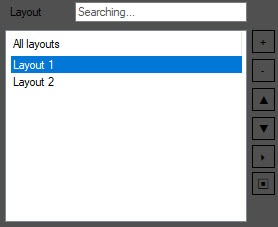
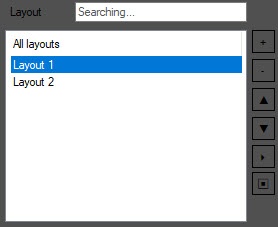
The layouts list is used for selecting the You can select existing layouts , as well as deleting them delete and creating the create new ones layouts (buttons the - and + buttons, respectively) in the layout list. You You can search for layouts by name using the Layout field. To change the order in which the layouts are displayed, use the ▼ and ▲ buttons.
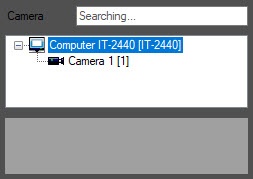
The cameras camera list displays the available video cameras. You can search for a camera by name or ID using in the Camera field. The cameras can be added You can add cameras to the layout only once. The cameras which that are already added to the layout are highlighted in gray. You can drag the cameras from this list onto the layout using the left mouse button. When dragging you drag the camera, the frame displayed on the camera at the moment when it was added to the layout will be is displayed on the layout.
Below the cameras camera list, the camera preview is preview is displayed.
| Info | ||
|---|---|---|
| ||
If you add the camera was added to the Video video surveillance monitor during the current Axxon PSIM session, then it is necessary to restart the you must restart Axxon PSIM to display this camera in this list. |
The buttons for managing the layouts:

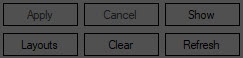
- Apply—save changes in the layout.
- Cancel—cancel changes and go to the last saved layout.
- Show—display the selected layout on the Video video surveillance monitor. The The layout is shown in its last saved version and only if it needs to be displayed on the Computer computer selected for screen activation.
- Clear—remove all cameras from the layout.
- Refresh—refresh the frames in the camera preview windows on the layout.
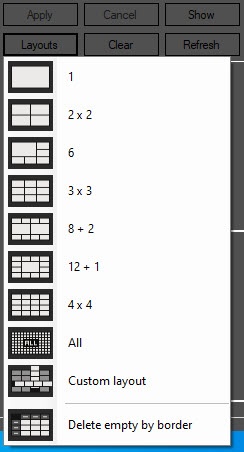
- Layouts—select a standard layout from the list:
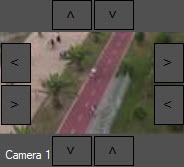
The layout creation panel allows you to get a visual idea of how the layout will look on the Video video surveillance monitor. On this panel, you can also drag the Surveillance surveillance windows, add new rows and columns, and resize the Surveillance surveillance windows using the>the >, <, ∨, ∧ buttons. If the layout was created using the Display display manager, then the frames displayed on the camera at the moment when it was added to the layout will be are displayed in the Surveillance surveillance windows. If the layout was is created using the Video video surveillance monitor, then in order to display these frames in the Surveillance surveillance windows, it is necessary to click on you must click the Refresh button.
Overview
Content Tools