
Go to documentation repository


Page History
If Tag&Track is configured in Axxon PSIM (see Tag&Track configuration), then Video Surveillance Monitor allows video surveillance monitor allows for tracking any selected object on video. Two Video Surveillance Windows surveillance windows are required for the to use of Tag&Track, i.e. that is, for stationary and PTZ camera (see see Configuring video display on Video Surveillance Monitor).

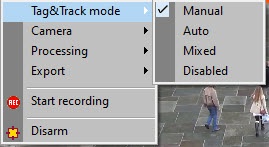
The Tag&Track function can be operated feature works in one of the following modes:
- Manual (default) – —left-click the frame outline of any moving object in the Video Surveillance Window surveillance window to start tracking the object. The selected frame is highlighted in outline turns blue. As a result, the PTZ camera will follow the object until the track is lost.
- Auto:
- If switching to the next object is not isn't configured, the first detected object is tracked until the track is lost.
- If switching to the next object is configured, the first detected object is tracked for a specified period of time, and then switching to the next sequential object is performed.
- If switching to the next object is not isn't configured, the first detected object is tracked until the track is lost.
- Mixed – —automatic mode of operation until Operator manually you select an object manually. When the selected object is lost, Tag&Track switches to automatic mode until Operator selects you select another object manually.
- Disabled – objects are not tracked using the Tag&Track function.
—objects aren't tracked.
You can use Use the Tag&Track Mode menu mode item in the video menu of the surveillance window functional menu to switch modes.
Overview
Content Tools