
Go to documentation repository


Page History
| Section | |||||||||||||||||||||
|---|---|---|---|---|---|---|---|---|---|---|---|---|---|---|---|---|---|---|---|---|---|
|
Configuration The process of configuring Axxon PSIM system system objects generally includes can include the following stages:
...
Selecting object
To select an object, do the following:
- Open the Hardware tab containing the objects tree.


- Select an object in the objects tree by clicking it with the mouse.


...
Creating object
To create an object, do the following:
- Open the Hardware tab containing the objects tree.

- Select a the parent object in the objects tree , which should be used as a basis for the creation of a on the basis of which you want to create the child object.

- Display the context menu by clicking the right mouse button and select the Create object item.

- Select the type of a new the created object using in the corresponding second-level menu.
As a result, the identification panel of the above operations, created object is displayed on the object's settings panel will display an identification panel for the new object.
 Specify a
 - Enter the unique identification number in the Number field (1) and the unique name of a new
- the created object (in the considered example—the Microphone object in the example on the figures
- ) in the Name field (2).

Info title Note For the The list of restrictions
on the use of for using characters for the object identifiers (Numbers)
, see is given on the Identifiers (numbers) of system objects page.
You should not In the Name field, you cannot use the > and < characters
in the Name filed. If you use these characters
are used in the object name, they
will be are removed when you apply the settings
are applied.
If the entered identifier or
the name already
exist exists in the system, the panel displays the corresponding message
is displayed on the panel, and the field is highlighted in red.

- Click the Apply button to complete the object creation process.

As a result, a the new child object will be is created based on the basis of the selected parent system object.

Info title Note If the parent system object has one or more child objects, then you can expand the list of child objects using the
 icon , and collapse the list using the
 icon.
icon.


...
Editing
Editing means is any modification of change in the object settings, i.e. changes in that is, changing the object parameter values. The settings panel of the system object is the key configuration instrument main tool for setting the properties of the given object setup.
To edit an object, do the following:
- In Select the objects tree, select a system object the parameters of which should be edited by clicking the object for editing its parameters in the objects tree by clicking it (1).Edit
- Make changes in the object parameters
- parameter values using the settings panel of the given object (2).
Info title Note The object ID
cannot be edited is always unavailable for editing.
The You can change the object name
can be changed,
howeverhowever, if
an the object with
the same this name already exists, the corresponding message
is displayed appears when
applying you apply the settings:

- Click the the Apply button to save the changes (3).


...
Changing the parent object
When changing you change the parent object, you can move the created object in the objects tree of Axxon PSIM hardware tree without losing the settings saved.
To change the parent object, do the following:
- Select the system object the position of which should be changed you want to change in the objects hardware tree.


Select a the new parent object in from the drop-down list on the object settings panel of the object. The name of the drop-down list is the same as the type corresponds to the name of the parent object type.


Info title Note If the you move an object is moved to another computer, you must restart Axxon PSIM should be restarted on both computers—on the one the object is moved to and on another the object is moved from. for the correct operation of the moved objects on both computers—on the one where you move an object and the one from which you move an object. As a result, the object is displayed in the objects tree of under the selected parent object.


...
Copying objects
The copy function enables allows cloning the objects created in the Axxon PSIM objects tree (for see also copying objects using a template, see alsoby creating a template—The Save function).
| Info | ||
|---|---|---|
| ||
The copy function of copying is guaranteed for the Video capture device object and its child objects: Camera, Sensor, Relay, Embedded detection tooldetector, Face detection tooldetector, Detection zone, Tracker, VMDA detection tooldetector and Captioner. For other objects this function is not isn't guaranteed. |
To copy the objects, do the following:
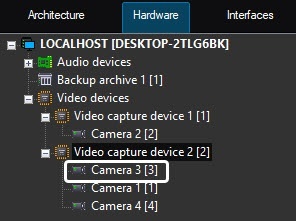
- Select the an object that should must be copied in the objects tree.


- To copy the object, press the Ctrl+C key combination.
- Select the parent object on the basis of which the copy of the selected object should must be created or one of the objects created on the basis of the such parent object.
If the copy should must be created on the basis of the same parent object as the source object, then you can skip this step can be skipped. - Paste the object using one of the following key combinations:
- Ctrl+V—paste only the copied object.
- Ctrl+Shift+V—paste the copied object with all child objects.
The object or objects will be are created with the default names, and they will be are assigned the next free ID in order. The parameters of the created objects will be are the same as those of the corresponding source objects.

| Info | ||
|---|---|---|
| ||
Once You can paste the copied object can be pasted multiple times. The copied object will be is stored in the clipboard until you restart Axxon PSIM restart, PSIM or until the clipboard clipping content is replaced with a by the new copied object. |
...
Enabling or
...
disabling objects
In order to To disable an object, do the following:
- Select an object in the objects tree (1).


- On the settings panel, set the Disable checkbox (2) and click the Apply button (3).


- As a result, the
 symbol will appear the symbol appears next to the disabled object (4).

To enable an object, set clear the Disable checkbox clear in on the settings panel and click the the Apply button.
| Info | ||
|---|---|---|
| ||
Disabling When you disable an object also disables , you disable all of its child objects. |
Restoring the object settings
To restore the object settings, do the following:
- In the objects
...
- tree, select the object whose settings you want to restore.
- Open the context menu using the right mouse click.

- Select the Change history menu item.
As a result, the Settings restoration window opens.
- Select the required version of object changes from the Date/time of saving list.
Info title Note The history of changes is individual for each object and is saved after its recreation.
- Click OK.
Deleting
Delete an object
To delete an object or a folder, do the following:
- Select an object or a folder that should must be deleted (1) and right-click to display open the context menu (2).

Select the Delete object item in the menu.
Info title Note You can also Instead of opening the context menu or selecting the corresponding item, you can select the deleted object that should be deleted and press click Ctrl+Del instead of using the context menu.
As a result, a dialog box requesting Then the window that requires the confirmation of the object deletion will appear on the monitoris displayed.
Click the OK button.

The figure below displays the result of an the object deletion (objects the object tree contents after the object was deleteddeletion). The deleted object (the Microphone Microphone object in the considered example) is no longer displayed in the objects tree.

| Info | ||
|---|---|---|
| ||
The object settings are applied after switching you switch to another fragment, regardless of clicking the Apply button. |
...
Overview
Content Tools