
Go to documentation repository


Page History
Axxon PSIM™ software PSIM supports automatic video recording upon alarm events registration for each Camera system object individually. By default, the auto-recording option is enabled for all cameras registered in the Hardware tab.
The You can disable auto-recording option is disabled upon alarms for each camera individually , as well.
To disable the auto-recording upon alarm option event registration for a selected camera, do the following:
- Go to the Hardware tab in the System settings dialog box (1) window.
- Select the Camera object corresponding to the required camera in the objects tree (2). The settings panel for the selected object is displayed on the right of the Hardware tab.object tree that corresponds to the adjusted camera.
- Select Go to the Basic settings tab on the settings panel of the Camera object (3).
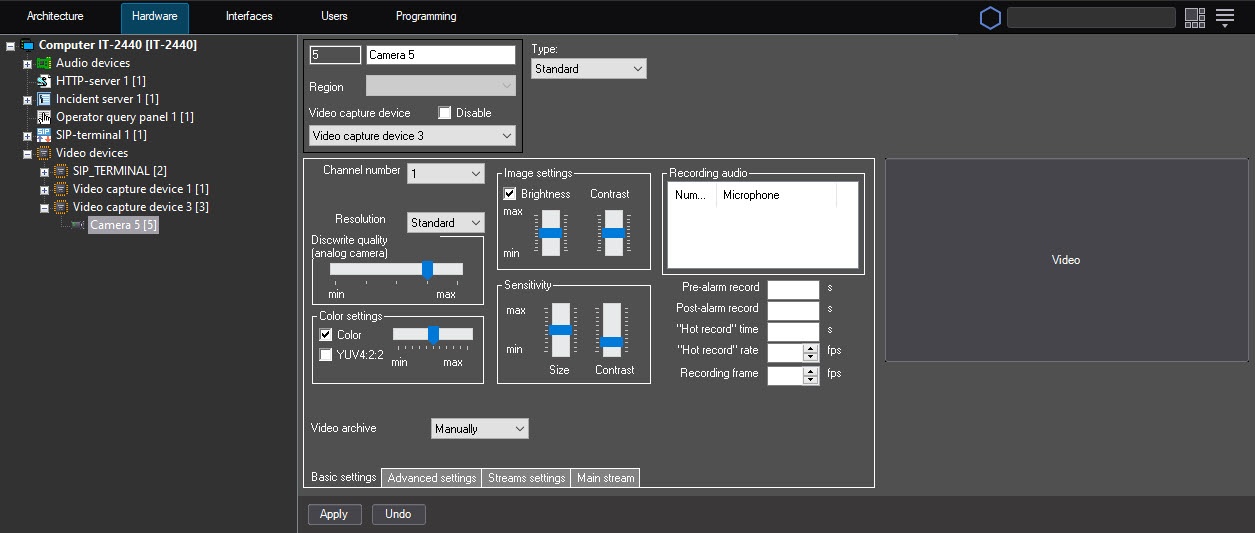 Set the Record alarms checkbox unchecked (4).
 - From the Video archive drop-down list, select the Manually value.
- Click the Apply button (5).
Automatic Disabling automatic recording upon alarm event registration is now disabledfor a selected camera is complete.
| Info | ||
|---|---|---|
| ||
| To re-enable the auto recording option upon alarm event registration, repeat the above steps and set select the Record alarms checkbox On alarms value from the Video archive drop-down list. |
| Tip |
|---|
Overview
Content Tools