
Go to documentation repository


Page History
Axxon PSIM allows supports sending events from the system objects to the VideoGuard server. In this case, Axxon PSIM acts as a client of the VideoGuard system.
| Section | |||||||||||||||||||||
|---|---|---|---|---|---|---|---|---|---|---|---|---|---|---|---|---|---|---|---|---|---|
|
Configuring integration
The To configure the integration with the VideoGuard system is configured as follows, do the following:
Create the VideoGuard integration client object on the basis of the Computer object on the Hardware tab of the System settings dialog box window (1). If you want to send data from several Axxon PSIM servers in a the distributed system should be sent to VideoGuard, then you must create and configure a the separate VideoGuard integration client object on the basis of each server.
Info title Note A single One VideoGuard integration client object is enough to to send messages a message about the loss of connection with any server. See also step 7.
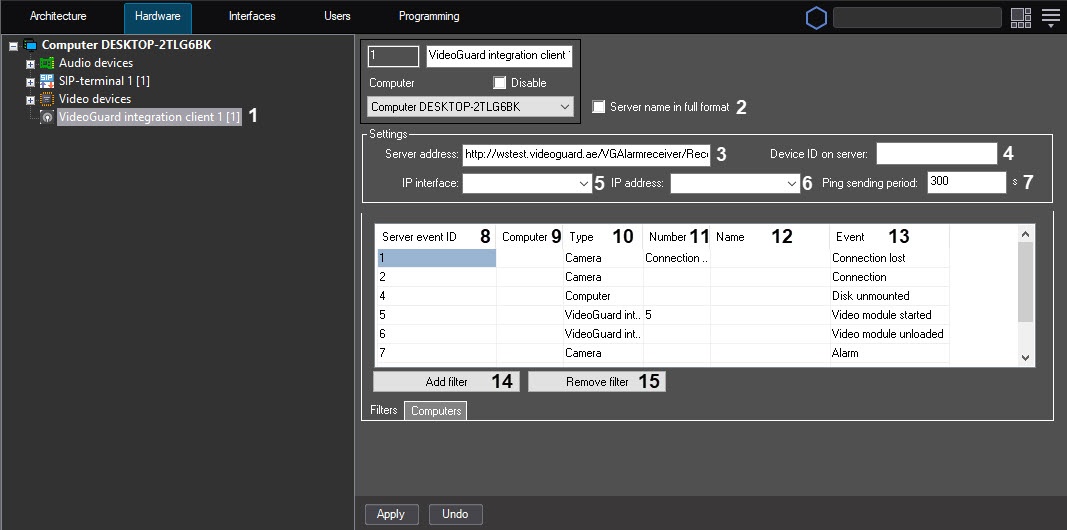
- Set the Server name in full format checkbox (2) , if it is necessary if you want to display the full server name. By default, the short server name is displayed.
- In the Server address field (3), enter the connection address connection address to the VideoGuard server (3).
- In the Device ID on the server fieldfield (4), enter the identifier which that is assigned to by Axxon PSIM on the IP interface server (4). There should be . The field must contain no more than 6 12 digits in this field.
- From the IP - interface drop-down listlist (5), select the network adapter which that is used to connect this computer to the VideoGuard server (5).
From the IP address drop-down list (6), select the IP address that will be is sent to VideoGuard as the Axxon PSIM server address.
Info title Note The IP address list displays all addresses from all available IP interfaces. If you specify an the IP address that doesn't belong to the selected IP interface, the system will send a sends the random IP address from those available in the selected IP interface.
- In the Ping sending period field field (7), specify the Heart Beat messages sending frequency message sending frequency in seconds (7). By default, the Heart Beat message is sent right after the Axxon PSIM starts and then every 5 minutes (300 seconds).
- Configure the correspondence between the VideoGuard and and Axxon PSIM events. By default, mandatory events are added to the correspondence table contains the mandatory events, and their correspondence with the with Axxon PSIM objects events objects' events is configured. If necessary, you can change this correspondence , and add or remove the additional events:
- From the Server event ID drop-down listlist (8), select the event identifier on identifier on the VideoGuard server (8). See the supported values available values in the table belowat the end of the section.
- From the Computer drop-down listlist (9), select the name of the Computer object . The selected events of the objects, which are based on this Computer object, will be sent to the VideoGuard (9). If the value is not specifiedon the basis of which the selected objects must be created so that their events are sent to VideoGuard. If you don't specify the value, the events are sent from the specified objects, regardless of which which Computer object they are based on; in this case . As a result, such events may not can be processed correctly incorrectly in the VideoGuard system.
- From the Type drop-down listlist (10), select the Axxon PSIM object type, the events from which should must be sent to the VideoGuard server (10).
- From the Number drop-down listlist (11), select the Axxon PSIM object identifier, the events from which should must be sent to sent to the VideoGuard server (11). If you don't specify the identifier is not specified, then events are sent from all objects of the selected type.
- After you select the object type and identifier, the Name field will be field (12) is automatically filled with the name of the selected selected Axxon PSIM object (12).
- From the Event drop-down listlist (13), select the event which that is coming from the Axxon PSIM object of the selected type and which that corresponds to the VideoGuard server event server event with the specified identifier (13).
- To add new an event, click the Add filter button (14) , then perform and follow steps a-f to configure it.
- To remove an event, select the corresponding row in the table and click the Remove filter button (15).
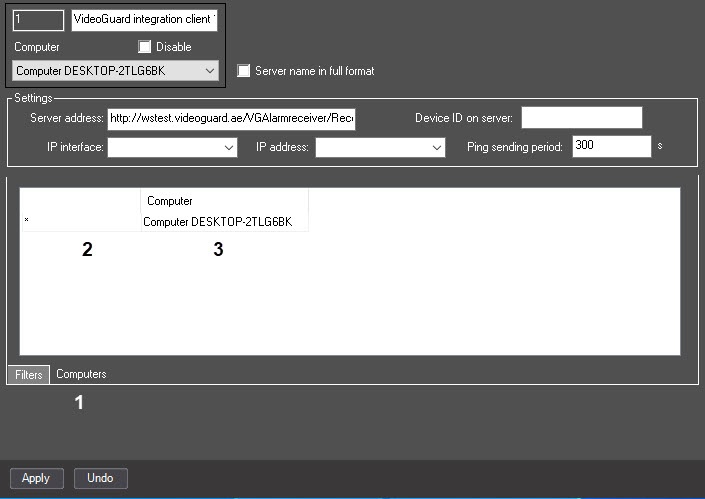
- If there is one you create one VideoGuard integration client object and several Computer objects in the system, then the connection loss events from all computers in the distributed system are transmitted to the VideoGuard software by default. If you do not need don't want to transmit the connection loss events from some any computers, go to the Computers tab (1) and clear the checkboxes (2) next to the corresponding Computer objects (3).
- Click the Apply button.
The Configuring the integration with the VideoGuard system is configuredcomplete.
Restart Axxon PSIM after connecting After you connect to the VideoGuard server, you must restart Axxon PSIM to synchronize the time with the VideoGuard server. After After you restart Axxon PSIM restart, the time zone in Windows OS is synchronized with the specified VideoGuard server. Subsequently, the Axxon PSIM server will synchronize synchronizes with the NTP server of the VideoGuard system (by calling the GetNTPServerInfo method). During the synchronization, the VideoGuard system server will return reports the time synchronization period (120 seconds by default), and within 24 hours after the synchronization with the NTP server, the time synchronization will be is performed at the specified interval.
...
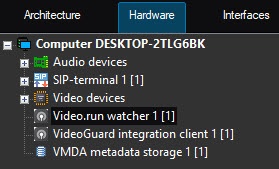
The VideoGuard message filter object is used to save the occurred events of the VideoGuard integration clientin case the Client client loses connection with the Serverserver. When the connection with the Server server is restored, the saved events are transmitted to the Serverserver. The VideoGuard message filter saves only those events that you select in the settings for the VideoGuard integration client (event filter described above).
Order The order of configuration:
- Create the VideoGuard message filter object on the basis of the computer Computer object on the Hardware tab of the System settings dialog window.

- From the Integration client drop-down list, select the VideoGuard integration client client item, the events of which you want to save.
- Click the Apply button.
As a result, the VideoGuard message filter object is created that saves the events of the selected VideoGuard selected VideoGuard integration client when connection is lost is created.
Event identifiers
The event identifiers supported on the server:
| ID | Description | Corresponding Axxon PSIM event |
|---|---|---|
| 1 | No video signal | Camera: Connection lost |
| 2 | Video source connection | Camera: Connection |
| 3 | Disk overflow | -NA |
| 4 | Error writing to disk | Computer: Disc Disk unmounted |
| 5 | Client connection | VideoGuard integration client: Video The video module is started. Note. The event is generated in the following cases:
|
| 6 | Client disconnection | VideoGuard integration client: Video The video module is unloaded. Note. The event is generated in the following cases:
|
| 7 | Motion detection triggerdetector generates an event | Camera: Alarm |
| 8 | Case opening (Shelter Alarm) | -NA |
| 9 | Start of recording to the archive recording | Camera: Harddisk recDisk recording |
| 10 | End of recording to the archive recording | Camera: Record on disk Disk recording is stopped |
| 11 | Change the schedule of recording to the archiveschedule | -NA |
| 100 | Additional event | Used to send additional events to the VideoGuard server. In this case, the event source identifier is added to the event identifierExample. Example:
The event with the 101 identifier will be the identifier 101 is sent to the VideoGuard server. |

| Info | ||
|---|---|---|
| ||
If you add several Servers are added servers to the configuration, then after the you restart of the main Serverserver, the events with the identifier 5 identifier will be are sent to those Servers servers that are turned on enabled or were turned on disabled at the time of the main server restart of the main Server. At the same time, the event with the 6 identifier won’t be identifier 6 isn't sent to those Servers servers that were turned off at disabled at the time of the main server restart of the main Server. |
Overview
Content Tools