
Go to documentation repository


Page History
You can select several cameras at once and edit their parameters to display them in the Monitorinterface box window.
To select video cameras in bulk, do the following:
- Go to the settings panel for
- of the Monitor interface object. Click the Range button in
- In the List of cameras tab (1)
- , click the Range button.

As a result, the Add/Edit Camera Objects dialog box is displayed - window opens.
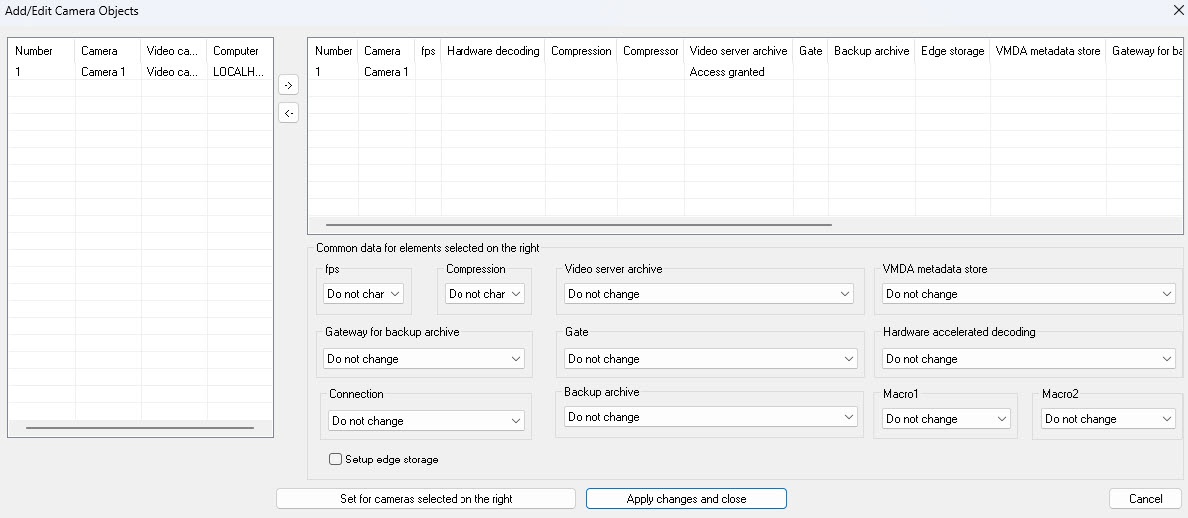
- Select the required cameras in the left list of the Add/Edit Camera Objects box (1)
- window.
Move the selected cameras to the right list by clicking the
 button (2)
button.
Info title Note The right list is the list of cameras selected for displaying in the Monitor
interface boxwindow.
The button
 button is used for inverse action
, i.e. , that is, for moving the selected video cameras from the right list to the left one
(2).
In both lists, you can change the sorting by clicking
on
As a result, the selected camerasthe column names to make it easier to find the required cameras and their settings.
will be - are displayed in the list on the right of the Add/Edit Camera Objects box (3)
- window.
If it is necessary, select the names of required cameras in the right list for
complex bulk editing of their parameters
(3).
Note title Attention! The same parameters will be set for all selected cameras. To In the fps drop-down list, select the required frame rate of a video signal to enable decimation of a video signal for transmitting to the Monitor of the
Client, select the required frame rate of a video signal in the fps drop-down list (4)discouraged to set additional grooming client.
Note title Attention! It is strongly We strongly discourage you from setting additional decimation and/or compression for video signals displayed on the
Server server Monitor
: , as this
will result results in unnecessary consumption of the
Server server resources while the video image quality deteriorates.
Info title Note The selected fps value must be less than the frame rate of the video signal digitized by the video capture device. Otherwise, the frame rate of the video signal will be is equal to the frame rate of the digitization. The fps, Compression, Gate, Backup archive and Gateway for backup archive settings are in All settings described below belong to the Common data for elements selected on the right group.
For correct grooming decimation of a video stream compressed with the help of H.264 or MPEG4 codecs, the fps value is to must be equal to the keyframe rate specified in the device (IP -camera) or Axxon PSIM settings (see Configuring video compression section). If the video compression level
is to must be changed for transmitting to the Monitor of the
Clientclient, select the required level of video signal compression
in the from the Compression drop-down list
of the Compression column (5). Compression . The compression level is increased from 0 (no compression) to 5 (maximum compression).
Info title Note If the compression level is set for the
Clientclient, a video signal on the
Server is to server must be
preliminary decompressed
, that results in a great load increase on CPU of the Serverbeforehand, which leads to a significant increase in the load on the server CPU.
- If the Monitor is to
- must receive live and archive video from the selected cameras via the Gate object, then select the name of this object in
- from the Gate drop-down list (6)
- .
- To enable smart search in the archive of the selected cameras, select the VMDA metadata storage object corresponding to the VMDA trajectories
- tracks database intended to use
- for smart search from the
- the VMDA metadata storage drop-down list (7).
- .
- From the Hardware accelerated decoding drop-down list, select Do not change (default value, hardware acceleration specified for each camera is used), CPU decoder (blank value), Nvidia decoder, or Intel Quick Sync. Selecting a hardware decoder increases the load on the corresponding CPU.
- If necessary, select the required macro from the Macro1 and Macro2 drop-down lists (the default value is Do not change). Later you can run these macros from the camera menu in the Surveillance window (see Running macros from surveillance window)
- If a video archive from the selected camera is to
- must be transmitted to the Monitor from the Backup archive object, then select the name of this object in
- from the Backup archive drop-down list (8)
- .
- If the transmission from the Backup archive object is performed via the Gate object, then select the name of this object in
- from the Gateway for backup archive drop-down list (9)
- .
- If cameras are used to view video archive from external storage, set the Setup edge storage check box (10)
- checkbox. As a result, for each selected camera, the external storage available to it will be applied.
- By default, the Video Surveillance
- Monitor receives a video stream through the Server
- server. If it is necessary to get the video stream not through a Server,
- server but from cameras directly, in the
- from the Connection drop-down list, select Direct (11)
- .
- To save the set
- specified parameters, click the
- the Set for cameras selected on the right button (12)
- .
As a result set - , the specified parameters will be displayed in the list on the right of the
- the Add/Edit Camera Objects box (3)
- window.
- Repeat steps 6
- 5- 12
- 15 for complex
- bulk editing of all required cameras.
- To save all
- the changes and close the
- the Add/Edit Camera Objects box
- window, click the
- the Apply changes and close button (13)
- . Set
- Specified camera settings will be displayed in the
- the List table on the settings panel of the Monitor object (2)
- .
- To save all
- the changes, click the Apply button (3)
- .
Video cameras are now selected in bulkBulk selection of cameras is complete.
Overview
Content Tools