
Go to documentation repository


Page History
By default, Axxon PSIM uses internal synchronization. There is data interchange , that is, the transfer of changes between computers in the distributed configuration system (see Configuring the interaction of distributed system components):
...
.
...
If
...
If the computer has not been in the distributed system for too long, then the computer is disconnected for a long period of time, the accumulated sequence of events can be quite long and processing of all these events can take much time. Thus, offline synchronization can be disabled.Online synchronization can also be disabled, i.e. events won’t be sent.become quite big, and it will take a long time for the reconnected computer to process all the accumulated events. Thus, you can disable synchronization.
| Info | ||
|---|---|---|
| ||
| Internal synchronization, both offline and online, can be enabled and disabled You can enable and disable internal synchronization for all computers in the distributed system. |
| Note | ||
|---|---|---|
| ||
DB synchronization must be configured when any internal synchronization mechanism is disabled—see When you disable internal synchronization, you must configure the database synchronization—see Configuring database synchronization and Configuring the Event Viewer event viewer databases synchronization. |
Configure To configure internal synchronization as follows, do the following:
- Go to the Programming tab of tab of the System settings dialog window (1).
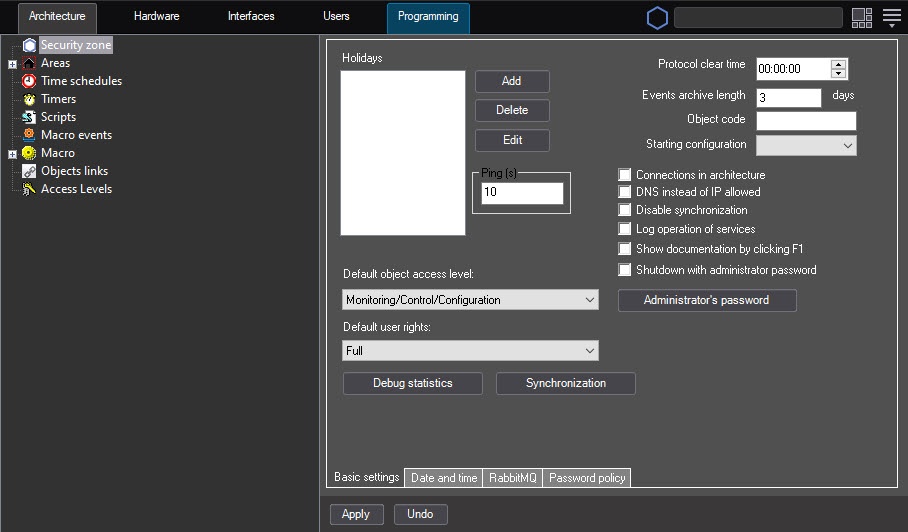
- In the objects object tree, select the Security zone object (2). The settings panel of this object is displayed on the right side of the System settings dialog window.
- To disable offline synchronization, clear the offline checkbox in the Internal synchronization group (3).
- To disable online synchronization, clear the online checkbox in the Internal synchronization group (4).
- Click the Apply button (5).
...
- Disable synchronization checkbox.
- To eliminate desynchronization, click the Synchronization button.
- Click the Apply button.
Configuration of internal synchronization is complete.
The system can display the problems with server connection in the following ways:
 —the server is connected but not synchronized (time is off by more than a minute in either direction).
 —the connection failed for some reason.
 —if the connection process takes a long time.
| Note | ||
|---|---|---|
| ||
If there is a server-remote client configuration, and you don't use the remote client as a client, such a workstation is always displayed as |
| Info | ||
|---|---|---|
| ||
You can use the parameter (30 seconds by default) of the MaxTimeDesyncReauthDelay key of the registry HKEY_LOCAL_MACHINE\SOFTWARE\WOW6432Node\AxxonSoft\PSIM\ to specify the time in seconds allowed between the first attempt of a client that is not synchronized by time to connect to the server and the second attempt to connect to the server with a special token (see Registry keys reference guide). |
Overview
Content Tools