
Go to documentation repository


Page History
To create the Time schedule object, do the following:
- Open the Programming tab (1).
- Create the Time schedule object on the basis of the Time schedules object in object in the objects tree (2).
Specify Enter the number and the name of the time schedule in the corresponding fields of the Time schedule identification panel (3)identification panel of the Time schedule object.
Info title Note The object number should must be in the range from 1 to 65534.
- Click the Apply button (4).
...

The As a result, the Time schedule object will appear appears in the objects tree.
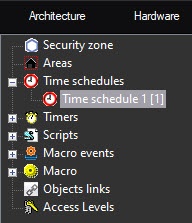
To configure the Time schedule object, specify the values of the following parameters:
...
No | Parameter name | Method for entering the parameter | Parameter description | FormatPresentation | Default value | Value range | |||||
The Time intervals group | |||||||||||
1 | The from column | Enter the value in the field | Exact Sets the exact time of starting the macro execution | Mask:execution of a command | HH:MM:SS | 00:00:00NA | From 00:00:00 to 23:59:59 | ||||
2 | The to column | Enter the value in the field | Exact Sets the exact time of ending the macro execution of a command | Mask: | 00:00:00NA | From 00:00:00 to 23:59:59 | |||||
| The Days Out of weekthe group | |||||||||||
3 | The Days of week checkboxes group: Mon | Set the checkbox | Set the checkboxes Note. | Adds days of the week to the schedule. Days Adds days to the timetable. The days of the week are added individually for each time interval | -Boolean type | Clear | Set – the —the day of the week is included in added to the timetableschedule Clear – the —the day of the week is not included in the timetable | The Holidays group*isn't added to the schedule | |||
4 | The Holidays checkbox | Set the checkbox | Adds holidays to the timetableschedule. The holidays Days are added individually for each time interval | -Boolean type | Clear | Set – the —the list of holidays is included in added to the timetableschedule Clear – the —the list of holidays is not included in the timetableisn't added to the schedule | |||||
The Date group | |||||||||||
5 | Date | Checkboxcheckbox | Set the checkbox | Makes Enables the Period__days field active. If you set the checkbox, the Days of week group is disabled. The days are day is added individually for each time interval | -Boolean type | Clear | Set – makes Set—enable the Period__days field active Clear – —disable the Period__days field is inactive | ||||
Fieldfield | Enter the value in the field | Specifies Sets the exact date in the schedule. The days are day is added individually for each time interval | Mask:DD.MM.YYYY | Current date | From 00.00.0000 to 31.12.9999 | ||||||
6 | The Period field | Enter the value in the field | Sets the periodicity in N days of the time schedule triggering, starting from the specified date (i.e. that is, the time schedule triggers every N-th Nth day) | Numeric value | Sequence of numbers | NAInactive | From 0 to 999999999999999. | ||||
7 | The Report button | -Click the button | Displays the dialog box window with the time schedule schedules activity table | -NA | -NA- | NA | |||||
The Combine with zones table | |||||||||||
8 | The Time schedule drop-down list | Selected Select the value from the list | Sets the time schedule with which the given time schedule should must be combined | Names of the registered Time schedule objects | -NA | Depends on the number of the registered Time schedule objects | |||||
* The Holidays checkbox adds the list of days to the timetable schedule that is specified in the settings of the Security zone object in the object of the Programming tab.
If you set the moment of time interval beginning is set start later than the moment of ending, then time schedule will cover the present its end, the time schedule covers the current day (from the time interval beginningstart) and part of the following day (to the time interval ending) on conditions that the Time schedule is set for the present end) with the condition that you set the time schedule for the current and following day. If the Time schedule is set you set the time schedule only for the present current day, then the Time schedule will end the time schedule ends at 0:00:00.
| Info | ||
|---|---|---|
| ||
Time You can use a time schedule combination can be used for correction of to correct the main time schedule on special days, for example, days before holidays. The To do this, you must specify the date of a special day and the time interval , that should must be added to the interval of the main schedule , should be set on the settings panel of the additional time schedule. |
| Note | ||
|---|---|---|
| ||
If the time schedule parameters are changed switch to a the disabled state, the changes will come into effect after you restart Axxon PSIM. Example: Now it is 16:00. The time schedule end time (the to column) was set to 20:00. Then it was is changed to 16:00. In this case in order for , to make the changes to come into effect, you should must restart Axxon PSIM. OtherwiseBefore restarting, the time schedule will be is until 20:00. |
| Note | ||
|---|---|---|
| ||
The You cannot set the duration of the time schedule usage in days is not set on the its settings panel. So Thus, disable the time schedule combining should be disabled combination right after its application. |
Configuration of To configure the additional time interval, do the following:

To create the list of holidays, do the following:
- Open the Programming tab (1).

- Select the Security zone object (2).
- Click the Add button (3).
Specify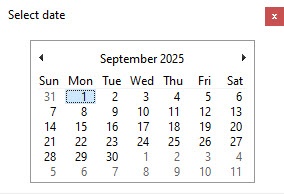
- Select the holiday date in the DD.MM.YYYY format (3)
- Select date window.
- Click the Apply button (4)the Apply button.
Creating and configuring time schedules is complete.
Overview
Content Tools