
Go to documentation repository


Page History
To log in to the License Serverserver web interface, do the following:
- Open the browser and navigate to
Go to the https://127.0.0.1:444/
. This will open the login windowaddress in the browser. As a result, the authorization window opens.
In the Password field, enter the user password.
Note title Attention! For the first login,
use enter the admin password
admin.
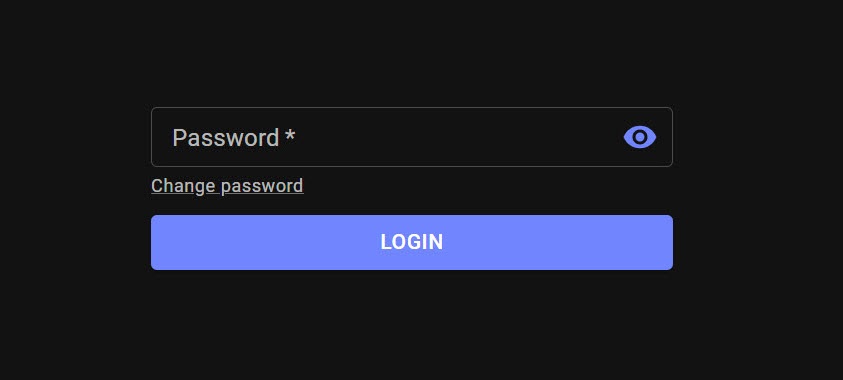
Click the LOGIN button.
This will open As a result, the window for changing the password
change windowopens.
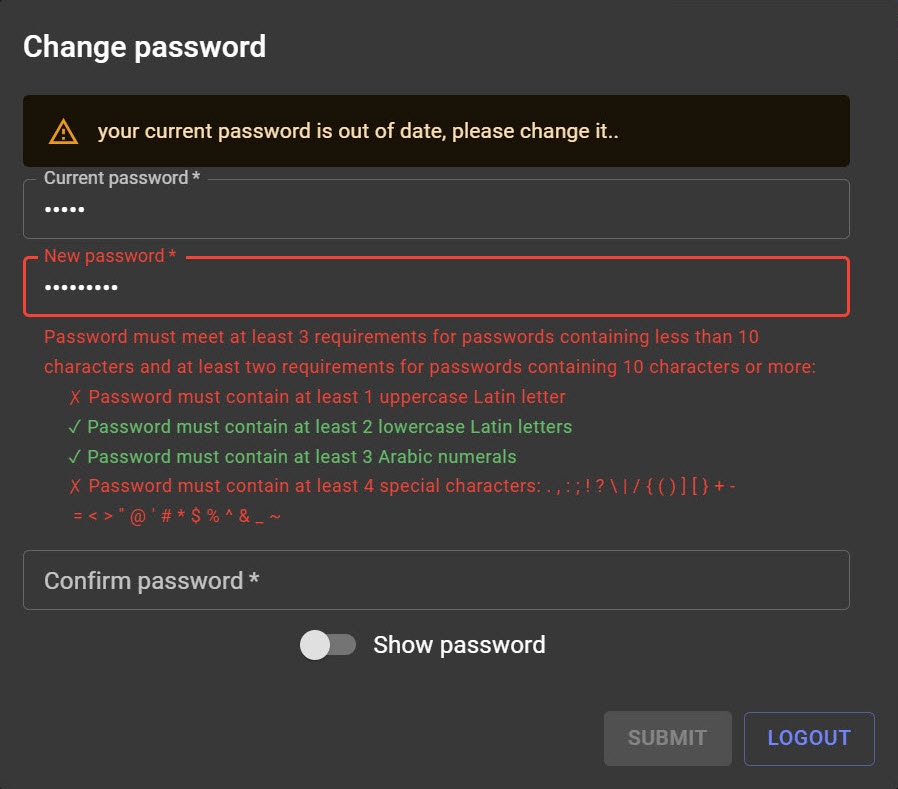
In the Current password field, enter the
old previous password (for the first login to the License
Serverserver, enter admin).
In the New password field, enter
a the new user password.
Note title Attention! The password must meet at least
3 three requirements if the password has fewer than 10 characters
, and at least
2 two requirements for passwords with 10 or more characters:
- At least 1 uppercase Latin letter;
- At least 2 lowercase Latin letters;
- At least 3 digits;
- At least 4 special characters:
- . , : ; ! ? \ | / ( ) [ ] { } + − = < >" @ ' # * $ ` % ^ & _ ~.
In the Confirm password field,
re-enter the new user password.
- If necessary, enable
- you can set the Show password toggle
- switch to the active position to view the entered
- password.
Click the SUBMIT button to save the changes.
As a result, the new user password will be is saved, and the License Serverserver main page will openopens.
Overview
Content Tools