
Go to documentation repository


Page History
If you are using use a fisheye camera or video camera with a panomorph lens, configure do the following settings of the Video camera object, in the Panomorph settings group::
- Select the Camera object in the Hardware tab (see Camera).
- Set the value in the Panomorph view parameter group:
Parameter Value Description Panomorph view Activate Yes By default, panomorph view is disabled. To enable it, select the Yes value No Camera position Wall Select camera position
- To activate panoramic view, in the Activate list (1), select Yes.
 In the Camera position list(2), select the mount of the video camera.
 Note title Attention! Some
system features and functions functions and features of the system depend on the
chosen position of the video cameraselected camera position: digital
zoomvideo zooming, display of video in the surveillance sector on the map, and
immersive immersion mode.
If it is Ceiling Floor Lens type Common fisheye-lens If you use a fisheye camera, select
the the Common fisheye-
lenslens
type (3). If it is a video camera with a panomorph lens
, select the corresponding type
. When using wide angle dual lens XingYun devices, select the Double sphere fisheye-lens type.Info title Note - The types of device lenses certified by ImmerVision are listed in the document.
- You cannot select ImmerVision lenses in Linux.
If it is a video Double sphere fisheye lens When using double-sphere XingYun devices, select the Double sphere fisheye-lens type.
A0**V If you use a camera with a panomorph lens, select the corresponding type.
A1UST A8TRT B0QQV B4QQV B5SST B6SST B72YV B8QQT B9VVT C1ZZV C2TTV C322V C4VVV C7SST C8WWT C9VVT D1SST D2WWV D4SST D9SSV E3VVV View type PTZ If you use a camera with an Immervision lens, select the appropriate display mode
(4): 360о panorama with virtual PTZ (PTZ value) or 180о panorama (Perimeter).
Perimeter Fit to frame Yes By default, the parameter is disabled. A typical fisheye lens with standard settings produces a skewed image in the upper part of the screen
. If this is the case, enable the Fit to frame option (5). In this case, you must perform the calibration of the video image. To do this, select the Yes value. As a result, the video image is automatically calibrated and cut at the edges of the frame, which can result in a significant loss of frame area.
Note title Attention! If
you have a camera has multiple streams
from a camera, you
need to must calibrate each stream. To do this, before applying the settings, switch
to the
required stream tab in the Surveillance window (
see see Camera).
Video is calibrated every time you change any parameters in the Panomorph view group.
No
Manual calibration is also available. To do this:
- Disable
- In the Fit to frame field, select the No value from the drop-down list.
- In the Activate field, select the No in the Enable list and click
- value from the drop-down list.
- Click the Apply button. Select Yes in the Enable
- In the Activate field, select the Yes value from the drop-down list.
- Configure the circle video area (circle). Left
- . To move the circle, left-click any point inside the circle and move the mouse pointer. To change the diameter of the circle, do as follows:
- click an anchor point
- and move the mouse pointer.
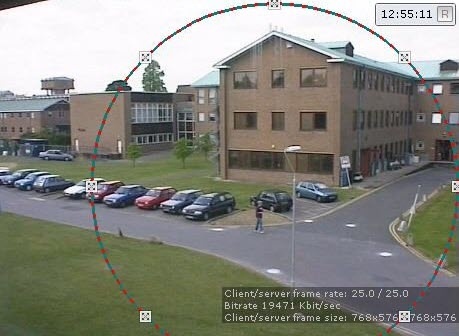
- Click the Apply button button.
After applying the settings, the area outside the circle will be is cut.
 and
and 
Configuration of the fisheye camera is complete.
Overview
Content Tools