
Go to documentation repository


Page History
To start creating create a report, click the Statistics  button.
A In the settings window opens. In this window, you can set the parameters needed to create the report.
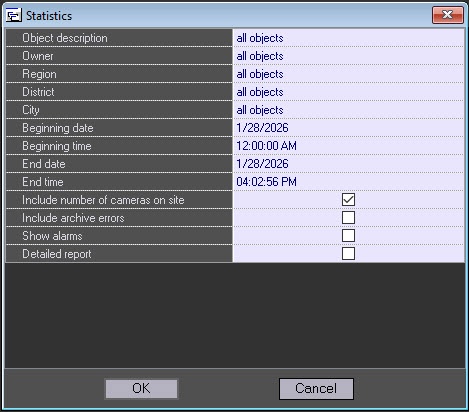
You can set the following report parameters:
that opens:
- From the Object description drop-down list, select one of three modes of creating a report
- The time range of the report. Use the Beginning date, Beginning time, End date, and End time fields.
- Object description. You can use this field to choose between two report modes:
- Report on all the system objects.

- Report on one system object.
- Report on all the system objects.
- Include number of cameras on site. If you select this check box, the non-readiness rates for the cameras and archives are calculated taking into account all the cameras of the object.
- Include archive errors. If you select this check box, the non-readiness rates for the the whole system are calculated taking into account the non-readiness rates for the archives.
- Show alarms. If you select this check box, alarm information from the object(s) is added to the report.
- If you set the Object description parameter to All objects, you can edit the Detailed report parameter. If you do NOT select this check box, a generalized statistical report on the system is created.
If you select the Detailed report check box, then Sorting, Sort, and Availability factor threshold parameters become available. In this case, a detailed statistical report on the system is created.
- Sorting. This field allows you to sort statistical data by certain criteria.

- Sort. Use this field to set the sort order (ascending or descending).

- If you select the Availability factor threshold check box, the Threshold value, % and Condition fields become available. Use this fields to sort objects by an additional condition, the threshold for the readiness rate.

- Threshold value, %. Use this field to set a threshold (between 0 and 100 %).
- Condition. Use this field to set an object filtering condition: lower than threshold or higher than threshold.
- Report on several system objects.
When you select a report on all objects or on several objects, the Detailed report checkbox is displayed. By default, the Detailed report checkbox is cleared, that is, the system creates the common statistic report. If you set the Detailed report checkbox, then the system creates a detailed statistic report and displays the Availability factor threshold, Sorting, and Sort parameters.- Set the Availability factor threshold checkbox to filter objects by the additional condition, the availability factor threshold value, to display the Threshold value, % and Condition parameters:
- In the Threshold value, % field, specify the threshold value as a percentage in the range from 0 to 100;
- From the Condition drop-down list, select the condition of objects filtering: lower than threshold or higher than threshold.
- From the Sorting drop-down list, select the sorting criterion.
- From the Sort drop-down list, select the sorting order: ascending or descending.

- Set the Availability factor threshold checkbox to filter objects by the additional condition, the availability factor threshold value, to display the Threshold value, % and Condition parameters:
- Report on one system object.
When you select a specific object,
- the Provide info about alarms and Provide info about failures parameters
- Report on several system objects.
After you configure all the parameters, click OK.
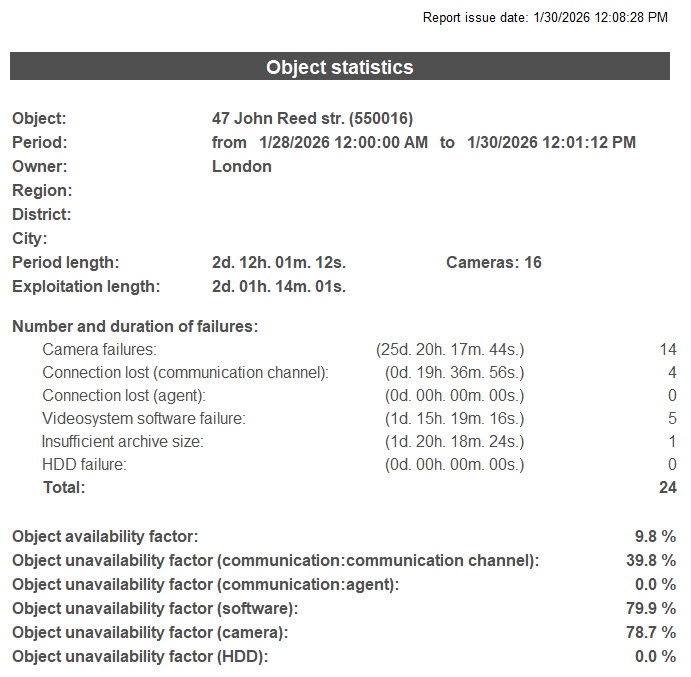
The following figure shows a sample report on one object.
- are displayed, where:
- Set the Provide info about alarms checkbox to include the detailed information about alarms on an object in a report.
- Set the Provide info about failures checkbox to include detailed information about failures on an object in a report.

- are displayed, where:
- Select the required values from the Owner drop-down list. This information is set on the control settings panel (for more details, see the Editing regulatory and reference information page), as well as depends on the configured filter by owners in the Monitoring reports interface object (for more details, see Configuration of the Monitoring reports object). If you select a specific object (see step 1), then this parameter is hidden in the settings window.
- From the Region, District, and City drop-down lists, select those regions, districts, and cities where the objects are placed. This information is set on the control settings panel (for more details, see the Editing regulatory and reference information page). If you select a specific object (see step 1), then this parameter is hidden in the settings window.
- Set the values of the Beginning date, Beginning time, End date, and End time fields to specify the time interval by which a report is created.
- Set the Include number of cameras on site checkbox to calculate unavailability factors, taking into account the total number of cameras on an object.
- Set the Include archive errors checkbox to take into account unavailability factors by archives when you calculate the unavailability factor of the entire system.
- Set the Show comment checkbox to add information about alarm events on system objects to a report.
- Click the OK button.
Example of a statistic report on one object:
The following figure shows an example of different failures at an object. Then readiness and non-readiness rates the object by which availability and unavailability factors are calculated.
This example uses the time  In this example, the statistic report is created during the period from 12 a.m. on February 1, 2005, to 12 p.m. on February 28, 2005, to create a statistical report. The readiness rate availability factor of an object is calculated as a ratio between the duration of the time period when the object was functioning and the duration of the time period used for the reportperiod by which a report is created:
Rr = Taf/(Taf+Tuf)
The following considerable types of failure (that take part in calculation) are used for reports:
- Connectionconnection;
- Core basic software;
- Cameras
- cameras.
In our example, the object unavailability factors for these failures The non-readiness rates of the object in our example are calculated according to the formulas given below formulas.Connection non-readiness
The unavailability factor of the (connection) object:
Rn_c = (Tuf_net_1 + Tuf_net_2)/(Taf+Tuf)
Software non-readinessThe unavailability factor of the (software) object:
Rn_sw = Tuf_soft/Taf+Tuf
Camera non-readinessThe unavailability factor of the (cameras) object:
Rn_cam = Tuf_cam/Taf+Tuf
Generally, in this the used model, the non-readiness rate Rn is not general Rn unavailability factor isn't equal to the sum of all the non-readiness rates for all unavailability factors by separate failures.
The following figure shows a sample the example of the general report for the entire system. The readiness and non-readiness rates in the report
Availability and unavailability factors are calculated as the arithmetic mean.

When you create a detailed report for the entire system, in addition to except for the general information page, you get a table that contains the table with detailed data for each object .
is displayed.
 If you select the Availability factor threshold check box when you create a detailed report for entire system, the first page looks as shown in the following figure.
| Note | ||
|---|---|---|
| ||
If you create a statistical report on all the objects and a number of failures for any object exceeds 1000 throughout the specified period exceeds 1000 for a particular object, then such , this object is excluded from the report. In this case, a statistic report across the entire system, however, it gets on the list of such problem objects is shown. |
Creating the statistical report is complete.
Overview
Content Tools